

On this page
- The short version
- What to post across a game week
- Game day graphic sizes by platform
- How to make game day graphics with AI, step by step
- 15 game day graphic ideas
- The best tools for game day graphics
- How to make a registration flyer
- How to make game day graphics faster with Krumzi
- Mistakes that waste a Friday night
- Your next game day post
- Frequently Asked Questions
You coach on Saturday, and you also run the club Instagram. By Friday night you're still in a template, swapping last week's opponent and hoping the kickoff time is right. That's how most game day graphics get made, and that's why so many of them look the same.
You don't need a designer, and you don't need a folder of 40 sports templates. You need a weekly system, the right sizes, and a way to turn a short brief into a post you can still edit.
By the end of this guide, you'll know what to post across a game week, which size to export, 15 graphic ideas you can reuse all season, and which tools actually help a volunteer finish the work in minutes.
The short version
- Write the week's facts first: the matchup, the kickoff time, the place, and the names you plan to post.
- Design the feed post at 1080 x 1350 pixels, and the story at 1080 x 1920.
- Make one graphic per job: a midweek hype post, the game day matchup, the lineup, the final score, and a player spotlight.
- Lock your team colors, your logo, and the exact spelling of every name, so next week starts from this week.
- When registration opens, make a letter-size flyer with a QR code, not just another square post.
What to post across a game week
A single "GAME DAY" post is not a system. Parents need the time and the place before they leave the house. Players want to see their name on the lineup. People who couldn't attend still want the score.
Think in jobs, not in templates. Each post answers one question.
Midweek, two or three days out. A hype or "coming up" graphic. Opponent, date, time, and venue. This is the reminder that puts the game on the family calendar.
The night before, or the morning of. The main game day graphic, plus a story version of the same design. Keep the time and the place large enough to read on a phone.
About an hour before kickoff. The starting lineup. Include the substitutes. A kid whose name is missing will notice.
After the whistle. The final score, posted while people are still thinking about the game. Same look as the matchup, so the feed feels like one club.
Later the same day. A player spotlight, or a short recap. One strong photo beats a collage of six blurry ones.
As needed through the season. The schedule, a registration or tryouts flyer, a fundraiser, a weather or time-change notice, and a teaser for next week.
Here's a simple week plan you can copy. We'll use Maple Ridge FC, a made-up U12 soccer club, as the example through the rest of this article. This Saturday they play Lakeside United at 10:30 a.m. on County Field 2.
| When | Graphic | Where it goes |
|---|---|---|
| Tuesday or Wednesday | Hype / coming up | Feed |
| Friday night or Saturday morning | Game day matchup | Feed, plus a story |
| About an hour before kickoff | Starting lineup | Feed or story |
| Right after the game | Final score | Feed and story |
| Later the same day | Player spotlight | Feed |
| When sign-ups are open | Registration flyer | Print, plus a feed post |
Youth sports graphics follow the same pattern whether you run soccer, baseball, basketball, or a rec league with three age groups. The information changes. The jobs do not.
Game day graphic sizes by platform
For most game day graphics, export 1080 x 1350 pixels for the Instagram or Facebook feed, and 1080 x 1920 for Stories, Reels, and TikTok. Instagram's help article on photo resolution says feed photos go up to 1080 pixels wide, with an aspect ratio between 1.91:1 and 3:4. If you only make one size, make the 4:5 feed post first.
That 4:5 rectangle, 1080 x 1350, sits inside Instagram's allowed range and fills more of a phone screen than a square. It's also the size we recommend for a single Facebook image in our Facebook post size guide. Meta does not publish a separate spec for organic feed posts, so this is the practical size to standardize on.
Stories, Reels, and TikTok all use a 9:16 frame. Export 1080 x 1920. Instagram's own Reel size guidance allows aspect ratios from 1.91:1 to 9:16, with a minimum resolution of 720 pixels, so a 1080 x 1920 file is a safe full-screen export. Leave a little room at the top and bottom of Stories so the username bar and the reply field don't cover the kickoff time.
A square 1080 x 1080 post is a decent fallback when you need one file that also looks fine on X. Don't make it your only size. The time and the venue shrink too much once the story crops it.
| Placement | Size | Ratio |
|---|---|---|
| Instagram or Facebook feed | 1080 x 1350 px | 4:5 |
| Instagram Stories and Reels | 1080 x 1920 px | 9:16 |
| TikTok | 1080 x 1920 px | 9:16 |
| Square fallback | 1080 x 1080 px | 1:1 |
| Registration flyer (US) | 8.5 x 11 in (Letter) |
For the full list of platform sizes, including profile photos and cover images, see our social media image size guide.
Build the feed post first. Then make a story version with the same colors, logo, and facts, reflowed for the taller frame. Don't crop a 4:5 design down to 9:16 and hope the time survives.
How to make game day graphics with AI, step by step
We'll design Maple Ridge FC's week the whole way through: the Saturday matchup, a story, the final score, and a player spotlight. The steps stay the same for baseball, basketball, or a high-school program.
Step 1: Gather the week's facts
Write the facts down before you open a design tool. For Maple Ridge, that's:
- U12 vs Lakeside United
- Saturday, April 18, 10:30 a.m.
- County Field 2
- Home colors: forest green and gold
- One action photo, plus the club logo as a PNG
If you're posting a lineup, paste the names and numbers from the roster, not from memory. If the kickoff moves, update this list first, then the graphic.
Step 2: Set the size before you design
Create the feed post at 1080 x 1350. Create the story at 1080 x 1920. If you start on a random square canvas, you'll spend the next 20 minutes fixing crops.
Step 3: Write one sentence per graphic
Don't start with a blank canvas, and don't go hunting for a "soccer game day" template. Write the job in one or two sentences, and include every fact that has to appear exactly.
For the matchup:
"A game day graphic for Maple Ridge FC U12 vs Lakeside United, Saturday April 18 at 10:30 a.m. on County Field 2. Forest green and gold, club logo in the corner, our player photo in front. Big readable type for the time and the place."
For the final score, after the game:
"Same look as today's game day post. Final score: Maple Ridge FC 3, Lakeside United 1. Next game Saturday, April 25, 10:30 a.m., County Field 2."
For the spotlight:
"Player spotlight for Maya Chen, number 8, midfielder, two goals today. Forest green and gold, her photo, short and bold, no tiny stats wall."
Maya Chen is a made-up player, same as the club. When you do this for a real roster, type every name exactly as the family spells it.
Step 4: Generate the design, then fix only what needs fixing
If you'd rather not rebuild every post by hand, Krumzi turns that brief into an editable design in your team colors. Upload the logo and the action photo with the brief. The layout is built from what you wrote, not filled into a shared template.
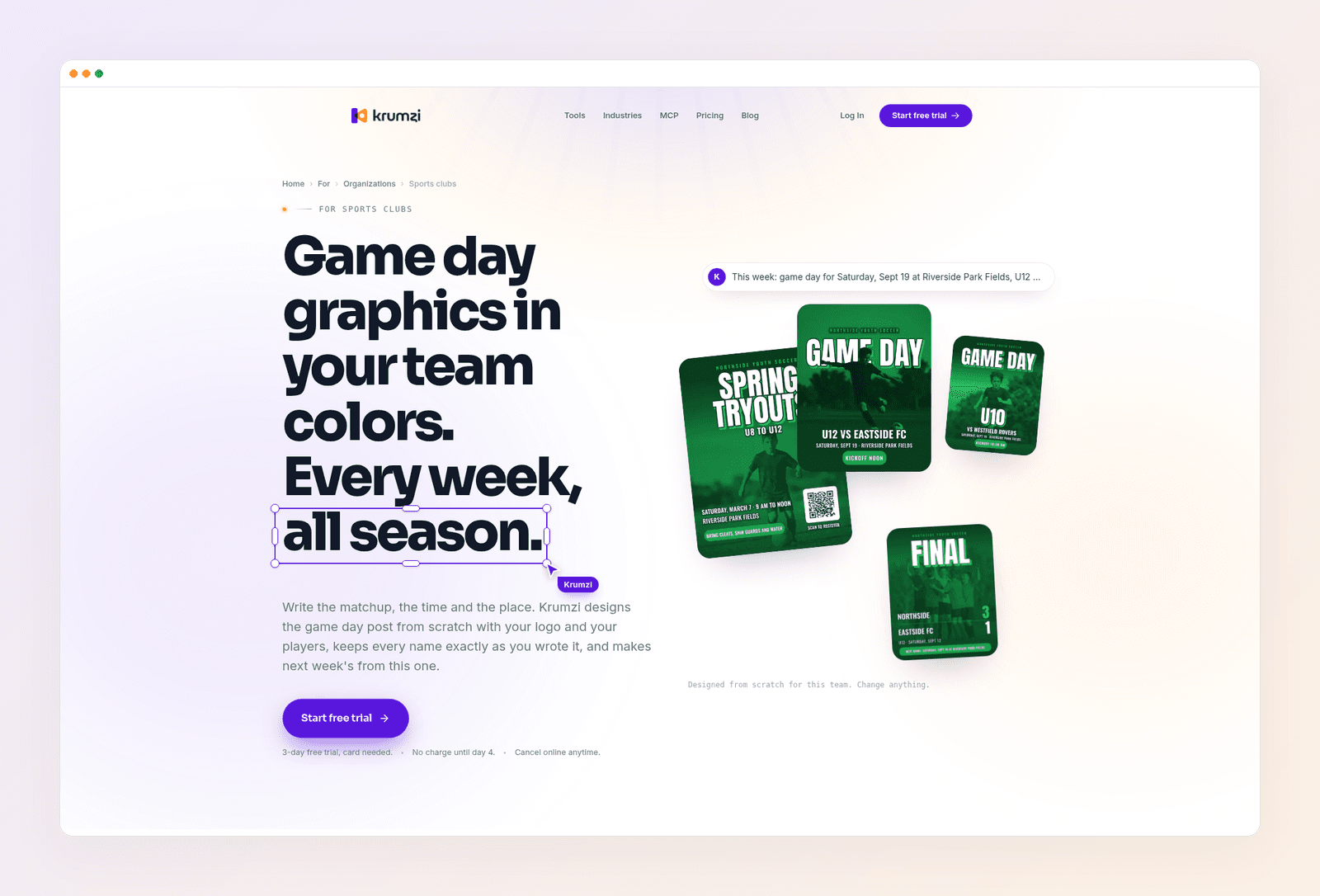
Once the first version lands, click the time, the opponent, or the photo and change it. If the kickoff moves to 11:00 a.m., change that one line. You shouldn't have to regenerate the whole graphic to fix a typo.
Save this design as the starting point for next week. New opponent, new date, same look.
Step 5: Check it at phone size
Open the preview and read it at roughly the size of a phone screen. If you can't read the time, it's too small. If the story crop cuts the venue, move that line up. Check every name against the roster.
Then export the feed post and the story as PNG files. If you also need a printed handout, export a print-ready PDF at Letter size. We'll do that for registration in a later section.
Step 6: Post on a schedule, not in a panic
Post the hype graphic midweek. Schedule the game day feed post for Friday evening or Saturday morning. Post the story on the morning of the game. Have the lineup ready about an hour before kickoff. Post the score as soon as you have it.
Krumzi can schedule to Instagram and Facebook from the editor, which saves a second upload on a phone in the parking lot. A PNG in your camera roll works too, if that's the habit your volunteer already has.

15 game day graphic ideas
Use this as a season menu, not a checklist you have to finish every weekend. A small club can run the week on five of these: hype, matchup, lineup, final score, and a spotlight. Add the others when the week calls for them.
- Midweek hype. "This Saturday" plus the opponent, the time, and the place. Post it while families are still planning the weekend.
- Game day matchup. The main feed post. Both team names, the date, the kickoff time, the venue, and one strong photo. This is the graphic people screenshot and send to a group chat.
- Game day story. The same facts, reflowed at 1080 x 1920, posted the morning of the game. Keep the time away from the top and bottom edges.
- Starting lineup. Names and numbers, including the substitutes. Post it about an hour before kickoff, after the coach has confirmed it.
- Kickoff. A short "we're underway" story. Useful when grandparents are following from home.
- Halftime score. The current score, same colors as the matchup. Parents who couldn't get there yet will look for this.
- Goal or big play. One photo, the player's name, and the new score. Don't wait until Sunday to post it.
- Final score. The result, the two names, and, if you have it, the next game. Match the look of the earlier posts so the feed is obviously yours.
- Player spotlight. One player, one photo, one or two lines. Rotate through the roster over the season so the same three kids aren't on every graphic.
- Season schedule. Dates, opponents, and venues in one graphic, or a short carousel. Update it when a game moves, and pin it.
- Registration or tryouts flyer. A Letter-size print piece plus a feed post, with a QR code to the sign-up form. More on this below.
- Fundraiser. What you're raising money for, the date, how to give, and a clear next step. Keep it in the same team colors as the game posts.
- Weather or time change. The new time or the postponement, in type large enough to read at a glance. Post this as a story and a feed post. Speed matters more than decoration.
- Post-match recap. A carousel or a single graphic: final score, a couple of moments, and a thank-you to the families who came.
- Next-game teaser. Made from this week's matchup: new opponent, new date, same layout. This is how you stop rebuilding the graphic from scratch every Friday.
The best tools for game day graphics
Most clubs already have a tool. The question is whether it helps you finish a week of posts in your colors, or whether it just hands you another template that three other local clubs are also using.
Krumzi. You describe the game, add your logo and photos, and get a layered design back. Brand Mind, which learns your look, is on every plan. The Brand Kit (logo, colors, fonts applied automatically) and more than one brand are on Pro and up, which matters if you run U10 and U12 as separate looks. Starter is $19 a month. Pro is $39 a month. There's a 3-day trial on Starter, Pro, and Studio, with a card, 500 credits, and watermarked exports. Agency is priced with you, and has no trial. See current prices.
Adobe Express. A solid template app with a capable free plan. If your athletic director already pays for Creative Cloud, Express Premium is likely in that plan. On its own, Premium is about $9.99 a month. It's fast when you want a ready-made sports layout. It's less helpful if you're tired of looking like every other club that picked the same one.
PosterMyWall. A template library with a lot of posters, flyers, and event graphics, plus social scheduling on paid plans. Premium is about $13 a month, or $109 a year. It's a reasonable pick if print posters are most of the job. If you're comparing it as a weekly design tool, see our PosterMyWall alternative.
VistaCreate. A template tool aimed at small teams. The Pro plan is about $10 a month when you pay yearly, or $13 a month billed monthly, and it covers up to 10 people. Fine if several volunteers share one template set. You're still starting from a library, not from this week's brief.
Kittl. Strong on typography, lettering, and print-ready files. Pro is $15 a month, or $144 a year. It's a better fit for merch and posters than for a Saturday morning score graphic. Weigh it against our Kittl alternative if print files are the main job.
Desygner, now sold as automo designer. A template suite with a free plan (no card, a few users in the workspace) and a Business plan from around $19 per user a month. Verified schools and charities can get a free upgrade, which may help a school-affiliated program. For a parent-run rec club, confirm that you actually qualify before you plan around it.
Canva still shows up in every conversation about this. It has a huge sports-template library, and many volunteers already know it. Canva Pro is $18 a month, or $144 a year for one person, in Style Factory's 2026 Canva pricing breakdown. If your club already lives in Canva and the graphics look consistent, keep it. If every weekend starts with "which template this time?", it's the habit that's slow, not your volunteer.
Prices as of November 2026.
| Tool | Best for | Starts from | Paid plan, from |
|---|---|---|---|
| Krumzi | Weekly posts in your colors, from a brief | A sentence, plus your logo and photos | $19/mo |
| Adobe Express | Quick template posts, especially with a Creative Cloud plan | Templates | about $9.99/mo |
| PosterMyWall | Posters, flyers, and event graphics | Templates | about $13/mo |
| VistaCreate | Small teams sharing one library | Templates | about $10/mo, billed yearly |
| Kittl | Type-heavy merch and print files | Templates and lettering tools | $15/mo |
| Desygner (automo designer) | Teams that want a generous free plan | Templates | about $19/user/mo |
When a template still wins
A locked template set still wins when the club already has a design language and the only job is swapping the opponent and the date. School programs that pay for a sports-graphics pack (Gipper, Box Out, and similar) often want that kind of fill-in workflow, and that's a fair use of a template.
A template is a weak fit when three clubs in the same league are posting the same layout, when you need a story and a flyer from the same look, or when last week's date keeps surviving into this week's post because nobody rebuilt it from the facts.
For printed posters at game-day size, our AI poster makers guide goes deeper on the print side. For flyers, see the AI flyer makers guide.
How to make a registration flyer
Registration is the one job in this system that has to work on a phone and on a school noticeboard. A square Instagram post is not a flyer. Print it at US Letter, 8.5 x 11 inches, and make a 1080 x 1350 companion post for the feed.
Put the facts in this order, large type first:
- The club name and the program (Maple Ridge FC, spring U12 registration)
- Who it's for (birth years or age groups)
- When and where (dates, times, County Field 2)
- What it costs, and what's included
- The deadline
- A QR code that opens the sign-up form, plus the short URL in plain text underneath, in case the print is a bit muddy
Don't hide the date in a paragraph. Don't send people to a six-page website menu. Test the QR code from a printed page, not only from your screen. Our guide to adding a QR code to a flyer covers size, placement, and a scan test that saves a wasted print run.
You can make the flyer the same way you made the matchup: one sentence with every fact, your logo, and a Letter-size canvas. The AI flyer maker is the starting point if you want a first version from a brief. For a longer walkthrough, from prompt to the posts that promote the flyer, see how to make a flyer with AI.
Export a print-ready PDF for the noticeboard and a PNG for the feed. Keep both in the same colors as your game day graphics, so registration looks like it came from the same club.
How to make game day graphics faster with Krumzi
Once you've written a week this way, most of the time is in the facts, not in the layout. Here's how the product maps onto the steps above.
Step 1, once per club. Add the logo, the colors, and the fonts to the Brand Kit (Pro and up). Brand Mind, on every plan, learns from the designs you keep. If you run more than one team, give each team its own brand so the U10 feed and the U12 feed don't drift.
Steps 3 and 4, every week. Paste the brief, attach this week's photo, and generate the feed post. Then generate the story as a second size, or ask for a version in 1080 x 1920. Names, dates, and kickoff times stay as you typed them. Check them anyway.
Step 5. Click any line to fix a typo, swap the photo, or move the logo. If you add an action shot, you can lift the player off the background so the team name or the score can sit behind them.
Next week. Open this week's design, change the opponent and the date, and export again. Don't start from a new blank brief unless the look needs a refresh.
Print. Download a PDF when you need a flyer or a short program. Trial exports are watermarked and come out smaller until a paid plan starts.
Mistakes that waste a Friday night
Leaving last week's date on the graphic. It happens when you duplicate a template and change only the opponent. Write the facts first, then check every number at phone size.
Making the kickoff time too small. The time and the place are the reason the post exists. If they lose to a decorative headline, the design failed.
Cropping a feed post into a story. The 4:5 layout is not a 9:16 layout. Reflow it, or the venue ends up under the reply field.
Using six fonts, or a new color palette every week. One bold typeface for headlines, one plain one for details, and your two team colors. That's enough.
Posting only the matchup. The score and a spotlight are what families share. A week with no result looks like the club went quiet.
Rebuilding from scratch every Friday. The second week should start from the first. If your tool makes that hard, the tool is the problem.
Your next game day post
Pick this week's game. Write one sentence with the opponent, the time, and the place. Set the canvas to 1080 x 1350. Make the story after the feed post, not before. If registration is open, make the Letter-size flyer in the same colors, with a QR code you've already scanned from a print.
Want the design part done for you? Start a free trial and describe your first game day post.
3-day free trial, card needed. No charge until day 4. Cancel online anytime.
Frequently Asked Questions
What should a game day graphic include?
The two team names, the date, the kickoff time, the venue, and one strong photo. Keep the time and the place large enough to read on a phone. The caption can carry parking notes, gate fees, and sponsor mentions. The graphic itself should answer who, when, and where in a couple of seconds.
What size should game day graphics be?
Use 1080 x 1350 pixels for the Instagram or Facebook feed, and 1080 x 1920 for Stories, Reels, and TikTok. Instagram accepts feed photos up to 1080 pixels wide, with an aspect ratio between 1.91:1 and 3:4. If you only make one size, make 1080 x 1350 first, then build a separate story version.
How do you make game day graphics quickly?
Write the facts first, then describe one graphic at a time in a short brief. Generate the design, check the names and the time at phone size, and save it as the starting point for next week. The slow way is browsing templates every Friday and swapping last week's opponent by hand.
What is the best app for youth sports graphics?
It depends on whether you want to fill in a sports template or start from this week's brief. Canva, Adobe Express, PosterMyWall, and VistaCreate are all template-first and are fine if your club already has a locked layout. Krumzi is the better fit when you want a new, editable design in your team colors from a sentence, a logo, and a photo.
Can I use the same tool for a registration flyer?
Yes, if the tool can export a print-ready Letter-size PDF and a square or 4:5 social post from the same look. That's the test. A tool that only makes Instagram templates will force you to rebuild the flyer somewhere else. Add a QR code to the sign-up form, and scan a printed copy before you put it on a noticeboard.
Do I need a different graphic for every platform?
You need two shapes, not six tools. Make a 4:5 feed post and a 9:16 story. Those two cover Instagram, Facebook, Reels, and TikTok. A square 1080 x 1080 file is an optional fallback. Don't design a new layout for every network if the facts and the colors are already set.
A month of posts, designed before your coffee cools
Describe the post. Krumzi designs it from scratch, on your brand, fully editable.
Start free trial3-day free trial, card needed. No charge until day 4. Cancel online anytime.


