On this page
- The short version
- What an AI design tool that gives editable layers actually means
- What to look for in an AI design tool with no templates
- The best AI graphic design tools with no templates, ranked by editability
- Midjourney and Ideogram give you a flat image
- How the tools compare
- A Canva alternative that is not template based
- How to pick: run the one-word test
- When a flat image is still the right call
- Frequently Asked Questions
You asked for the best AI graphic design tool with no templates, and the answers split in two. Some tools hand you a picture. Some hand you a layout. The difference shows up the first time you need to change one word.
A flat image looks finished until the headline is wrong, the date moves, or the offer changes from 20% to 30%. Then you are stuck regenerating, or tracing the design by hand in another editor. Template tools avoid that problem, but they start from layouts other people can pick too. That is why the same question keeps coming up: you want a Canva alternative that is not template based, and you want an AI design tool that gives editable layers instead of a flat image.
This ranking orders those tools by how editable the output is, from a full layout you can retype to a picture you can only generate again. You will also see where reconstruction features fit, and when a flat image is still the right call.
The short version
If you want an AI graphic design tool with no templates, pick one that builds the layout from your brief and returns live text, shapes, and images you can change. Image generators such as Midjourney and Ideogram still give you a flat picture. Reconstruction features can un-flatten lettering later, but they start from pixels.
What an AI design tool that gives editable layers actually means
A layered design is a file made of separate objects. The headline is text you can retype. The photo is a photo you can swap. The colored shape is a shape you can move. Change one piece and the rest stay put.
A flat image is a sheet of pixels. The letters are painted into the picture, the same way a photograph of a street sign contains words you cannot select. WCAG's rule on images of text exists for this reason: if the technology can present real text, use real text, because people need to change size, color, and spacing. That is also why a marketing headline baked into an image is fragile. You cannot fix a typo, swap your brand font, or raise the contrast without covering the old letters or generating a new picture.
The tools in this category fall into three groups.
Native layered output. You describe the design, or you work in a real editor, and text stays text. This is what you want for weekly posts, ads, flyers, and anything whose copy will change.
Reconstruction. The tool starts with a finished picture, then tries to recover text or objects as layers. Useful when you already have a flat file. It is not the same as designing in layers from the start, and curved or decorative type is where these features struggle.
Flat output. The tool returns an image, a clip, or a vector drawing. You can download it. You cannot click the headline and rewrite it, unless you add text later in another editor.
That split also explains the broader AI versus template choice. Templates give you layers, but not an original layout. Image generators give you originality, but not layers. The interesting tools sit in the middle: they compose something new, and they leave you a file you can finish.
What to look for in an AI design tool with no templates
Ignore the homepage claim that everything is "AI design." Ask what the file is made of after you press generate.
Live text. You should be able to click the headline, change one word, and keep the font. If the only fix is a new prompt, you have a picture.
A layout that was composed for your brief. A template library can still hide behind a prompt box. If the first step is "pick a layout," you are not using a no-template tool.
Every object stays an object. Photos, shapes, icons, and effects should move independently. Recovering the letters but leaving the rest of the artwork fused together is only half the job.
Your actual fonts and colors. Approximating a "modern sans" is not the same as using the typeface you already paid for.
A sane export. You need PNG or JPG for social, PDF for print, and SVG only if your next step is a vector tool. Some reconstruction workflows never give you an editable file back out. They export another picture.
If text is the part you keep fighting, our guide to adding readable text to AI images walks through the three practical workflows, including why separating type from the picture is the one that scales.
The best AI graphic design tools with no templates, ranked by editability
These are the tools people get pointed to when they ask for editable layers or a design tool without templates. The order is about the file you walk away with, not about who makes the prettiest picture.
1. Krumzi
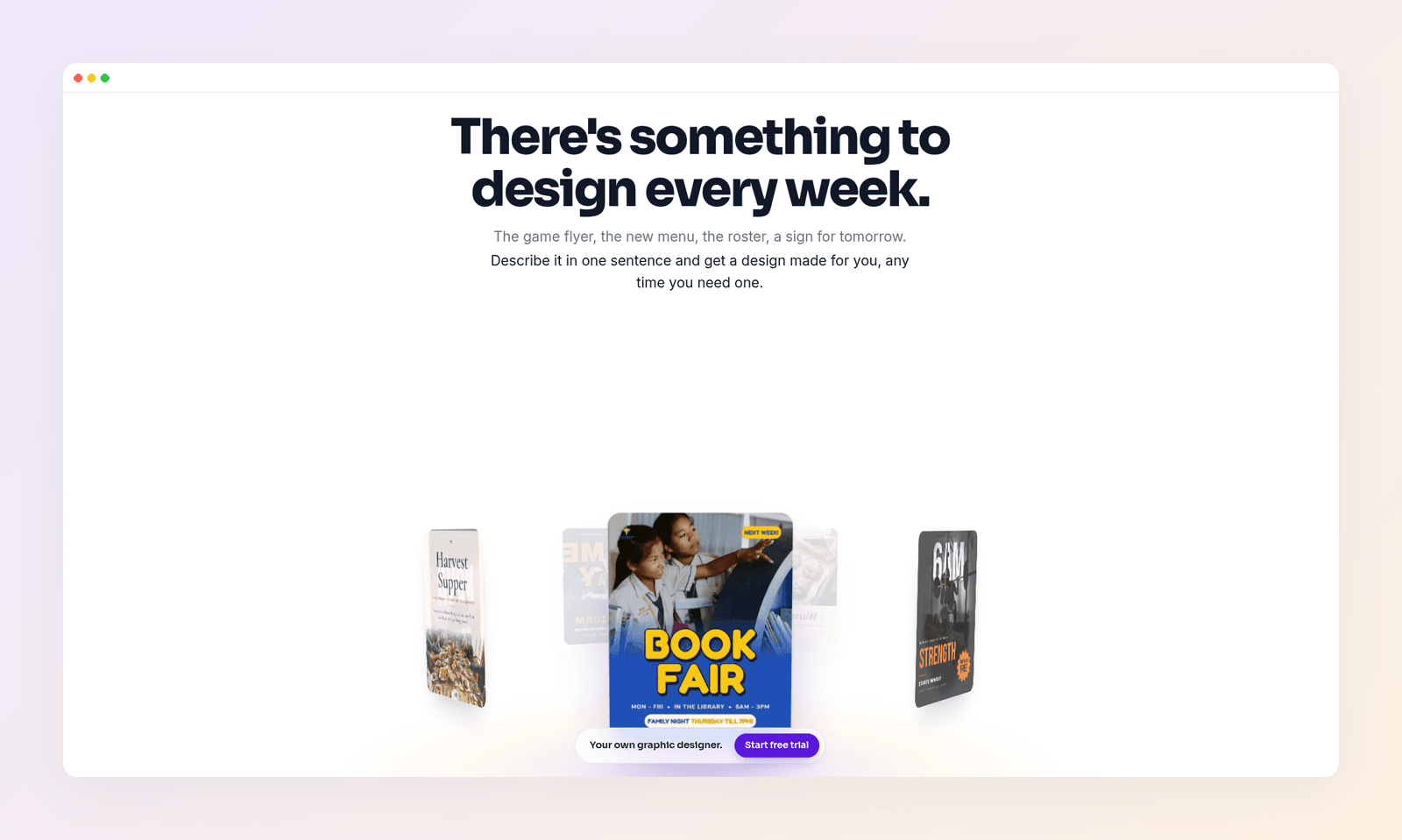
Krumzi is built for the job this question describes. You write a sentence about the post, flyer, thumbnail, or carousel you need. The AI composes the layout from scratch. There is no template library to pick from. What comes back is a real design file: live text, real shapes, your photos placed in the layout, and effects you can still adjust. The first design typically takes under 60 seconds. After that you can chat a change ("make the headline bigger," "use the orange from my logo") or open the editor and move anything by hand.
That is the difference between a picture of a sale post and a sale post. Brand Mind, which learns how your brand should look and sound, is on every plan. Brand Kit (your logo, colors, and fonts applied automatically) is on Pro and up. Exports cover PNG, JPG, and PDF, plus video up to 4K on Pro and up. There is no SVG export, so this is not a replacement for a print-on-demand vector pipeline.
Best for: Marketers, coaches, and small teams who want a finished graphic from a brief, then the option to change any part of it.
Key features: Designs from scratch with no template library. Live text, shapes, images, and effects. Chat iteration plus a full layer editor. Brand Mind on every plan. Carousels, documents, and (on Pro and up) video.
Pricing: Starter is $19 a month, Pro is $39 a month, and Studio is $89 a month. Agency is priced with you. Starter, Pro, and Studio include a 3-day free trial, card needed, with 500 credits and watermarked exports. You pay nothing until day 4 unless you cancel.
2. Figma AI
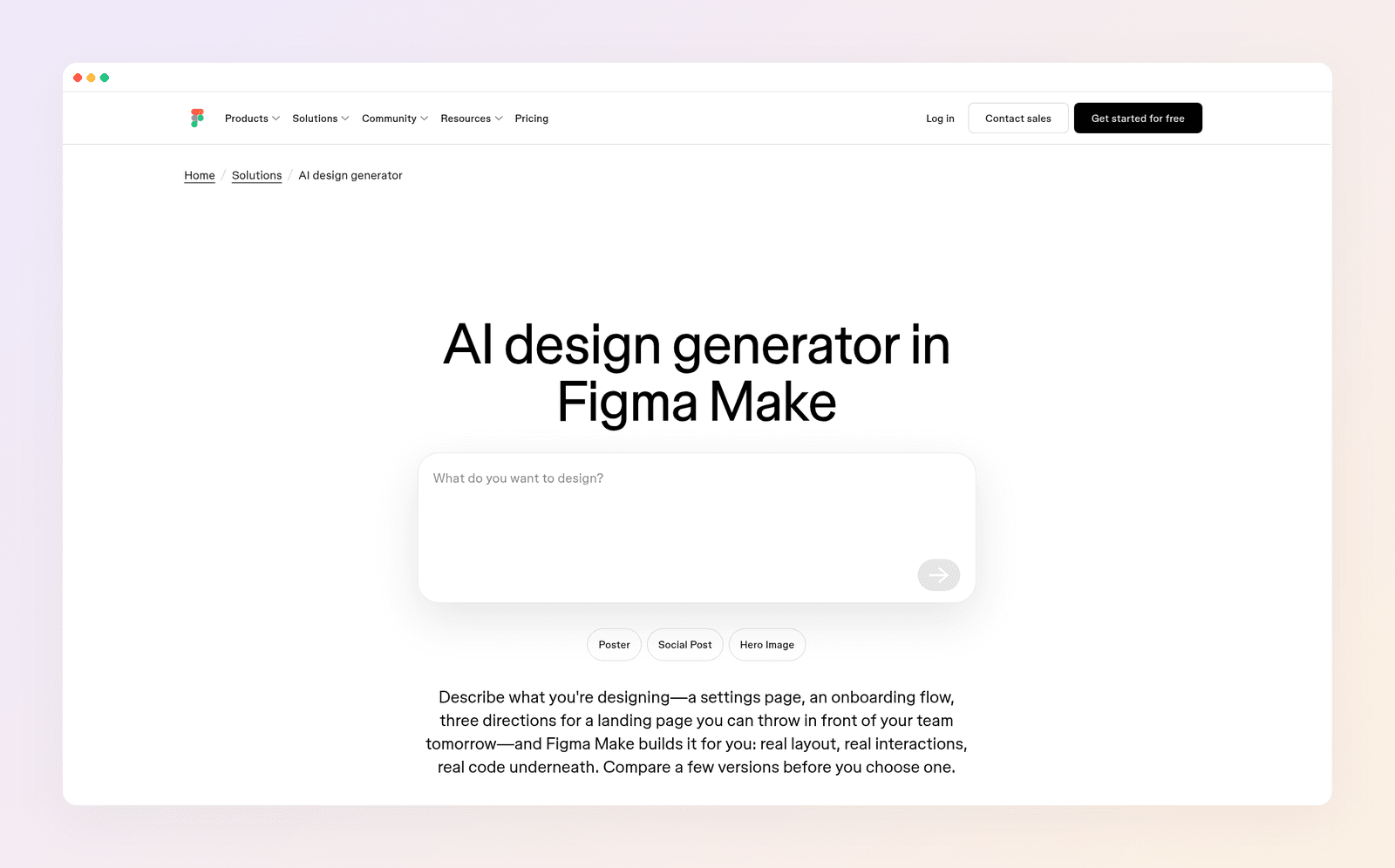
Figma's AI features, including First Draft and the newer Figma agent, produce real Figma layers. Text is text. Frames, components, and auto layout behave like anything else you would build by hand. If raw editability is the only score that matters, this is as close as AI output gets to a professional design file.
It is not a no-template marketing tool. Figma says First Draft uses Figma-built wireframing and design libraries as the foundation, and that those libraries are strongest on common website and mobile-app patterns. Prompts like a birthday invitation or a flyer in an unusual shape are where it goes awry. You also cannot point it at your own design system today. Figma Buzz, the marketing-asset product, is a separate template workflow. Use Figma AI when the deliverable is a UI or a product page, not this week's promo post.
Best for: Product designers who want a first UI draft as real layers, then want to finish it in Figma.
Key features: Native editable frames and text. Prompted revisions plus style controls for color, type, spacing, and radius. Strongest on website and app patterns. Figma export formats (PNG, JPG, SVG, PDF) once the file is in Design.
Pricing: Starter is free, with a monthly AI credit cap. A Professional Full seat is $16 a month and includes 3,000 AI credits.
3. Kittl
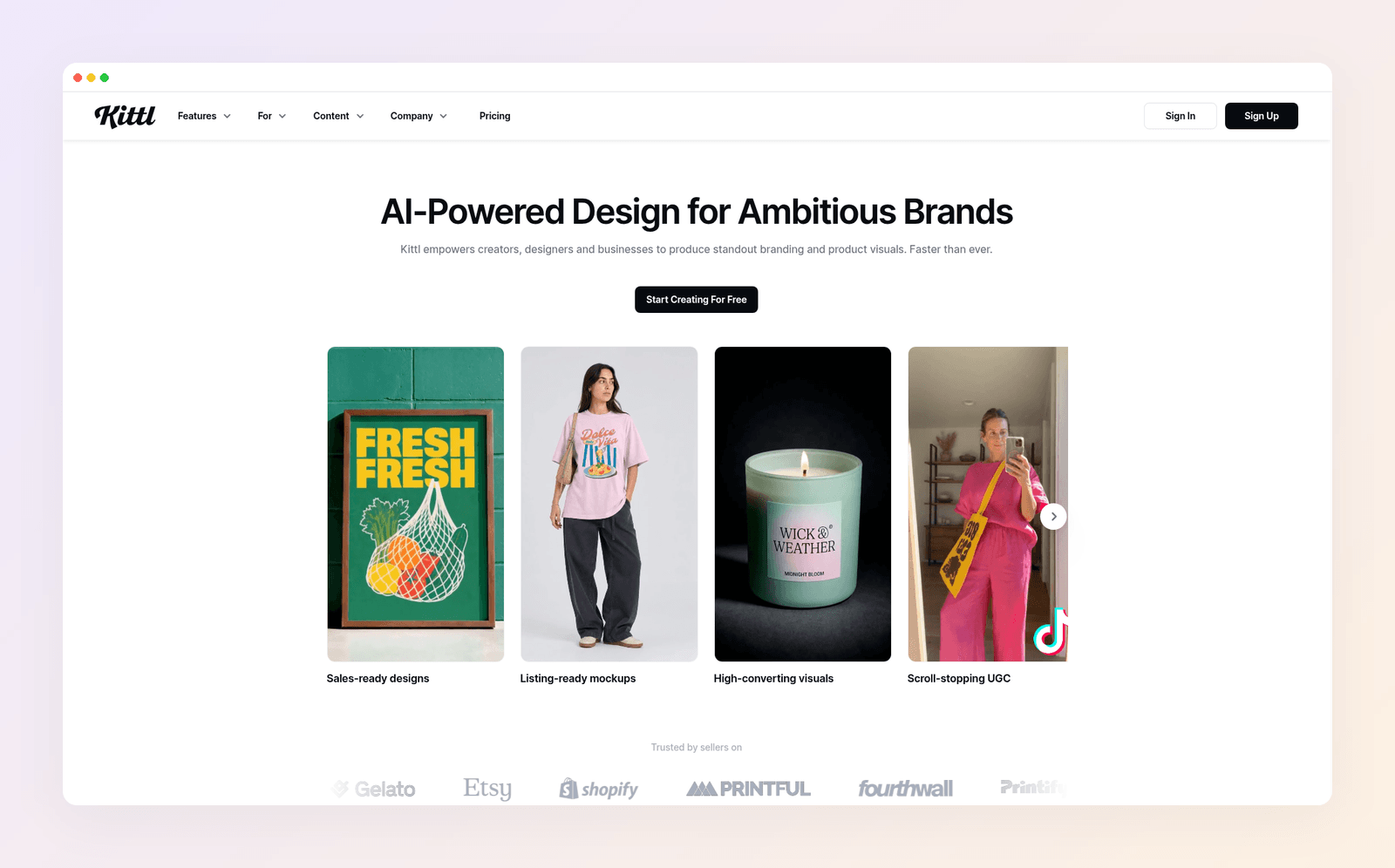
Kittl is a strong vector editor with excellent lettering tools, and everything you place on the canvas stays editable. Paid plans export high-resolution files plus SVG and PDF. If you like working on a canvas, this is a serious one.
The AI is not what composes the post. Kittl's AI generates images, vectors, and video clips that you then arrange, and the product still leans on a large template library (thousands of premium templates and mockups on paid plans). Brand kits sit on the Expert tier and up. Unused AI tokens do not roll over. For print-on-demand, logos, and decorative type, stay here. For a social post from one sentence, you are still the designer.
Best for: Merch, lettering, logos, and print-grade vector work where you want AI assets inside a real editor.
Key features: Full vector canvas with live text. AI image, vector, and clip generation. SVG and PDF export on paid plans. Commercial license on paid tiers, with a copy cap on Pro and Expert.
Pricing: Free plan available for personal use. Pro starts from around $15 a month.
4. Gamma
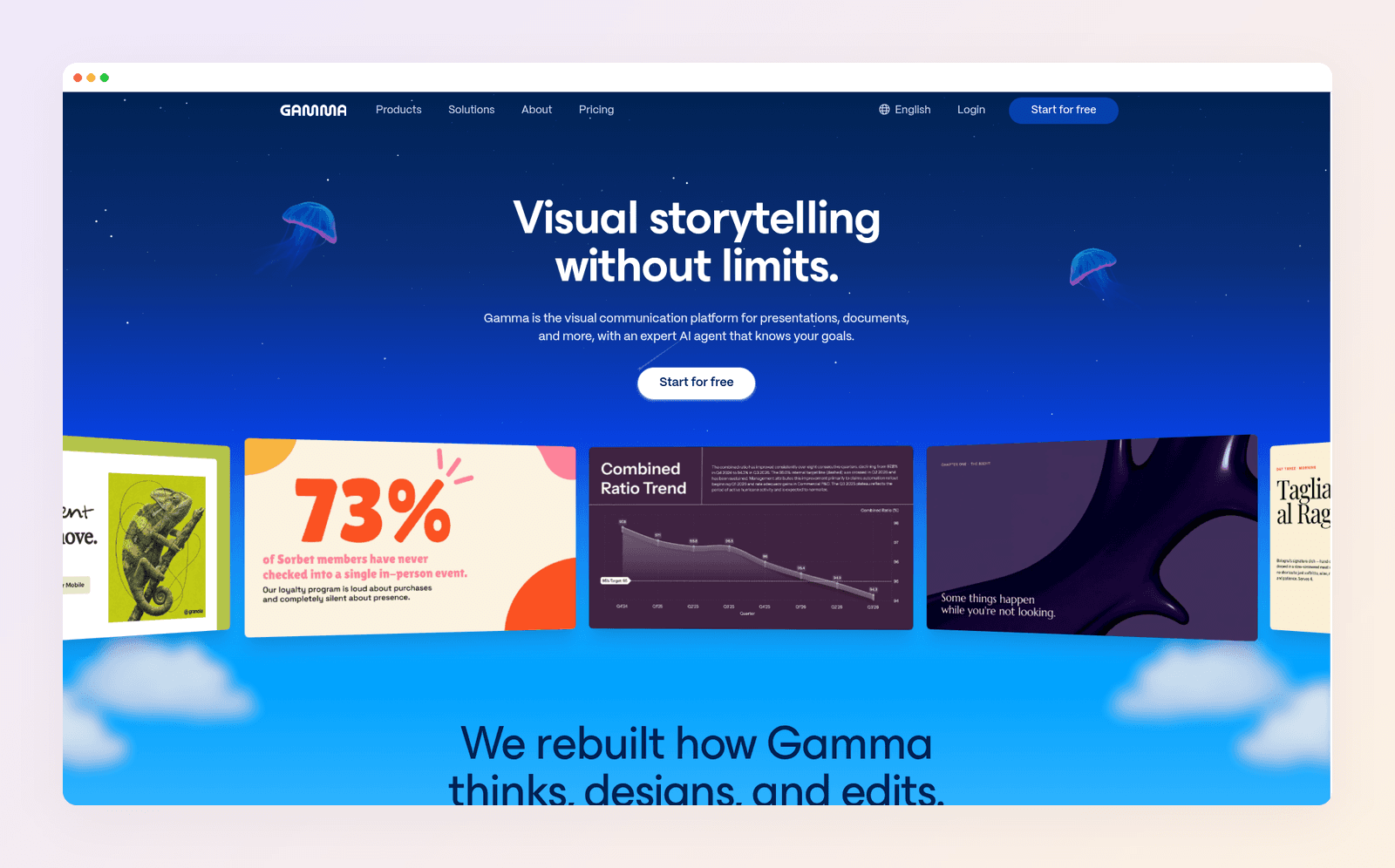
Gamma is the honest pick when the deliverable is a deck, a document, or a simple webpage rather than a poster. You describe what you need and get editable cards with real text you can rewrite, restyle, and rearrange. Exports include PDF, PowerPoint, PNG, and Google Slides (by uploading the PowerPoint file). The Free plan caps you at 10 slides per prompt and stamps exports with a Gamma badge.
It is not trying to be a general graphic design tool. The structure is a sequence of cards, not a freeform social canvas, and the AI charges credits for generation and a number of edits. If you need a pitch deck from a brief, Gamma belongs on the list. If you need an Instagram sale post, look higher.
Best for: Presentations, one-pagers, and simple sites where editable cards matter more than a custom poster layout.
Key features: Prompt-to-deck (and document or webpage) with live text. Manual editing after generation. PDF, PPTX, PNG, and Google Slides export.
Pricing: Free plan available. Plus starts from around $12 a month.
5. Canva Magic Layers
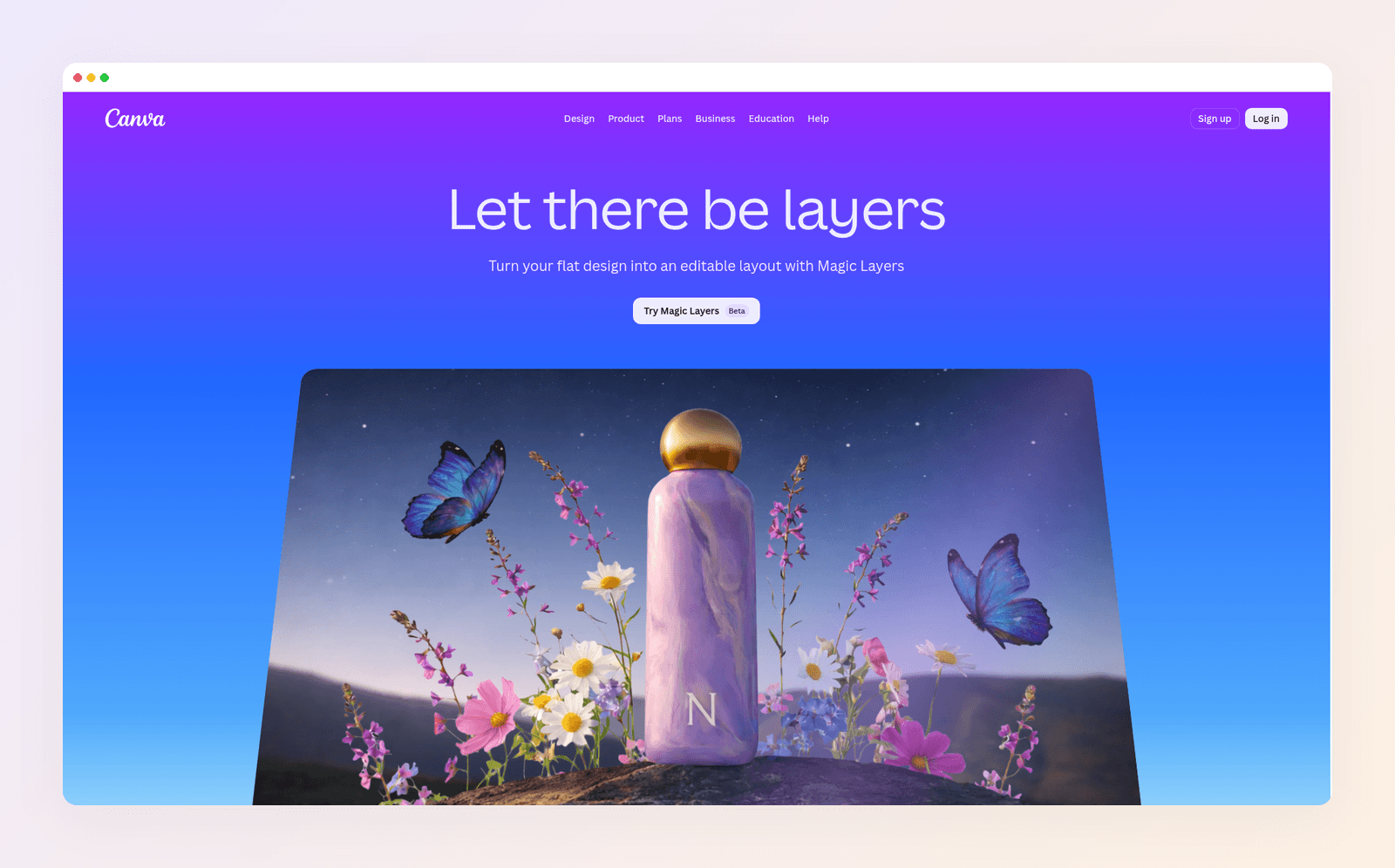
Magic Layers is Canva's answer to the flat-image problem, not a no-template design generator. You upload a PNG or JPG (Canva recommends those formats), and Magic Layers rebuilds it as a Canva layout you can select, move, and edit. Detected text becomes text you can rewrite and restyle. Canva also describes it as a premium AI feature that counts toward your monthly AI allowance.
This is reconstruction. It starts from pixels, then gives you a working Canva file. That is genuinely useful when you already like an AI image and need to fix the copy. It does not turn Canva into a no-template tool. Canva's own Magic Design flow still recommends and fills templates. If you want the longer split against that workflow, see Krumzi vs Canva.
Best for: People who already have a flat AI image and want to recover editable text and objects inside Canva.
Key features: Turns a flat PNG or JPG into a Canva layout. Detected text becomes editable. Objects can be moved, recolored, and resized. Uses your Canva AI allowance.
Pricing: Free Canva plan available. Magic Layers is a premium AI feature. Canva Pro starts from around $15 a month.
6. Codia AI
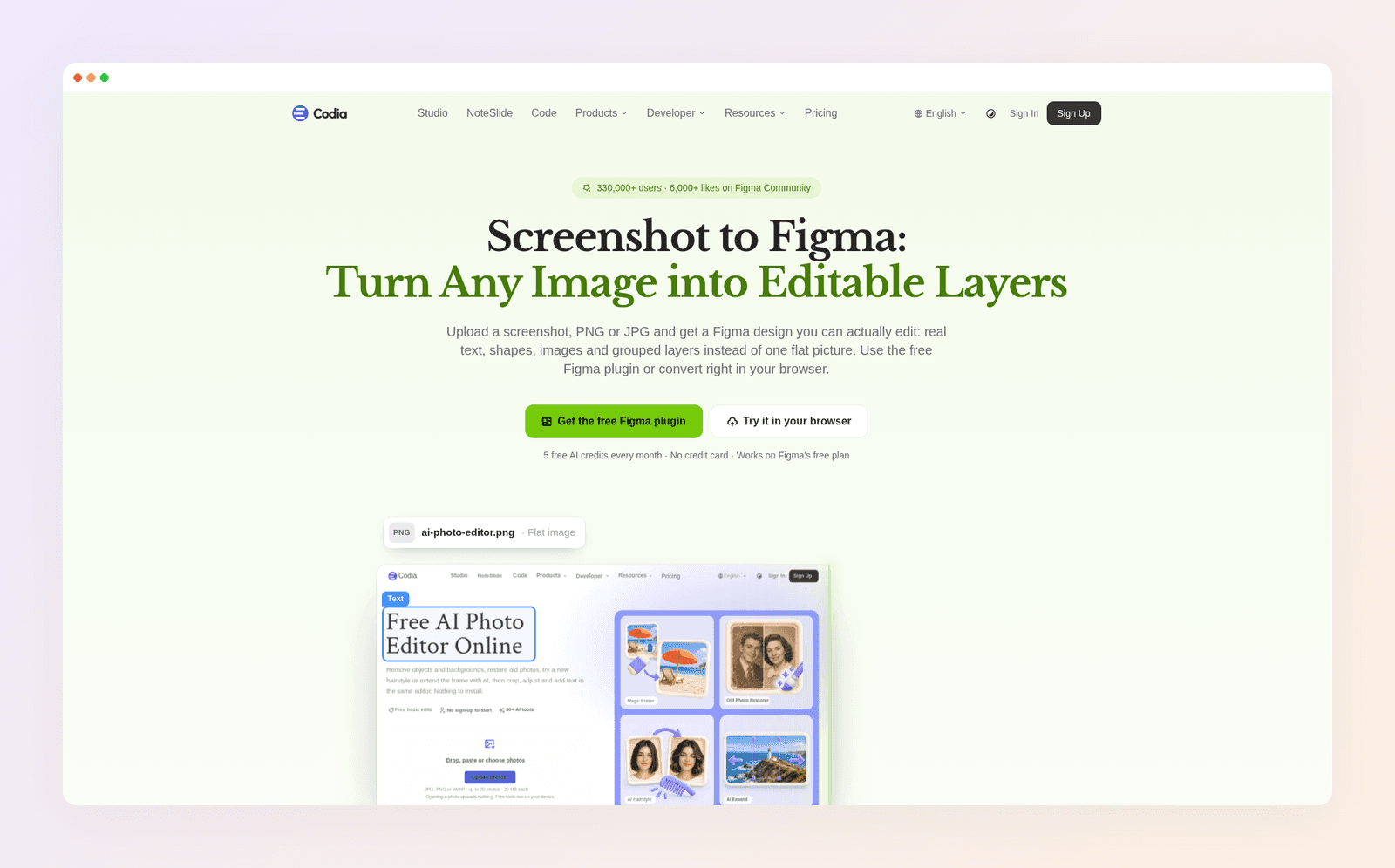
Codia does not design a graphic from a sentence. It takes a screenshot (PNG, JPEG, or WebP) and rebuilds it as an editable Figma file: layout, hierarchy, detected text, fonts, colors, spacing, and shadows. There is also a path into Canva and Sketch, plus an optional convert-to-vector step. That is a specialist job, and it is the right one if you have a UI screenshot you need to edit.
It will not invent a marketing layout from a brief. Results depend on a clean, readable source image, and Codia notes that very free-form layouts may not come back with Auto Layout. Think of it as a converter that sits next to Figma, not as a replacement for a design-from-scratch tool.
Best for: Designers who need a screenshot or UI mock turned into editable Figma layers.
Key features: Screenshot to editable Figma (also Canva and Sketch). Font and hierarchy detection. Optional SVG conversion. Batch uploads on higher plans.
Pricing: Free plan available, with monthly conversion limits. Paid plans raise image-size caps and volume.
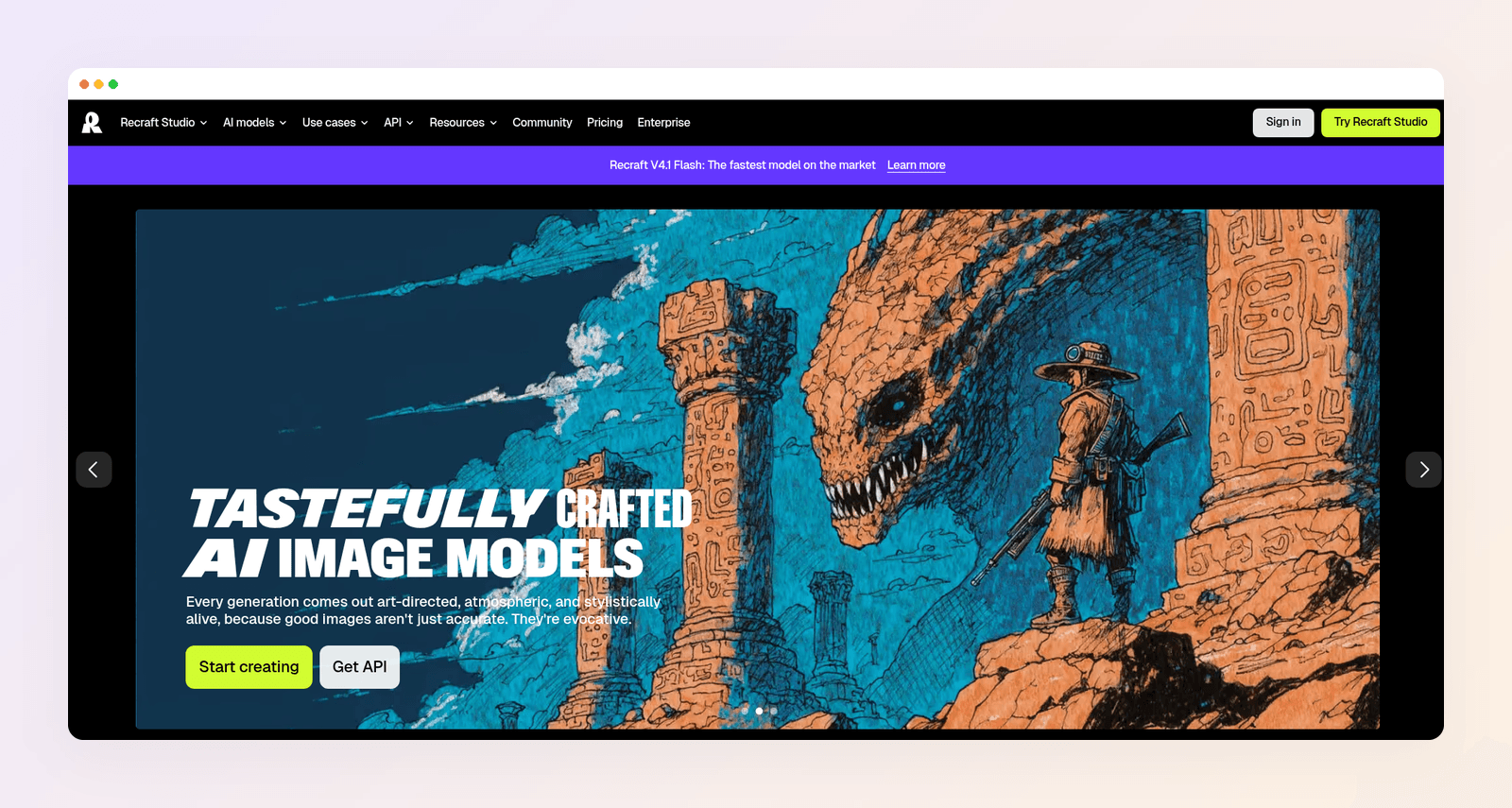
7. Recraft
Recraft is one of the stronger AI asset generators, especially when you want a clean SVG. The vector editor lets you move points, adjust curves, and recolor shapes, then export SVG or PDF. You can also type live text onto the canvas yourself, pick a Google Font, and treat that overlay like any other object.
Do not confuse that with a finished post. Recraft's own docs say that when you put text in a Frame and generate a layout, the text becomes part of the generated image and cannot be edited afterward. In raster output, prompted words are pixels. So Recraft is excellent at the ingredient (an illustration, an icon set, a styled graphic) and a poor place to store the headline you will need to change next week.
Best for: Designers who want AI illustrations or production SVG, then plan to finish the layout somewhere else.
Key features: Raster and vector generation. Point-level vector editing. SVG and PDF export for vector work. Manual text overlays with Google Fonts. Generated-in-frame text is not editable later.
Pricing: Free plan available. Basic starts from around $12 a month. Pro starts from around $20 a month.
8. Adobe Firefly
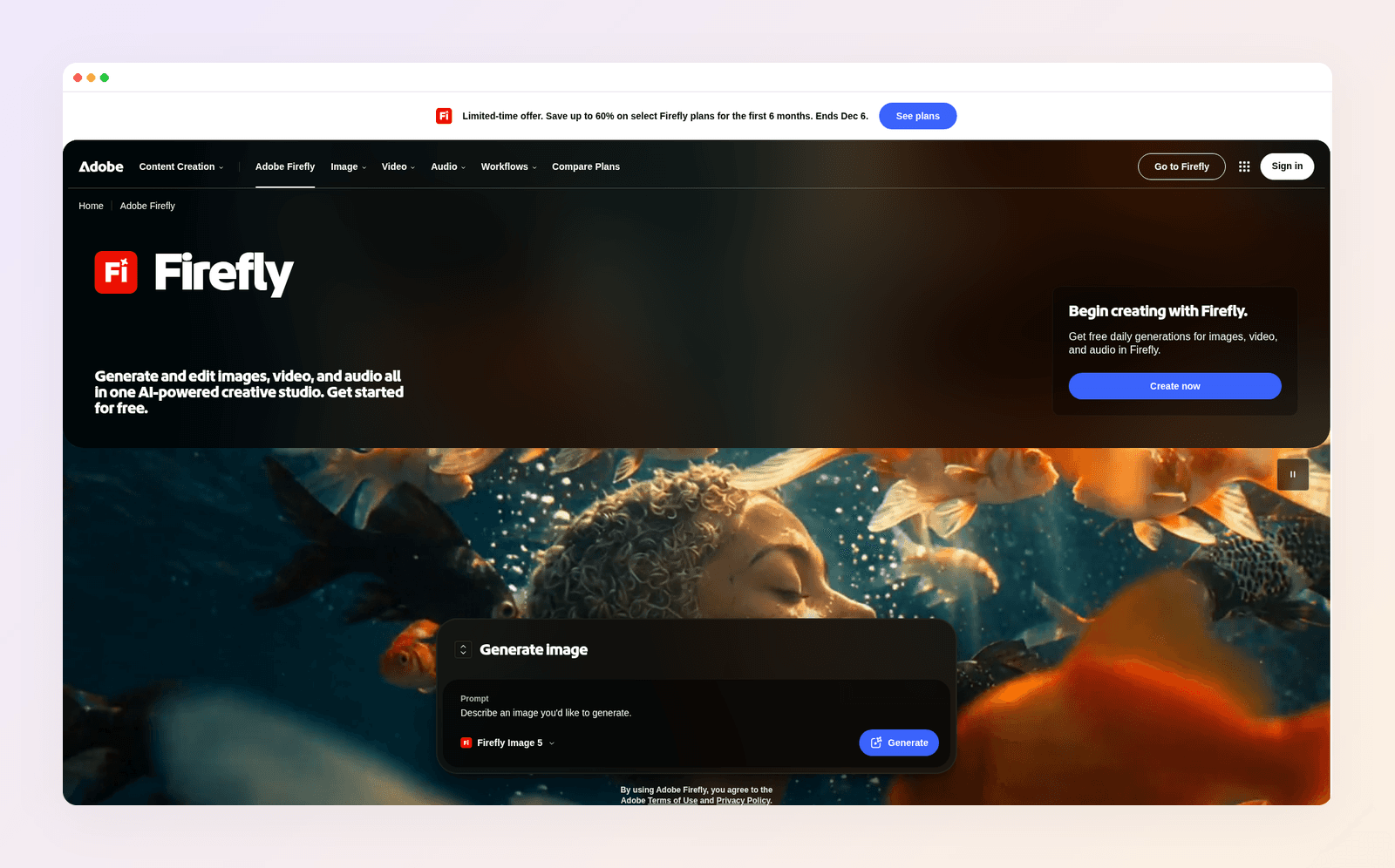
Adobe Firefly is a generative studio for images, video, and audio, with Adobe's own models plus partner models in one app. Typical output is a generated file: PNG, JPG, SVG, or WEBP for stills, MP4 for video, WAV for audio. Some partner models render lettering better than others, but that lettering still lives in the image until you take it into another editor. Firefly also includes object-aware image edits and a text-in-image edit feature that preserves composition, which is still image editing, not a layout file.
A newer workspace, Firefly Design, is in public beta. Adobe describes it as a professional canvas for vector, raster, motion, and 3D, with real type and an AI Assistant that can draft artboards from brand files. That is aimed at design teams already inside Adobe, not at writing one sentence and getting this week's post.
Best for: Campaign imagery, generated footage, and sound, especially if you already live in Creative Cloud.
Key features: Text-to-image, video, and audio. Vector generation with SVG export. Image editing (fill, expand, object edits). Firefly Design beta for a multi-medium canvas. Commercially safe claim for Adobe's own models.
Pricing: Free plan with daily generations. Firefly Standard starts from around $9.99 a month.
Midjourney and Ideogram give you a flat image
This is the honest note, and it matters because both tools show up constantly when people ask for AI design help.
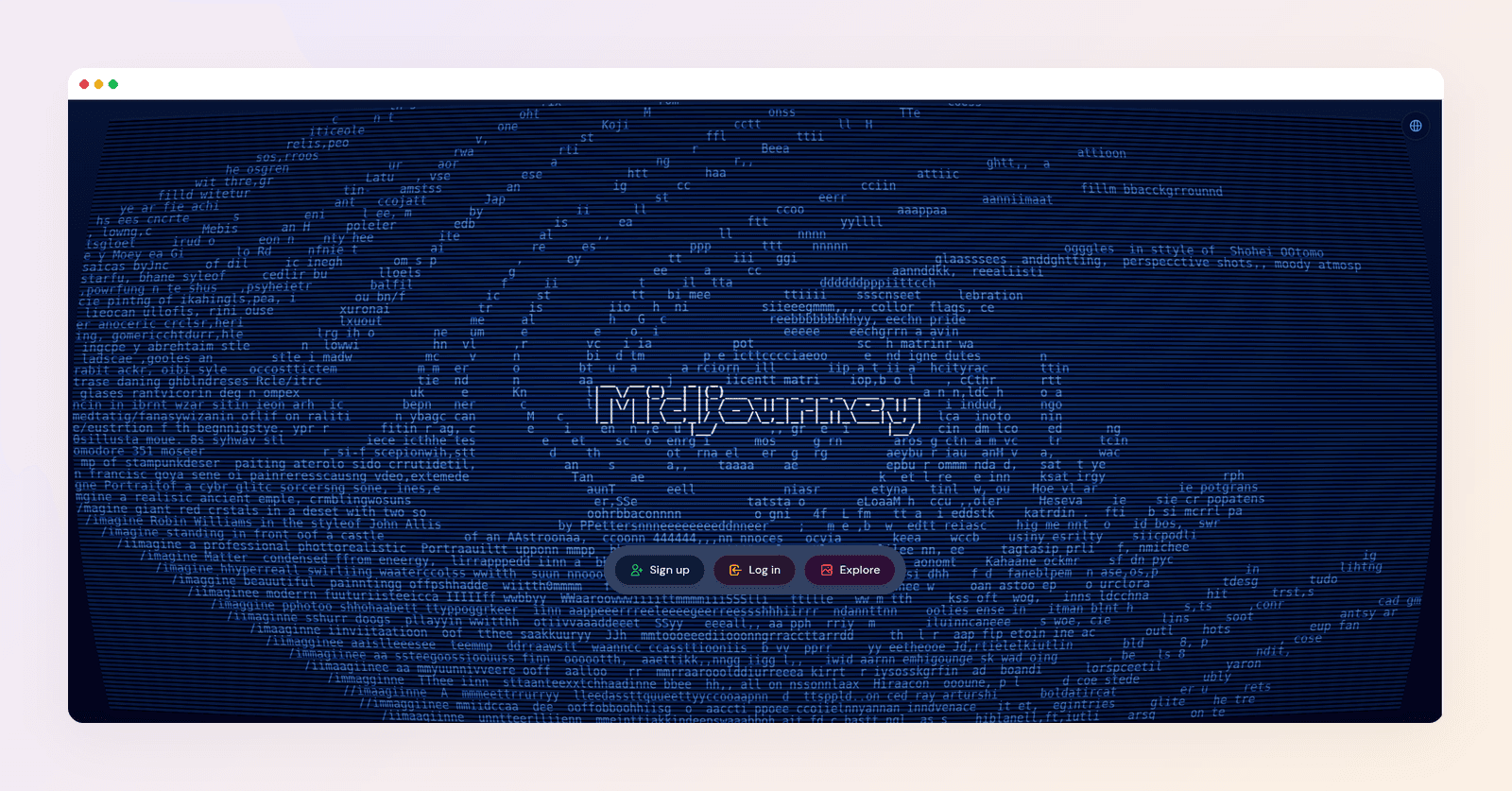
Midjourney still makes some of the most beautiful pictures in AI. What it does not make is a post. The output is a flat image. Midjourney's editor works by regenerating masked regions. There are no text objects to click, no fonts to swap, and no headline you can nudge two pixels left. If the picture is the deliverable, keep it. If the deliverable is a graphic with copy, you will finish it somewhere else. Basic starts from around $10 a month. You can read the longer split in Krumzi vs Midjourney.
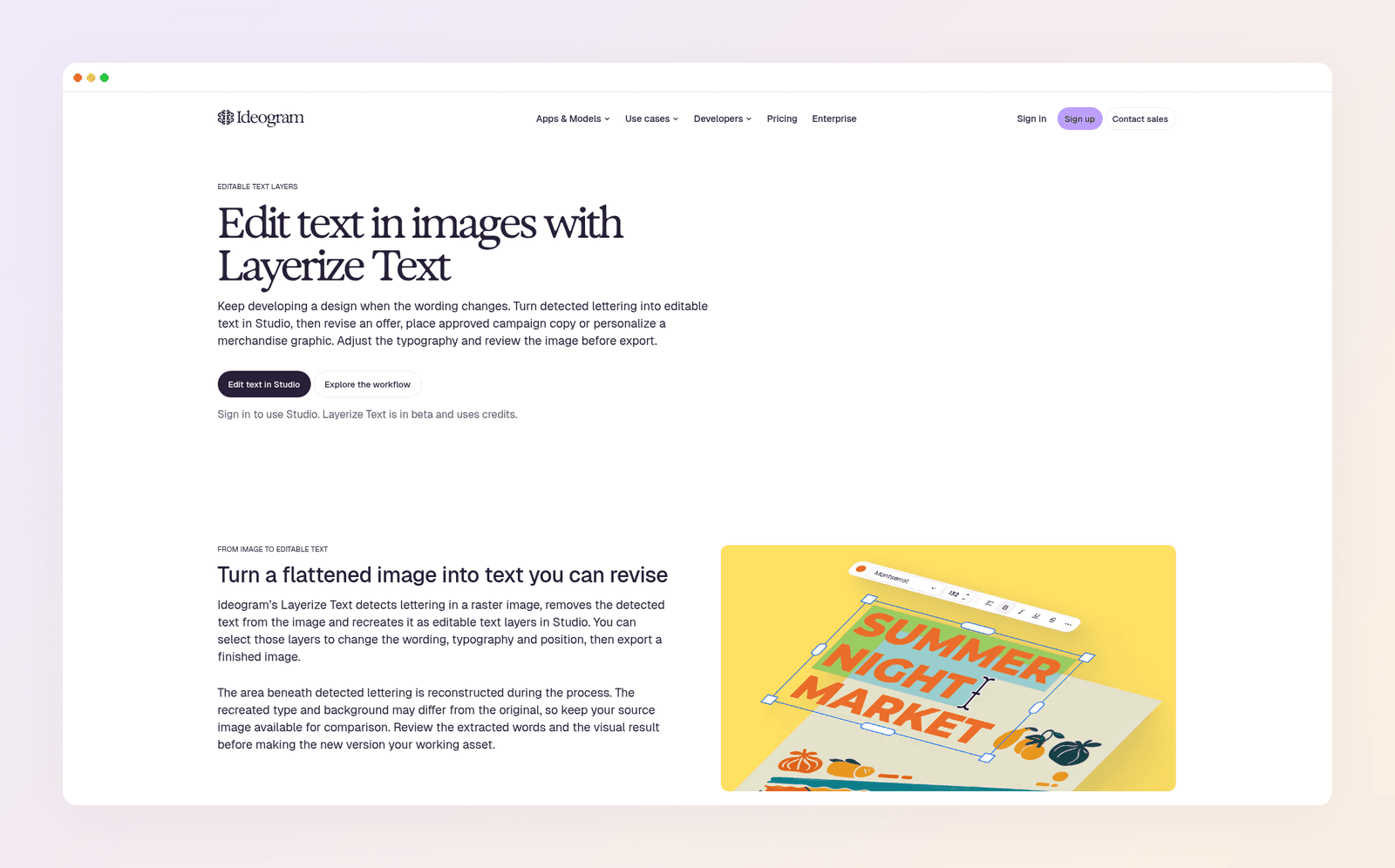
Ideogram is the image generator that can spell, and it is genuinely good at poster-style graphics with short copy. The first file is still a flat image. Ideogram's Layerize Text feature (in beta, available to signed-in users on every plan, and it uses credits) detects lettering, rebuilds those words as editable text layers in Studio, and reconstructs the area underneath. The rest of the artwork stays an image. Ideogram is clear that curved or decorative type is a weaker starting point, that Studio cannot upload your brand fonts, and that exports are JPEG, PNG, or WEBP rather than an editable PSD or SVG. Useful for copy changes. Not a fully layered design.

How the tools compare
Use this table as a scan of the file you get, not as the verdict. The argument sits in the ranking above.
| Tool | What you get | Live text | Starts from templates | Paid from |
|---|---|---|---|---|
| Krumzi | Layered design from a brief | Yes | No | $19/mo |
| Figma AI | Editable UI frames | Yes | Built-in UI libraries | $16/seat |
| Kittl | Vector canvas plus AI assets | Yes, in the editor | Yes | From around $15/mo |
| Gamma | Editable slides and pages | Yes | Prompt-built cards | From around $12/mo |
| Canva Magic Layers | Reconstructed Canva file | Detected text | Canva itself, yes | From around $15/mo |
| Codia AI | Editable Figma from a screenshot | Detected UI text | You start from an image | Free, then paid |
| Recraft | Raster or SVG asset | Manual overlay; generated text no | No | From around $12/mo |
| Adobe Firefly | Image, video, or audio | Baked into the image | No | From around $9.99/mo |
| Ideogram | Flat image, optional text extract | After Layerize, detected type | No | From around $20/mo |
| Midjourney | Flat image | No | No | From around $10/mo |
Prices as of November 2026.
A Canva alternative that is not template based
Canva is the default answer to "I need a graphic," and it is a good product for teams that want templates, collaboration, and print delivery. It is also, by design, a template tool. Magic Design recommends layouts for you to customize. Magic Layers comes in after the fact, when you already have a flat file.
If the reason you searched is that your feed looks like everyone else's feed, recovering layers from an image will not fix the sameness. You need a tool that composes the layout for your brief instead of handing you a shared starting point. That is the gap this ranking started with, and it is the same gap we break down against Canva's flow on the Canva alternative page.
People often ask the question the other way too: not "replace Canva," but "give me something original I can still edit." Coursera's overview of AI graphic design groups a lot of today's tools under generation and editing. The practical filter is narrower. After the file exists, can you change the words without starting over?
How to pick: run the one-word test
Take a real brief from your week. Here is one for a made-up shop, Harbor & Pine Candles.
The post is square. The headline is "Weekend burn sale." The supporting line is "20% off every candle this Saturday." The button says "Shop the collection." The feel is warm linen, honey-colored wax, no clutter.

Run that brief through the tool you are considering. Then change one word: make it 30% instead of 20%.
If you click the supporting line and type the new number, you have a design file. If you have to generate again and hope the rest of the picture stays put, you have an image. If the tool first asks you to pick a template that already looks like a candle sale, you have a template tool with an AI box on top.
A clear brief makes this test fairer. If you want language you can paste, start with these AI design prompts. And if you are still matching a tool to a job rather than to this one question, use how to choose an AI design tool.
When a flat image is still the right call
Image generators win when the picture is the point. Concept art, album-style heroes, surreal product scenes, backgrounds, and textures do not need a headline layer. In those cases Midjourney, Ideogram, Recraft, and Firefly are doing the job they were built for.
Reconstruction wins when you already like a finished picture and only the copy moved. Magic Layers and Ideogram's Layerize Text exist for that cleanup, not for inventing next week's layout.
Templates still win for one-off formats with tight conventions, or for teams that need every location to look identical on purpose. None of that changes the ranking above. It just keeps you from forcing a layered design tool onto a job that only needed a beautiful still.
The category that solves weekly marketing graphics is the one agentic AI design describes: you brief the outcome, the tool makes the design decisions, and the file stays editable. That is the standard this list used.
Frequently Asked Questions
Which AI design tool gives you editable layers instead of a flat image?
A tool that returns live text, shapes, and images as separate objects, not a single picture. From-scratch design tools do this from a written brief. Figma AI does it for UI drafts, as native Figma layers. Kittl and Gamma also keep text editable, though Kittl still leans on templates and Gamma is built around decks and documents. Midjourney does not. Ideogram does not unless you run its Layerize Text feature afterward, and even then only the detected lettering becomes type.
Is there a Canva alternative that is not template based?
Yes. Look for a tool that composes a layout from your brief instead of recommending a template. Figma AI produces UI frames you can edit, but it assembles them from Figma's own libraries and is aimed at product design. Canva Magic Layers can make an existing image editable inside Canva. It does not turn Canva into a no-template generator.
What is the best AI graphic design tool with no templates?
For marketing graphics, start with a from-scratch tool that hands you a layered file. That is Krumzi's job: you describe the design, you get a finished layout, and every element stays editable. Use Figma when the file is a product UI. Use Kittl when the craft is lettering or vector merch. Use an image generator when you only need a picture.
Do Midjourney and Ideogram give you editable layers?
No, not as the default output. Both return a flat image. Midjourney's editor regenerates masked areas rather than giving you text objects. Ideogram can extract detected lettering into editable text layers with Layerize Text, which is in beta, uses credits, and leaves the rest of the artwork as an image. Neither one starts as a fully layered design file.
Does Canva Magic Layers make a flat image fully editable?
It makes a Canva layout from a flat PNG or JPG, and detected text becomes text you can rewrite. Objects can be moved and restyled. That is reconstruction of an existing picture, not a design generated in layers from your brief, and Canva documents it as a premium AI feature that uses your monthly allowance. Treat it as a repair tool for files you already have.
Can I edit text after I generate a design in Recraft?
You can edit text you add yourself with the text tool. You cannot edit text that Recraft generated into the image from a Frame. Recraft's docs state that generated-in-frame text becomes part of the image. For raster generations, prompted words are pixels. If the copy has to change later, add it as real text or use a design tool that started with live type.
Want the design part done for you? Start free trial and describe your first post.
3-day free trial, card needed. No charge until day 4. Cancel online anytime.
A month of posts, designed before your coffee cools
Describe the post. Krumzi designs it from scratch, on your brand, fully editable.
Start free trial3-day free trial, card needed. No charge until day 4. Cancel online anytime.