On this page
- What Happened to Microsoft Publisher?
- Before You Switch: Save Your .pub Files
- Which Publisher Alternative for Which Job
- The 9 Best Microsoft Publisher Alternatives in 2026
- Turn Your Newsletter Into This Week's Facebook and Instagram Posts
- How to Choose a Publisher Alternative in 2 Minutes
- Frequently Asked Questions
The next newsletter is due, the bulletin goes to print on Thursday, and the Publisher icon has disappeared from your Microsoft 365. If you've made the parish newsletter, the PTA flyer or the event program in Publisher for years, you're now looking for a Microsoft Publisher alternative that won't take a month to learn.
This guide does two things in order. First, it shows you how to save the .pub files you already have, whether or not Publisher still opens on your computer. Then it matches each job you did in Publisher (newsletters, flyers, brochures, bulletins, labels) to a Microsoft Publisher replacement that fits it, instead of handing you a desktop-publishing feature list built for professional designers.
A quick note before we start: we make Krumzi, one of the nine tools below. We've said plainly which jobs it does well and which ones it can't do, and for those jobs we point you elsewhere.
What Happened to Microsoft Publisher?
Microsoft retired Publisher in October 2026. Microsoft 365 subscribers lose the app on or shortly after October 1, 2026, and can no longer open or edit .pub files in Publisher. Support for the perpetual version ended on October 13, 2026. If you bought Publisher outright, it still works. It just gets no support or security updates.
Here are the details, all from Microsoft's Publisher retirement page:
- Microsoft 365 subscribers: Publisher is removed on or shortly after October 1, 2026, as the update rolls out. After that you can't install it, and you can't open or edit your .pub files in Publisher.
- Perpetual owners (you bought Publisher outright, not through Microsoft 365): support for the last perpetual version ended October 13, 2026, when Office LTSC 2021 and Consumer Office 2021 reached end of support. Microsoft says you can still install and use the app after that date, and you can still open and edit your files.
- What is replacing Microsoft Publisher? Nothing new. Microsoft's answer is Word and PowerPoint, with a table that maps each Publisher job to one of them. We use that table as the base for ours below.
So if you have a perpetual copy, there's no rush to switch. If you're on Microsoft 365, Publisher is gone or about to be, and the first job is getting your files out.
Before You Switch: Save Your .pub Files
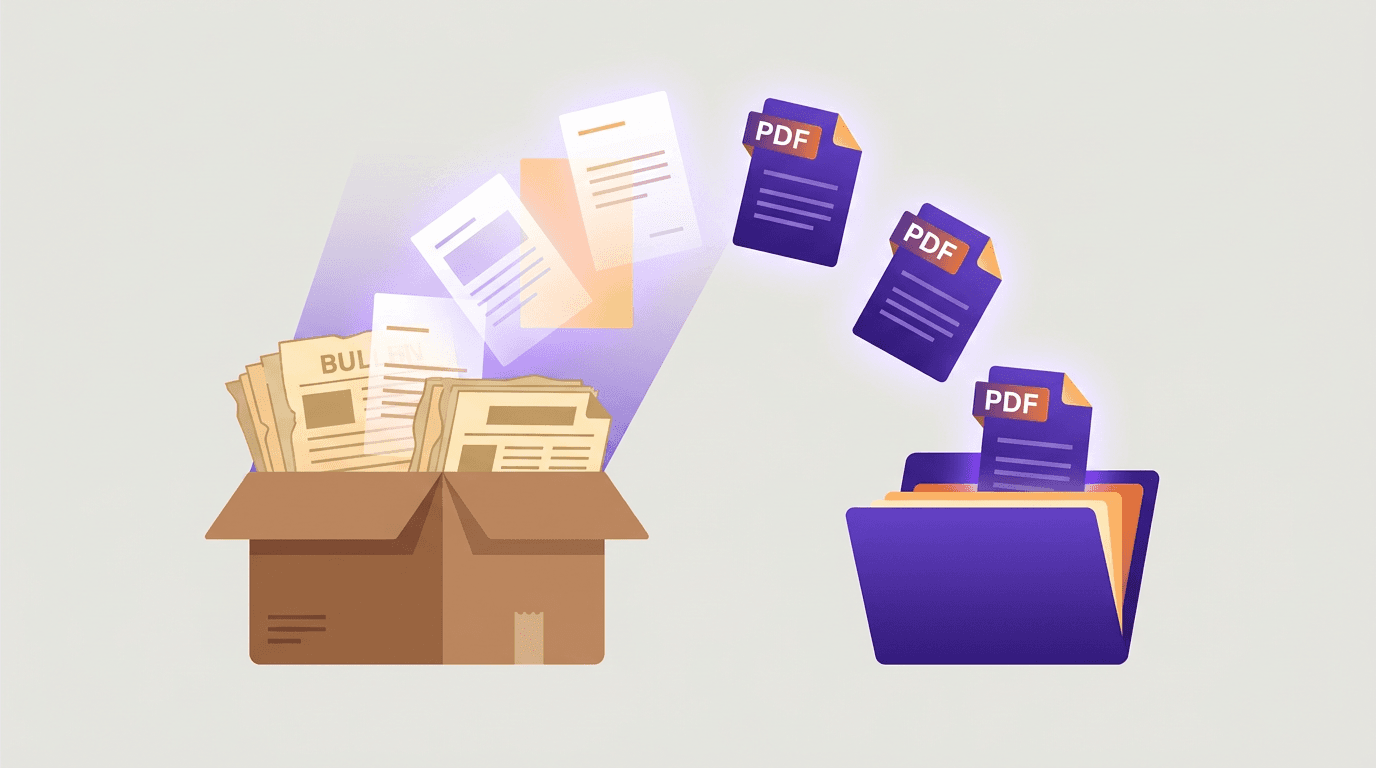
Your old issues hold years of work, so save them before anything else. The right route depends on whether Publisher still opens on your computer.
Step 1: Find every .pub file. Microsoft's tip is a plain file search for ".pub" on your PC, OneDrive or SharePoint. Check the church office computer and the old laptop too, and any shared drive the last editor used.
Step 2: If Publisher still opens, save each file as a PDF. Open the file, go to File > Save As, pick a folder and choose PDF as the file type. For a folder full of back issues, Microsoft offers a sample PowerShell script that exports .pub files to PDF in bulk, one file or whole folders at a time. It needs a licensed copy of Publisher installed, and Microsoft says to test it on your own files first. The script and how to run it are on Microsoft's Publisher retirement page.
Step 3: To edit the text in Word, open the PDF in Word. In Word, go to File > Open and pick the PDF. Word converts it into an editable document. Microsoft warns that the layout can shift, especially when the page has lots of graphics, so treat this as a way to rescue your text, not your design.
Step 4: If Publisher is already gone, open the .pub in a tool that imports it. Microsoft's own route needs Publisher installed, so Microsoft 365 users who've already lost it need another way. Two tools on this list open .pub files: LibreOffice Draw (free) and Affinity (free with a Canva account). Open the file there and export a PDF. If someone in your group still has a perpetual copy of Publisher, they can also run the bulk export for everyone.
Step 5: Keep the PDFs, even if you rebuild. Whatever tool you move to, the PDFs are your reference for the masthead, the fonts and the layout people know.
Which Publisher Alternative for Which Job
Start from what you actually made. Microsoft's column comes straight from its own recommendations. The other two columns are ours, from the tools reviewed below.
| Your Publisher job | Microsoft's pick | Easiest other pick | If you need more control |
|---|---|---|---|
| Newsletters | Word | Krumzi, Canva | Affinity, InDesign |
| Flyers and ads | Word or PowerPoint | Krumzi, Canva, Adobe Express | Affinity |
| Brochures | Word or PowerPoint | Canva; Krumzi for flat pages (no folds) | Affinity, InDesign, Scribus |
| Posters, banners and signs | PowerPoint | Krumzi, Canva, Adobe Express | Affinity |
| Programs and bulletins | Word | Canva; Krumzi for flat Half Letter pages | Affinity, Scribus |
| Business cards | Word or PowerPoint | Canva; Swift Publisher on a Mac | Affinity |
| Certificates | Word or PowerPoint | Canva, Adobe Express | Affinity |
| Calendars | Word or PowerPoint | Canva; Swift Publisher on a Mac | Affinity |
| Greeting cards | Word or PowerPoint | Canva, Adobe Express | Affinity |
| Labels and envelopes | Word (mail merge) | Swift Publisher on a Mac | LibreOffice Writer (mail merge) |
Word covers more of this list than people expect, and mail merge makes it the easy pick for labels and envelopes. For the monthly newsletter and the event flyer, you have several options easier than a professional layout app.
The 9 Best Microsoft Publisher Alternatives in 2026
We've grouped these alternatives to Microsoft Publisher into three tiers. Most volunteers can stop reading after the first one. Prices and free plans were checked on each tool's own site on October 29, 2026.
Tier 1: Easiest switch
1. Word and PowerPoint
- Best for: newsletters, programs, letterhead, labels and envelopes (Word); posters, banners and signs (PowerPoint)
- Publisher jobs it covers: every row in Microsoft's table
- Opens .pub files: no
- Price: included in Microsoft 365, which you're already paying for if you had Publisher through it
- Learning curve: low, because you already use them
- Honest downside: Word wasn't built for free-form layout. Text boxes and pictures jump around when you edit the text above them.
This is Microsoft's own recommendation, and for a lot of groups it's the right one. You know the menus, the files open on almost any office computer, and there's nothing new to buy.
Mail merge is why Word stays the easy pick for labels and envelopes. If you print the mailing labels for the newsletter, keep doing that part in Word whatever else you switch to.
The catch is layout. A two-column newsletter with photos takes patience in Word, so save each finished issue as a template for next month.
2. Krumzi: if you made newsletters, flyers and brochures
- Best for: the monthly newsletter, event flyers, posters and brochures, plus the social posts that go with them
- Publisher jobs it covers: newsletters, flyers, posters, flat brochures and Half Letter programs
- Opens .pub files: no
- Price: paid plans with a free trial (card needed, no charge until day 4)
- Learning curve: low. You describe what you need in plain words.
- Honest downside: no .pub import, no mail merge for labels or envelopes, no folds and no CMYK
Krumzi is where we'd send the person who made the newsletter and the flyers. Describe the issue (the news, the dates, the contact details) and Krumzi designs a 2 to 12 page document at a real print size: US Letter, Half Letter, A4, A5, A3 or DL. Every page gets a role, so the cover, the inside pages and the back page with your contact details each look like what they are.
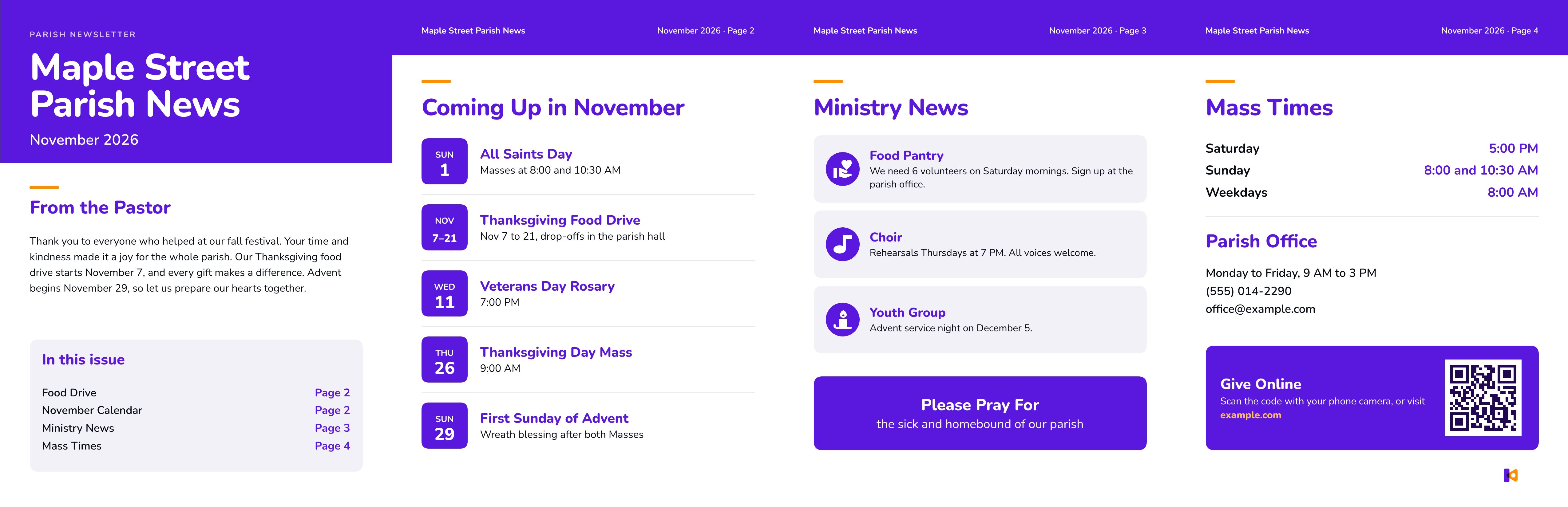
Every element stays editable afterwards, so you can fix a date or swap a photo without starting over. When it's ready, export a multi-page PDF at 300 dpi for the printer or the church office copier. Flyers and posters work the same way as one-page print designs. Here's a four-page example we made for a made-up parish with one description of the November issue: a cover with a note from the pastor, a calendar page, ministry news and a back page with Mass times and a Give Online QR code.
If you mostly need newsletters, you can make a newsletter with AI in Krumzi. For the next event, make an event flyer the same way, and for a brochure try the AI brochure maker.
Now the limits, because they matter for a Publisher user. Krumzi doesn't open your old .pub files, so rescue them first with the steps above. It has no mail merge, so labels and envelopes stay in Word. It doesn't do folded layouts or CMYK color. For business cards, certificates and greeting cards, you can set a custom size or pick a Print preset, but we'd send you to Canva or Word first for those.
3. Canva
- Best for: groups that want a template for every Publisher job
- Publisher jobs it covers: flyers, posters, newsletters, brochures, programs, business cards, certificates, calendars and greeting cards
- Opens .pub files: no
- Price: Canva Free costs nothing. Premium templates, photos and fonts need Canva Pro, a paid plan (Canva's own Pro and pricing pages, October 29, 2026).
- Learning curve: low
- Honest downside: if you use a template without changing much, your flyer can look like another group's, and the premium templates need Pro
Canva is the tool many volunteers already know, and its templates cover almost every row in the job table. It runs in the browser, so the committee can edit one file. Rebuild your masthead once and save it as your own template.
4. Adobe Express
- Best for: quick one-page flyers, posters, certificates and social posts
- Publisher jobs it covers: flyers, posters, certificates, greeting cards
- Opens .pub files: no
- Price: free plan at US$0 with no credit card required; Premium is US$9.99/mo (Adobe's pricing page, October 29, 2026)
- Learning curve: low
- Honest downside: better at single pages than at a multi-page newsletter
Adobe Express is a good free pick when most of what you made in Publisher was one page: the bake sale flyer, the volunteer certificate, the poster for the hall. It's less comfortable for a four-page newsletter with recurring sections.
Tier 2: Opens your old .pub files
5. Affinity
- Best for: people who want to keep editing their old .pub files and don't mind learning a professional tool
- Publisher jobs it covers: all of them, with enough patience
- Opens .pub files: yes. Affinity's help page on importing Microsoft Publisher documents shows the steps: File > Open, then pick the .pub file. Microsoft also names Affinity as a tool that may import Publisher files.
- Price: free for individuals, with a free Canva account (Affinity's site, October 29, 2026)
- Learning curve: high for a volunteer
- Honest downside: it's built for professional designers, and it shows. Expect a few evenings of learning before the first issue.
Affinity is the closest thing to a direct upgrade path: your old issues open as editable pages, and it handles everything from the newsletter to business cards. Affinity's help page is upfront about the limits: text, shapes, images and solid fills come in, but colors, rotation and text formatting may not match the original, so check every page of an imported issue. Its depth is also the problem, since most newsletter editors will use a tenth of it. If you have years of back issues to keep editing, it's worth the climb. If you only need next month's issue, it probably isn't.
6. LibreOffice Draw
- Best for: opening and rescuing old .pub files for free
- Publisher jobs it covers: flyers, posters, simple newsletters; LibreOffice Writer adds mail-merge labels
- Opens .pub files: yes. LibreOffice's list of file filters includes a Microsoft Publisher 98-2010 import filter.
- Price: free (LibreOffice is a free office suite)
- Learning curve: medium
- Honest downside: imported files rarely come through exactly as they looked in Publisher, and the interface feels dated
LibreOffice Draw is the free way to get into your .pub files once Publisher is gone. Open the file, check that the text and pictures came through, and export a PDF. Fonts you don't have installed will be swapped, and complex layouts may need some fixing, so check every page before you print. Its sister app, LibreOffice Writer, also does mail merge if you need labels without Word.
Tier 3: Full desktop publishing
7. Scribus
- Best for: volunteers with time to learn who want a free, full layout program
- Publisher jobs it covers: newsletters, brochures, programs, posters
- Opens .pub files: we couldn't confirm .pub import on Scribus's own site on October 29, 2026, so don't count on it for your old files
- Price: free and open source
- Learning curve: high, the steepest on this list
- Honest downside: it thinks like a print shop, not like Word. Text frames, styles and color settings take real time to learn.
Scribus is the free answer to InDesign, and it can produce a professional newsletter. Try it if you enjoy learning software. Skip it if the deadline is this week.
8. Adobe InDesign
- Best for: professional designers and print-heavy organizations
- Publisher jobs it covers: all of them, at a professional level
- Opens .pub files: no
- Price: US$22.99/mo on its own, annual plan billed monthly (Adobe's InDesign plans page, October 29, 2026)
- Learning curve: high
- Honest downside: overkill and expensive for a monthly newsletter and a few flyers
InDesign is the standard for professional print work. If your organization has a designer on staff, it's the obvious pick. For a volunteer making a four-page newsletter, it's a monthly bill for features you won't touch.
9. Swift Publisher (Mac)
- Best for: Mac users who want an app that feels like Publisher
- Publisher jobs it covers: brochures, newsletters, business cards, calendars, labels and more from its 500+ templates
- Opens .pub files: no .pub import listed on its site
- Price: US$19.99 (Swift Publisher's site, October 29, 2026)
- Learning curve: medium
- Honest downside: Mac only, so it won't help the Windows computer in the church office
Publisher never came to the Mac, and Swift Publisher fills that gap. It works the way a Publisher user expects: pick a template, click into a text box, drag a picture, and its templates include address labels and business cards.
The list at a glance
| Tool | Best for | Opens .pub | Free or paid | Learning curve |
|---|---|---|---|---|
| Word and PowerPoint | Every job in Microsoft's table, labels and envelopes | No | In Microsoft 365 | Low |
| Krumzi | Newsletters, flyers, brochures and the posts that go with them | No | Paid; free trial (card needed, no charge until day 4) | Low |
| Canva | A template for every job | No | Free plan, paid Pro | Low |
| Adobe Express | One-page flyers, posters, certificates | No | Free plan, paid Premium | Low |
| Affinity | Keep editing old .pub files | Yes | Free with a Canva account | High |
| LibreOffice Draw | Rescuing .pub files for free | Yes | Free | Medium |
| Scribus | Free full layout program | Not confirmed | Free | High |
| Adobe InDesign | Professional print work | No | Paid | High |
| Swift Publisher | A Publisher-style app on a Mac | Not listed | Paid, one price | Medium |
Turn Your Newsletter Into This Week's Facebook and Instagram Posts
The newsletter and the flyer aren't the end of the job anymore. The same news has to go on the parish Facebook page or the school's Instagram this week, in a size that works on a phone.
If your group posts every week, pick a tool that makes the post from the same content as the printed piece, so you write the news once.
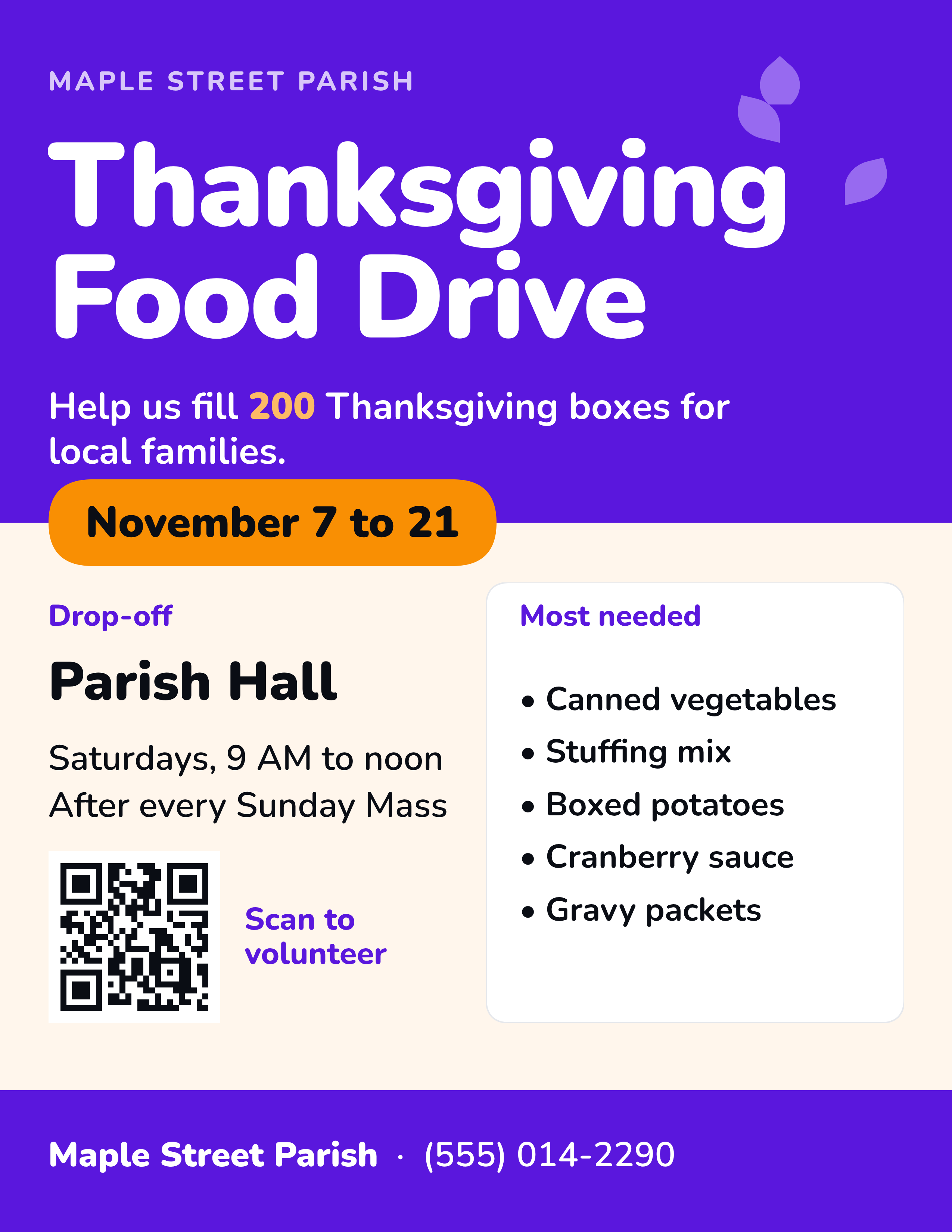
In Krumzi, the flyer and the post come from the same description. Below is the food drive flyer from our made-up parish next to the matching post. On a paid plan, you can also schedule the post to an Instagram Professional account and a Facebook Page from Krumzi, and it writes a caption from what's on the design. Canva and Adobe Express also make social posts, so whichever tool you pick, keep the printed piece and the post in the same place.

Not sure what goes in each issue? Our guide on what to put in a PTA newsletter has a section checklist that works for parish and club newsletters too.
How to Choose a Publisher Alternative in 2 Minutes
Still not sure what to use instead of Microsoft Publisher? Answer four questions:
- Do you need to keep editing old .pub files? Use LibreOffice Draw to rescue them for free, or Affinity if you'll keep working in that layout.
- Do you print labels or envelopes from an address list? Keep that job in Word (or LibreOffice Writer), where mail merge handles the address list.
- Is it mostly the newsletter, event flyers and the posts that go with them? Krumzi or Canva. If brochures are your main job, see the AI brochure makers we tested.
- Are you on a Mac and want something that feels like Publisher? Swift Publisher.
If you made newsletters and flyers in Publisher, start your Krumzi free trial and describe next month's issue. You'll need a card, and there's no charge until day 4.
Frequently Asked Questions
Can I still use Microsoft Publisher?
If you own a perpetual copy, one you bought outright rather than through Microsoft 365, yes. It keeps working, and Microsoft says you can still install it, but it no longer gets support or security updates. If you had Publisher through Microsoft 365, no: it's removed on or shortly after October 1, 2026, and you can't open .pub files in Publisher after that.
How do I open .pub files without Publisher?
Use LibreOffice Draw, which is free and includes a Microsoft Publisher import filter, or Affinity, which is free with a Canva account and opens .pub files from File > Open. Check every page after import, then export a PDF so you have a copy that opens anywhere.
Is there a free Microsoft Publisher alternative?
Yes. LibreOffice Draw, Affinity and Scribus are free, and Canva and Adobe Express have free plans. If you already pay for Microsoft 365, Word and PowerPoint cost nothing extra, and they're what Microsoft itself recommends.
What is Microsoft replacing Publisher with?
Microsoft isn't launching a new Publisher. Its support page points users to Word and PowerPoint: Word for newsletters, programs, labels, envelopes and letterhead, PowerPoint for posters, banners and signs, and either one for flyers, brochures, business cards, certificates, calendars and cards. Microsoft Designer isn't on that list, so Microsoft doesn't present it as a Publisher replacement.
What's the best Microsoft Publisher alternative for Mac?
Swift Publisher is the closest to the Publisher experience on a Mac, with templates for brochures, business cards, calendars and labels. Affinity also runs on a Mac and opens .pub files, which helps if your old issues came from a Windows computer.
A month of posts, designed before your coffee cools
Describe the post. Krumzi designs it from scratch, on your brand, fully editable.
Start free trial3-day free trial, card needed. No charge until day 4. Cancel online anytime.