On this page
You've got a folder from this week's shoot and one slot on the grid. Here's how to post multiple photos on Instagram as one swipeable post: a single post holds up to 20 photos or videos, and it takes about a minute. That kind of post is what Instagram calls a carousel (here's what an Instagram carousel post is if you want the background).
Below are the steps, the limits in one table, and the part most guides skip: how to keep a landscape shot and three portraits from getting chopped to the same shape.
How to post multiple photos on Instagram (step by step)
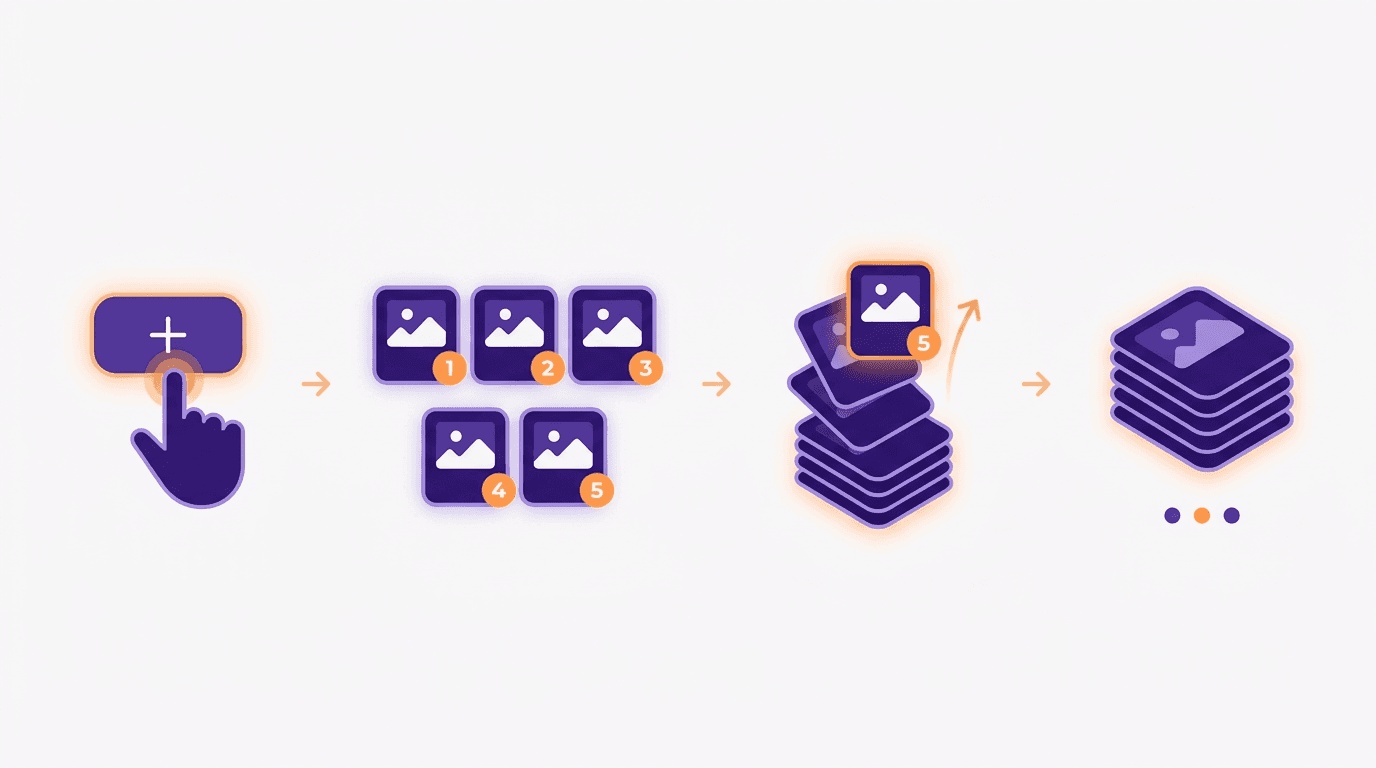
Tap +, choose Post, tap Select Multiple (the overlapping squares icon), then tap up to 20 photos or videos in the order you want them. Edit, write one caption and tap Share. It works the same way on iPhone and Android, and you need at least 2 items.
Step 1: Open Instagram and tap +
Open the app and tap the + button. Make sure you're on the account you want to post from, which matters if you manage a few.
Step 2: Choose Post
Pick Post from the options. Story and Reel have their own flows, so stay on Post for a swipeable feed post.
Step 3: Tap Select Multiple
Tap the Select Multiple icon, the two overlapping squares above your camera roll. Now you can pick more than one photo.
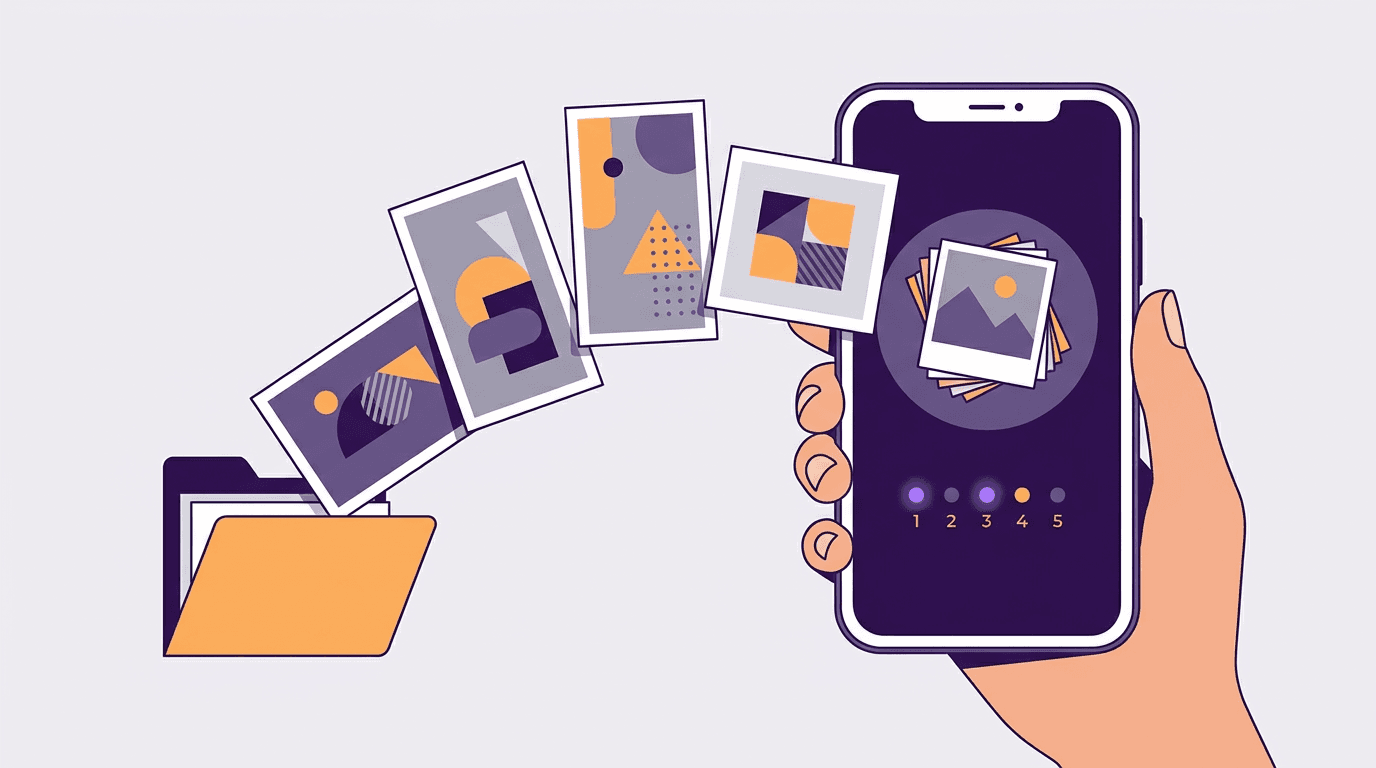
Step 4: Tap your photos in the order you want them
Tap each photo or video in the order you want people to swipe through them. Each one gets a number, and that number is its slide position. You can pick up to 20 and need at least 2.
Step 5: Set the shape with the resize button
On the preview screen, check the resize button at the bottom left. It decides whether every photo is cropped to one shape or keeps its own. The section on posting without cropping, further down, explains which option to pick.
Step 6: Edit each photo or all at once
Tap Next to reach the editing screen. Apply the same filter to every photo, or tap a single photo to edit just that one. To change the order, press and hold a photo and move it to a new spot.
Step 7: Write one caption, tag people and add a location
The whole post gets one caption, not one per photo, so write it for the set. Then tag people, add a location, and add music if you want it.
Step 8: Tap Share
Tap Share. The post appears in the feed with dots under the first photo, and people swipe left to see the rest.
How many photos can you post on Instagram at once?
You can post up to 20 photos or videos in one feed post, in any mix, and you need at least 2. The limit used to be 10. Instagram doubled it to 20 in August 2024, a nod to the casual "photo dump" trend. Instagram's own Help Center page on sharing multiple photos is the place to check the current rules.
Still stuck at 10? The change rolled out gradually, so update the app first.
The numbers people mix up most are the feed limit and the Stories limit. Here they are in one place.
Limits side by side
| Where | Limit |
|---|---|
| Feed post in the Instagram app | 20 photos or videos (at least 2) |
| Stories, one upload | 10 |
| Carousel designed in Krumzi | Up to 20 slides (Instagram sizes) |
| Post scheduled from Krumzi | Up to 10 images (images only) |
If you meant Stories: in the Stories gallery you can select up to 10 photos per upload with the same multi-select option. Each one becomes its own Story frame, not a single swipeable post.
How to post multiple photos on Instagram without cropping
This is where most posts go wrong. You pick a wide shot of the venue and three portrait shots of people, and Instagram trims them all to one shape.
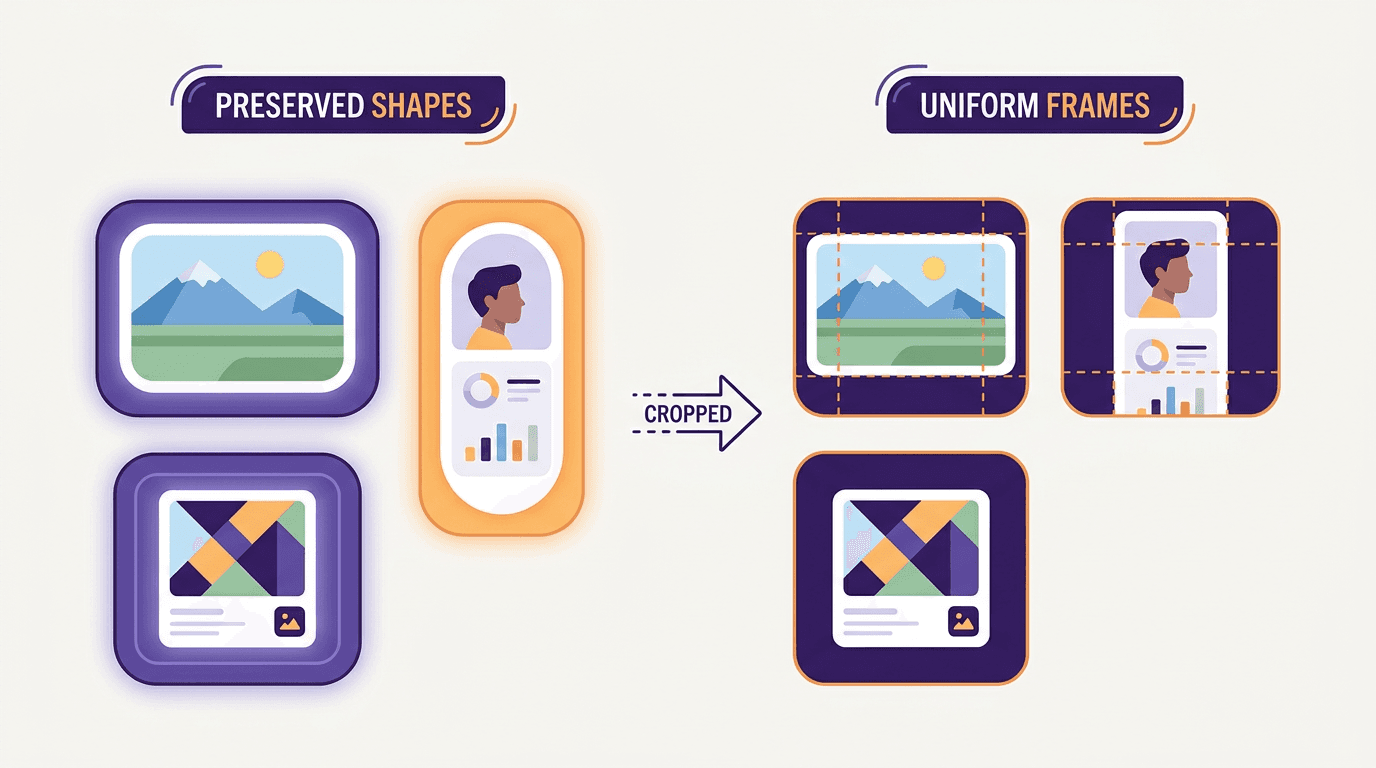
What happens by default: the first photo sets the shape for the whole post, and every other photo is cropped to match. Put a square first and your landscape shot loses its sides.
The fix: use the resize button at the bottom left of the preview. It offers Original or Mixed, Portrait and Square, depending on your app version. The option that keeps each shape (Original or Mixed) leaves every photo at its own ratio, as long as that ratio sits between 4:5 portrait and 1.91:1 landscape. Anything taller or wider than that range is still cropped.
Here's what that means for the shapes you're most likely to have:
| Your photo | Ratio | With the keep-each-shape option |
|---|---|---|
| Portrait | 4:5 | Kept as is |
| Square | 1:1 | Kept as is |
| Standard camera landscape | 3:2 | Kept as is |
| Wide landscape | 1.91:1 | Kept as is |
| Phone screenshot or vertical video frame | 9:16 | Cropped to fit the range |
| Panorama | Wider than 1.91:1 | Cropped to fit the range |
Don't see the button? Update Instagram. The option depends on your app version.
When you want one shape anyway: for a brand set, one consistent shape usually looks cleaner. Portrait 4:5 takes up the most screen in the feed, so crop everything to 4:5 before you upload and the order and framing stay exactly as you planned. Our Instagram carousel size guide has the exact pixel dimensions.
A panorama that runs across slides is a different job: you split one wide image across slides so it flows as people swipe. Here's how to make a panorama carousel that runs across slides.
Before you post: make the photos one set
The steps take a minute. What makes a multi-photo post look like a brand post rather than a camera roll happens before you open the app.
Put the strongest photo first
The first photo is the cover in the feed. It's the only one most people see before deciding to swipe, and it sets the shape if you don't change it. Lead with the clearest, boldest shot, not the first one you took.
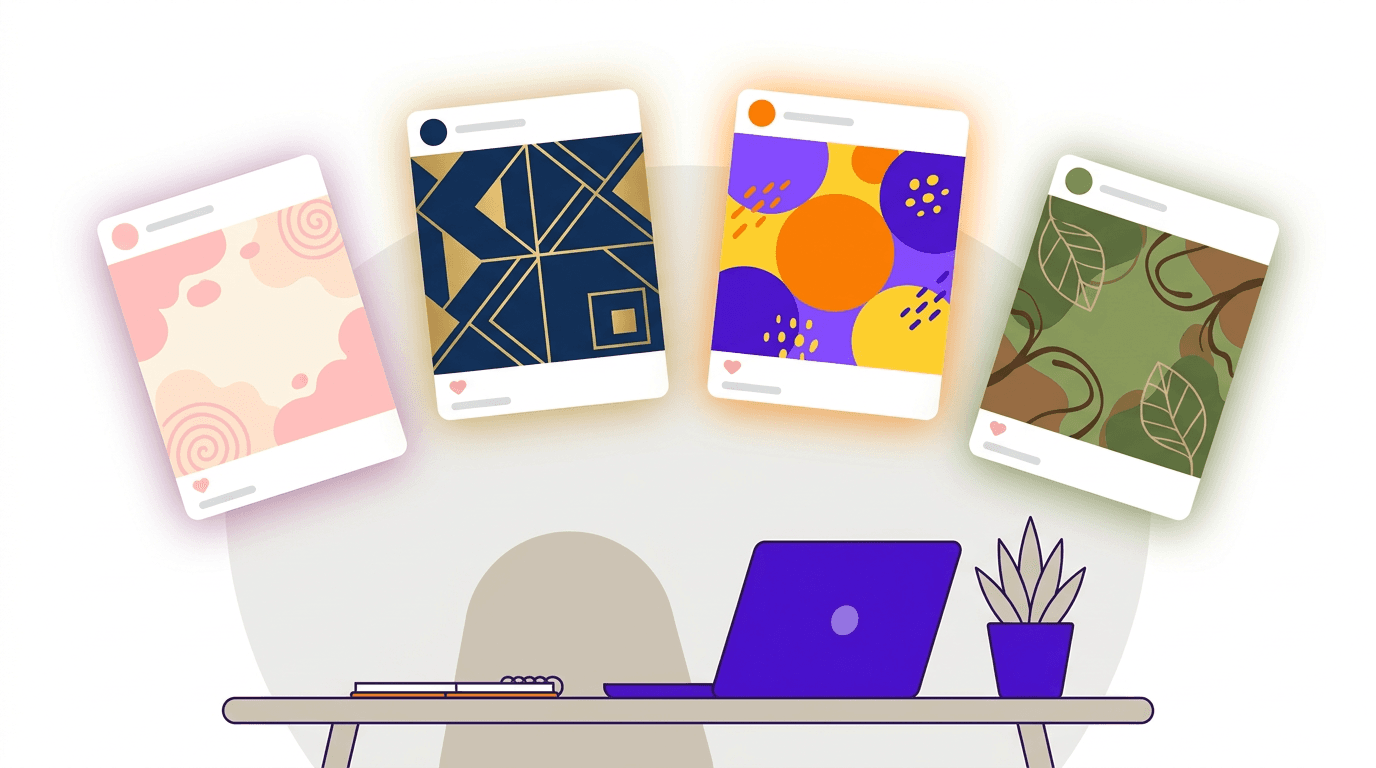
Give them one look
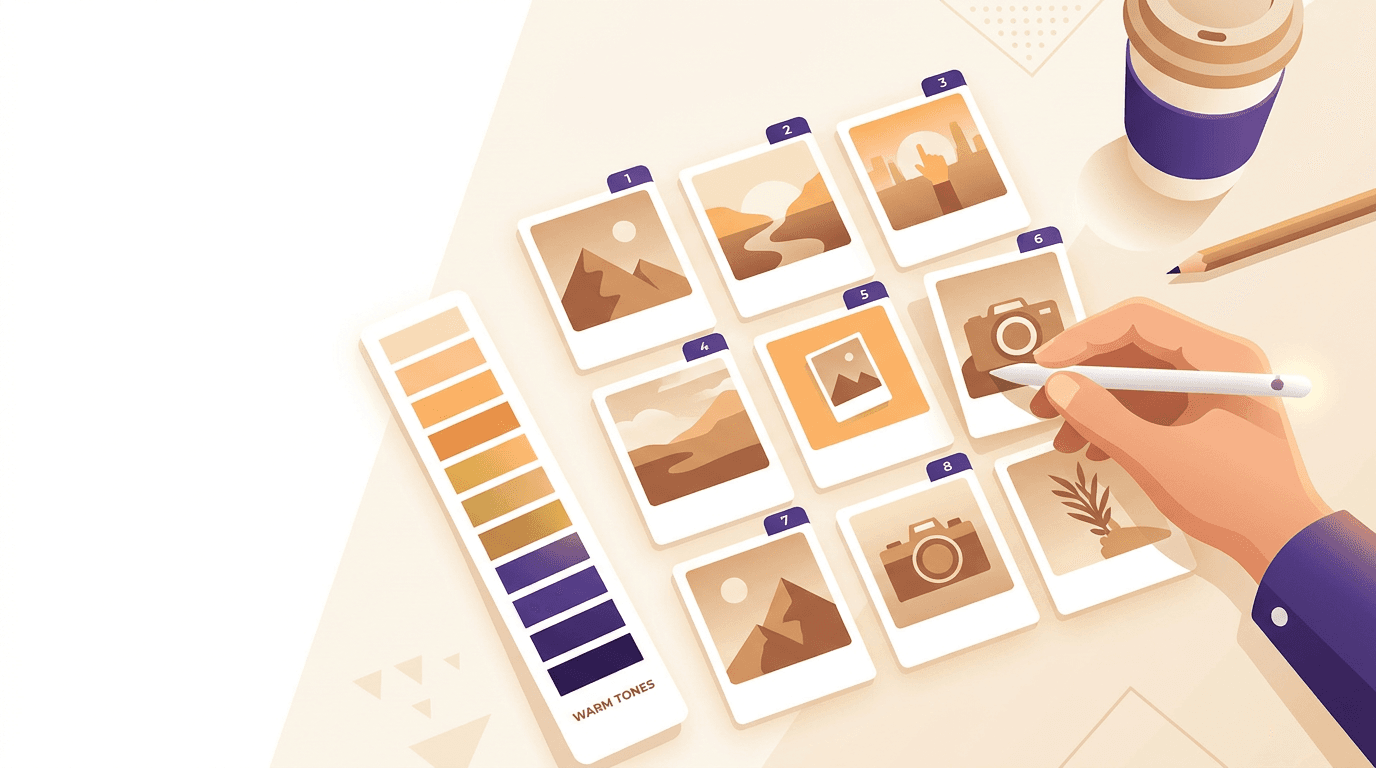
Use the same edit across the whole set: the same filter, warmth and brightness. Edit them the same way in step 6. Ten photos with ten different edits read as ten separate posts.
Decide the order before you open the app
Number the files or put them in a phone album in the right order. The order you tap is the slide order, so do the thinking at your desk, not on the selection screen. A loose photo dump follows the same steps, just with less planning.
For slide planning, hooks and how many slides to use, see how to create a carousel post.
When the set is designed, not shot
Sometimes the photos aren't the post. The client wants a five-slide launch announcement, or this week's shoot needs a headline and the brand on top, and there's no designer free this week.
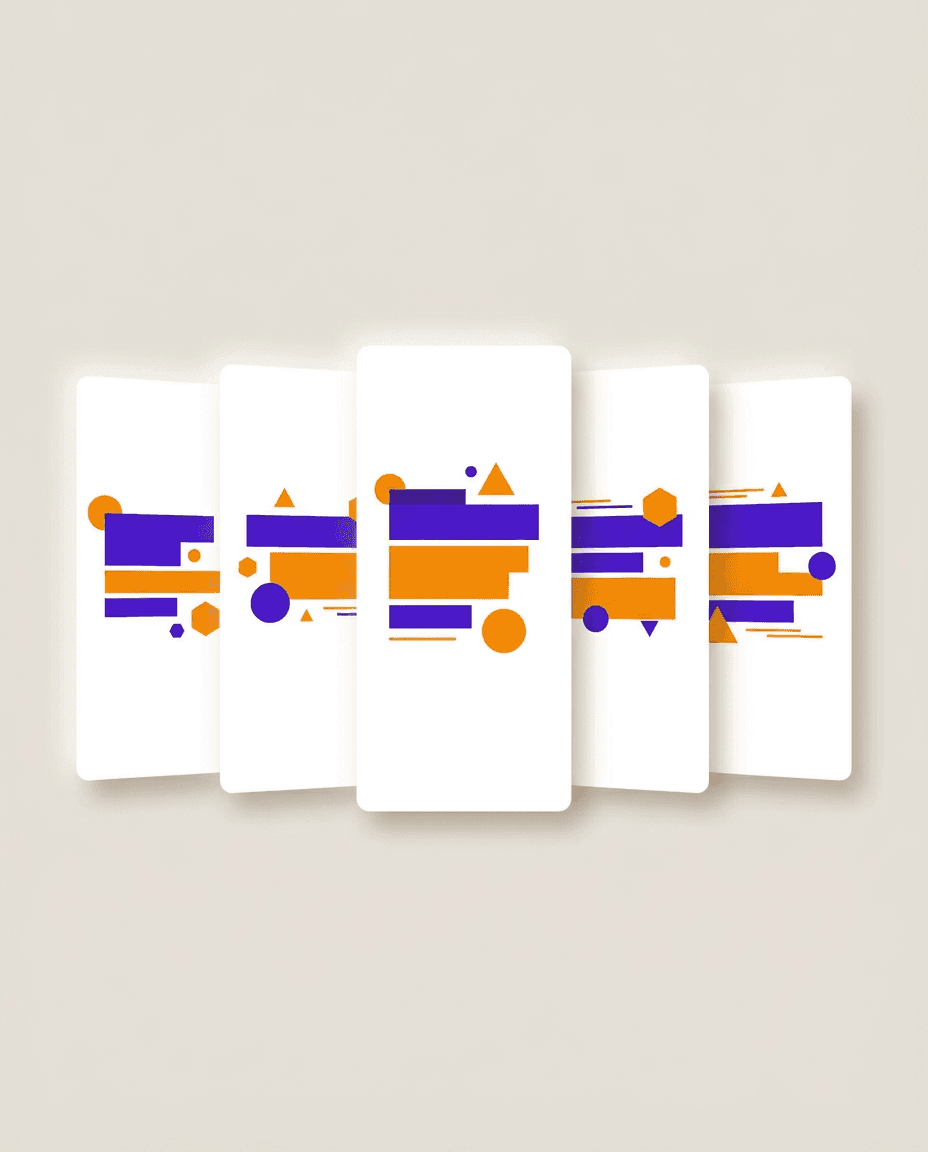
That's the job Krumzi does. Describe the carousel in a sentence or two ("five slides announcing our spring menu, warm and bold, slide one is the hook"), and Krumzi designs every slide from scratch in your client's brand. Everything stays fully editable, so you can change any slide by asking in the chat or by editing it yourself. On Instagram sizes, a carousel can run up to 20 slides, the same as the app's limit.
When it's ready, export it as separate images in a .zip, choosing which slides to include, or as a multi-page PDF for client sign-off. Pick portrait 1080 x 1350 (4:5) or square 1080 x 1080 so nothing gets cropped. Then post the images with the 8 steps above.
If you manage the account, you can also connect Instagram to Krumzi and schedule the post from the post composer on any paid plan. A scheduled post takes images only, and each one has to sit between 4:5 and 1.91:1, which Krumzi checks before you schedule. Stories can't be scheduled. Krumzi's scheduler takes up to 10 images per post today, so a bigger set goes up from the app.
Want to see your next set designed? Try the free carousel maker.
Frequently Asked Questions
How many photos can you post on Instagram at once?
You can post up to 20 photos or videos in one Instagram feed post, and you need at least 2. The limit went up from 10 in August 2024. Stories are different: they take up to 10 per upload, and each becomes its own frame.
Can I mix photos and videos in one Instagram post?
Yes. One post can hold any mix of photos and videos, up to 20 items in total. Select them in the order you want with Select Multiple, the same way you would for photos alone.
Why can't I add 20 photos to my Instagram post?
Usually because your app is out of date. The 20-item limit rolled out gradually in 2024, so update Instagram from the App Store or Google Play, close it fully and open it again. If you still see 10, you may be in the Stories gallery, which has a 10-item limit.
Can I post different-sized photos on Instagram without cropping?
Yes, as long as each photo sits between 4:5 portrait and 1.91:1 landscape. Use the resize button at the bottom left of the preview and pick the option that keeps each photo's own shape (Original or Mixed, depending on your app version). Taller photos, like phone screenshots, and wider ones, like panoramas, are still cropped.
Can I add photos to an Instagram post I already published?
No. You can't add photos to a post after it's published, so double-check the set before you tap Share. Some accounts see an option on the Edit screen to delete a single photo, as long as at least 2 remain. If yours doesn't, delete the post and share it again with the right photos.
A month of posts, designed before your coffee cools
Describe the post. Krumzi designs it from scratch, on your brand, fully editable.
Start free trial3-day free trial, card needed. No charge until day 4. Cancel online anytime.