
Discord does not have one banner. It has three, plus two circular image slots, and each one has different dimensions, a different unlock requirement, and a different way of getting cropped.
That is why so many Discord banners look wrong. People find one number, design to it, upload it, and watch the server name sit on top of their artwork or the invite popup cover the middle of it.
Here is every Discord image size in one place, straight from Discord's own documentation, along with the safe zones that decide whether your banner survives contact with the interface.
Every Discord Banner Size at a Glance
| Asset | Size | Ratio | Unlock | Formats |
|---|---|---|---|---|
| Server banner | 960 x 540 px minimum | 16:9 | Boost Level 2 | PNG, JPG, GIF at Level 3 |
| Server invite background | 1920 x 1080 px exactly | 16:9 | Boost Level 1 | PNG, JPG only |
| Profile banner | 600 x 240 px minimum | 5:2 | Nitro | PNG, JPG, GIF under 10 MB |
| Server icon | 512 x 512 px | 1:1 | Free | PNG, JPG, GIF at Level 1 |
| User avatar | 1024 x 1024 px recommended | 1:1 | Free | PNG, JPG, GIF with Nitro |
Two things to notice before you design anything. First, the three banners are three different aspect ratios, so one file will not cover all of them. Second, both the icon and the avatar get masked into circles, so a square design loses its corners.
Discord Server Banner Size: 960 x 540
The server banner is the wide image that sits at the top of your channel list. Discord specifies a minimum of 960 x 540 pixels at a 16:9 aspect ratio, and confirms that a 1920 x 1080 image will be accepted and resized automatically.
Upload at 1920 x 1080. Same ratio, four times the pixels, and it holds up on high resolution displays where 960 x 540 starts to look soft.
The top 48 pixels are not yours
This is the rule almost nobody knows, and it is in Discord's own banner guidelines: keep the top 48 pixels of the file free of busy imagery, because your server name sits over that strip.
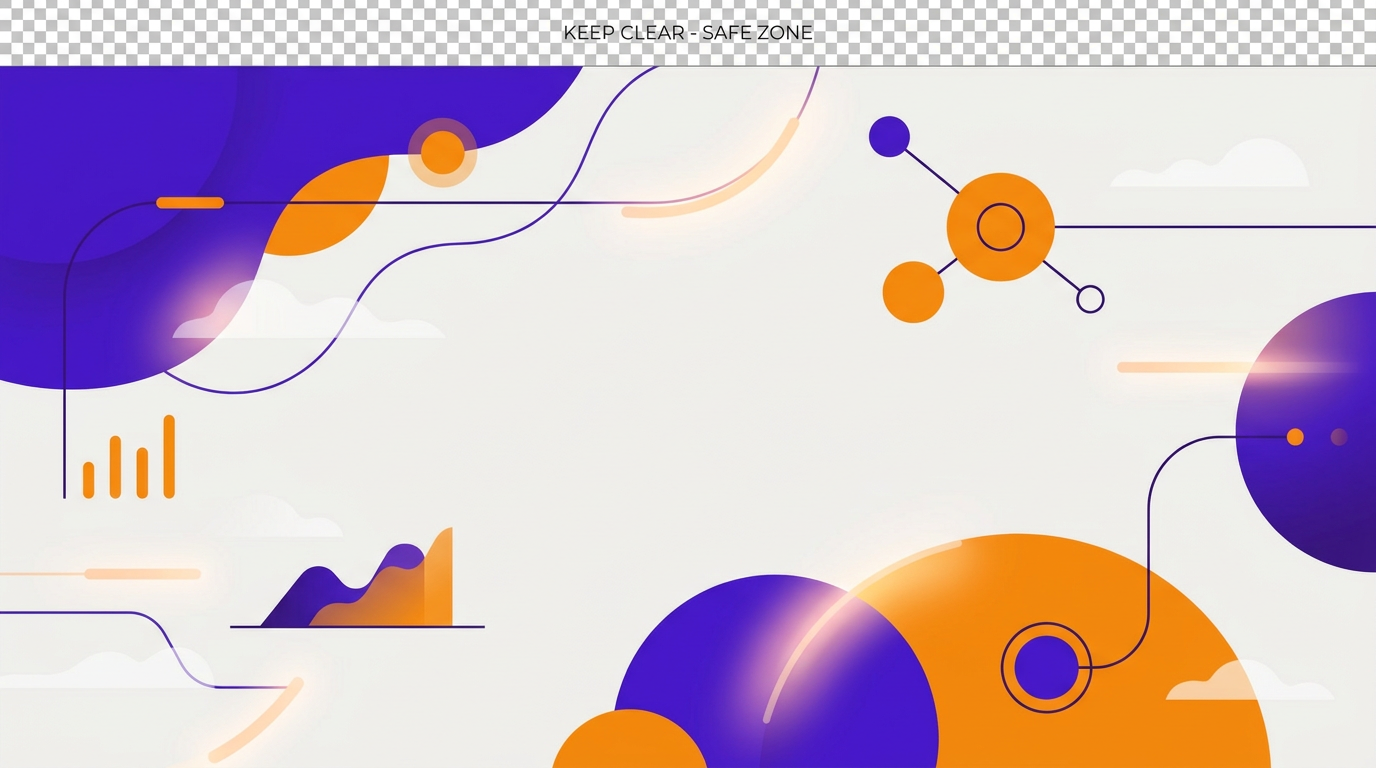
At 1920 x 1080 that strip scales to roughly the top 96 pixels. Put a flat colour, a gradient, or the quiet part of your image up there. Anything detailed and your server name becomes unreadable.
Unlocking it
Server banners require Boosting Level 2. Animated banners require Level 3, at the same 960 x 540 recommendation. Discord Partner servers get the banner perk without boosting.
One detail on animated banners: they play for five seconds when the server loads, pause, then replay on hover or when scrolled back into view. They also do not animate at all for members who have reduced motion enabled, so the first frame has to work as a still image on its own.
Discord also recommends leaving text out
Discord explicitly advises against banners containing a logo or text. This is not a technical limit, it is a design one. The banner is small, it sits behind the channel list, and text at that scale competes with the interface. Key art, a character, or a subtle background pattern reads far better.
Discord Server Invite Background: 1920 x 1080 Exactly
The invite background is the image behind the invite popup that people see when they click your invite link. This one has the strictest requirement of the three: Discord states the image size must be 1920 x 1080, and only accepts JPG and PNG. No GIFs.
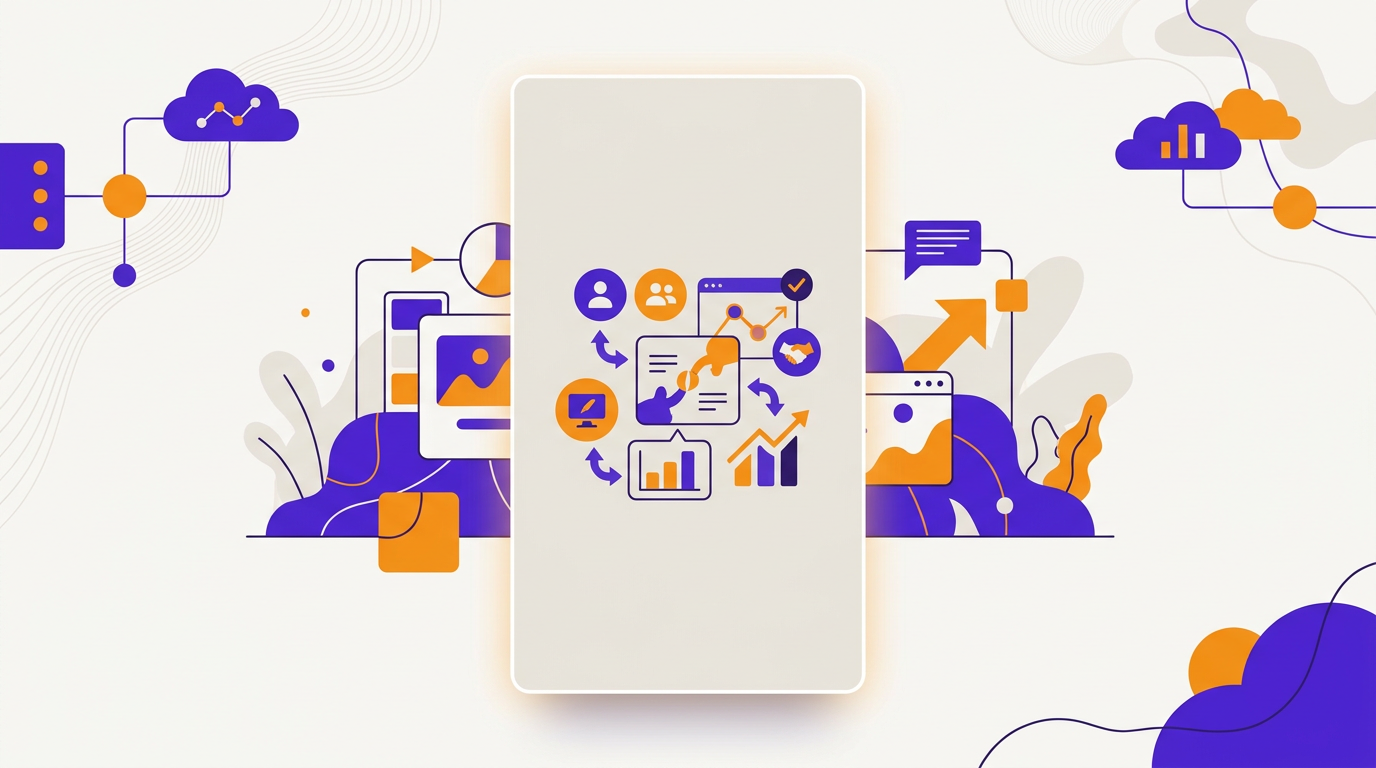
The design constraint here is the popup itself. It is an upright rectangle sitting dead centre of the window, so it covers the middle of your image. Whatever you want people to see has to live in the left and right thirds, or spread across the whole frame as texture.
A practical test: upload it, then open your invite link in a private browsing window. You will see it exactly as a new member does. You cannot adjust or reposition the image after uploading, so it is worth checking before you commit.
The invite background unlocks at Boosting Level 1, one level earlier than the server banner, and stays available at Levels 2 and 3.
Discord Profile Banner Size: 600 x 240
The profile banner is the strip across the top of your personal profile card. Discord recommends a minimum of 600 x 240 pixels, which is a 5:2 ratio, and accepts PNG, JPG, and animated GIF files under 10 MB. It is a Nitro feature.
Upload at 1200 x 480 rather than 600 x 240. Same ratio, double the resolution, and it stays crisp on retina displays.
The practical constraint is your avatar. It overlaps the bottom left corner of the banner as a circle, covering a meaningful chunk of it. Keep the left third of your profile banner simple, and put anything you want visible on the right.
Nitro users can also set per server profiles, which means a different banner and avatar in each server. If you run a brand presence across several communities, that is worth using rather than one generic banner everywhere.
Discord Server Icon and Avatar: Design for the Circle
Both the server icon and the user avatar are square uploads that Discord displays as circles.
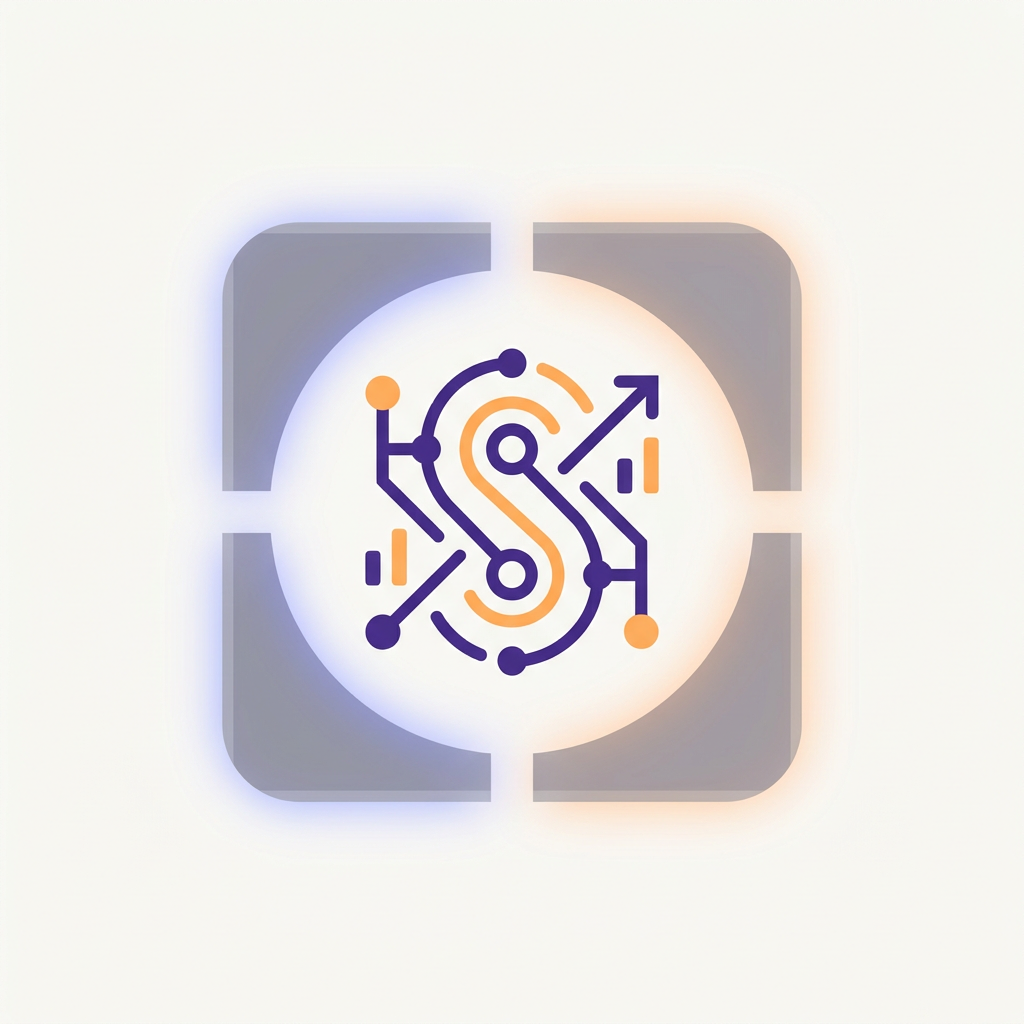
Upload the server icon at 512 x 512 and the avatar at 1024 x 1024. Then keep everything important inside a circle inscribed in that square, which means roughly the middle 80 percent. Corners get clipped, every time, on every platform that masks to a circle.
A few specifics worth knowing:
- Server avatars accept JPG, PNG, and GIF, with a maximum file size of 8 MB.
- Animated server icons unlock at Boosting Level 1.
- After uploading an avatar you can crop, centre, and rotate it, so a slightly off centre source file is recoverable.
- Discord keeps your six most recent avatar uploads, viewable on desktop and browser only.
If your logo is a wordmark rather than a symbol, do not shrink the whole thing to fit the circle. Use a single letter, a monogram, or the icon element on its own. Wordmarks at 40 pixels are illegible.
Design Rules That Apply to All Three Banners
Design at 2x, upload at 2x. Discord downscales cleanly and upscales badly. 1920 x 1080 for the server banner, 1200 x 480 for the profile banner.
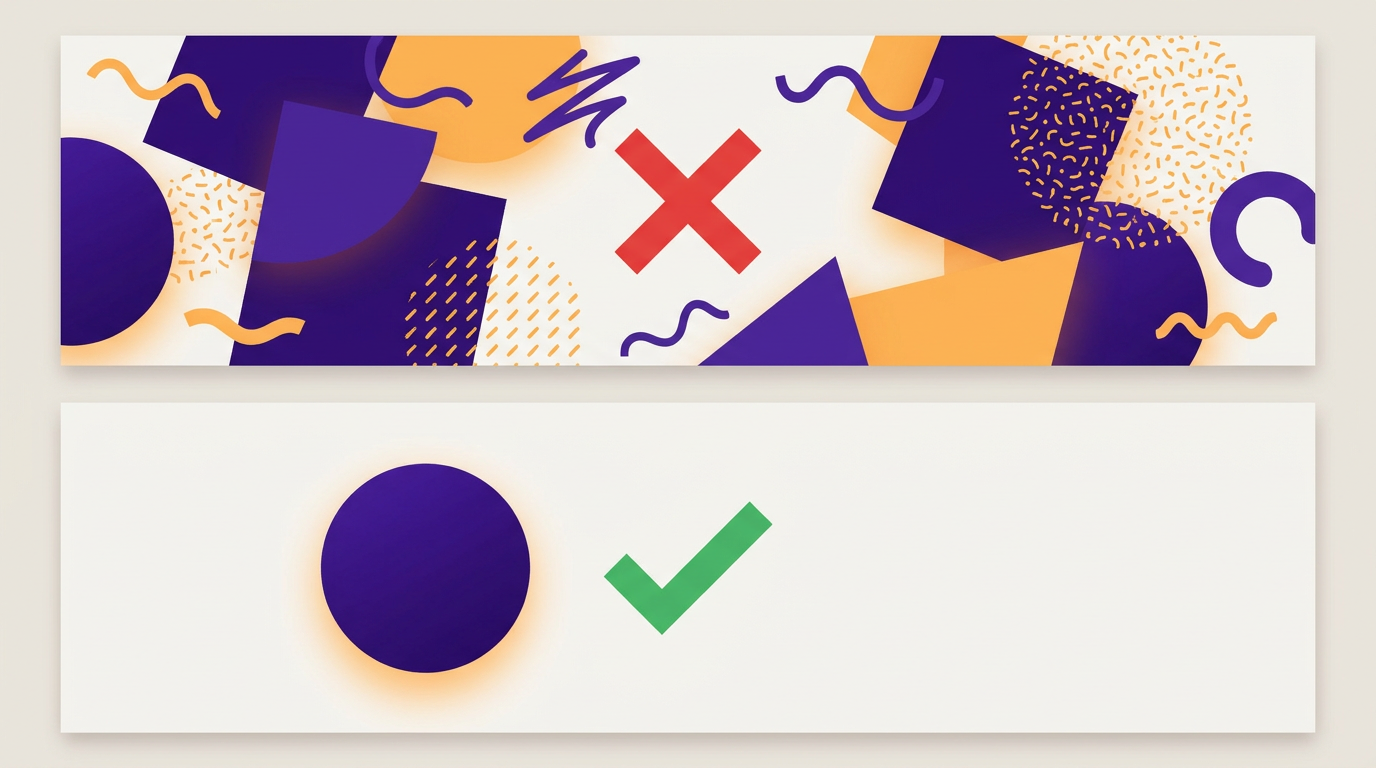
One focal point, not five. These images are small in the interface and usually seen for under a second. A single strong shape or character beats a busy composition every time.
Test on dark mode first. The overwhelming majority of Discord users are on the dark theme. A banner designed on a light canvas can look washed out or leave a bright halo when it lands in the app.
Watch file size. The profile banner limit is 10 MB and avatars cap at 8 MB. Animated GIFs blow past both quickly. Cut frame count before you cut resolution.
Do not use a transparent PNG for the banners. Discord composites banners onto its own background, and transparency there produces unpredictable results. Flatten to a solid or gradient background instead.
How to Make a Discord Banner
The workflow is the same regardless of which banner you are making.
- Pick the right canvas. 1920 x 1080 for the server banner and invite background, 1200 x 480 for the profile banner. Getting this wrong at the start guarantees a crop later.
- Block out the safe zones. Draw a guide across the top 96 pixels of a server banner, or a circle over the bottom left of a profile banner, before you place anything.
- Build the artwork. One focal element, a background that reads well on dark, and colours pulled from your brand rather than picked at random.
- Skip the text. Discord recommends against it, and it rarely survives the scale anyway.
- Export as PNG for flat artwork, JPG for photography. PNG holds crisp edges on graphics, JPG keeps photographic files smaller.
- Preview it live. Upload it, then look at the server on both desktop and mobile before you decide you are done.
If you would rather describe the banner than build it, AI design tools now cover this. With Krumzi, you describe what you want, pick a preset or set custom dimensions anywhere from 50 to 8000 pixels, and the AI builds the design from scratch rather than filling a template. Discord presets for the server banner, invite splash, server icon, and profile banner are included, everything stays fully editable afterwards, and your brand colours and fonts are applied automatically once your brand kit is set up.
For the equivalent specs on every other platform, our complete guide to social media image sizes covers them all, and the same safe zone thinking applies to YouTube banners, Facebook cover photos, and LinkedIn banners.
Frequently Asked Questions
What is the correct Discord banner size?
It depends which banner. The server banner is a minimum of 960 x 540 pixels at 16:9, though Discord accepts and resizes 1920 x 1080. The server invite background must be exactly 1920 x 1080. The personal profile banner has a recommended minimum of 600 x 240 pixels at a 5:2 ratio. They are three different assets with three different ratios.
Do I need Nitro or server boosts for a Discord banner?
Yes, for most of them. The server invite background unlocks at Boosting Level 1, the server banner at Level 2, and animated server banners at Level 3. The personal profile banner requires Nitro. Discord Partner servers get the server banner perk without boosting. Server icons and avatars are free for everyone.
Why is my Discord banner blurry?
Usually because it was uploaded at the minimum size rather than at 2x. Upload the server banner at 1920 x 1080 and the profile banner at 1200 x 480. Heavy JPG compression is the other common cause, so export flat graphic artwork as PNG instead, which keeps hard edges and flat colour sharp.
Can I put text on a Discord banner?
You can, but Discord recommends against it and the interface works against you. The server name overlays the top 48 pixels of the server banner, the invite popup covers the middle of the invite background, and your avatar covers the left of the profile banner. Text at that scale is usually unreadable anyway. Key art or a simple background pattern performs better.
What file size can a Discord banner be?
Profile banners must be under 10 MB, and server avatars cap at 8 MB. Animated GIFs hit those ceilings fast. If your file is too large, reduce the number of frames or shorten the loop before reducing resolution, since resolution is what keeps the banner looking sharp.

 Facebook
 X
X LinkedIn


