On this page
🎬 TL;DR
A photo slideshow with music turns a folder of pictures into one shareable video, perfect for weddings, memorials, graduations, and social posts.
The workflow: gather and order your photos, pick a tool, add a soundtrack, set the timing, then export as an MP4.
The biggest upgrade you can make is syncing your photos to the beat of the music. It instantly looks professionally edited.
You do not need video editing skills. An AI tool like Krumzi can build the slideshow and match the cuts to the music for you.
There is a moment at almost every wedding, graduation party, and memorial when the lights dim and a photo slideshow set to music plays. Done well, it makes the whole room feel something. The problem is that most people sit down to make one, open an app, and immediately get stuck on timing, music, or photos that flash by too fast.
It does not have to be hard. This guide walks you through how to make a photo slideshow with music step by step, whether it is for a celebration, a social media post, or a business promo. You will also learn the one trick that separates an amateur slideshow from one that looks professionally produced.
What You Need Before You Start
Five minutes of prep saves you a lot of frustration later. Get these ready first:
- Your photos: Gather every image you want to include in one folder. For a 3 to 4 minute slideshow, 30 to 60 photos is a comfortable range.
- A song: Choose music that matches the mood. Keep the track length close to your target slideshow length so you are not cutting the song off awkwardly.
- A rough order: Decide the flow. Chronological works beautifully for weddings and memorials. For a promo, lead with your strongest images.
- The destination: Know where it will play. A big-screen slideshow, an Instagram Reel, and a YouTube video want different dimensions and lengths.
A quick note on music: if you plan to post the slideshow publicly on social platforms, use royalty-free or licensed music to avoid copyright muting. Most modern tools include a built-in library of cleared tracks so you do not have to hunt for one.
How to Make a Photo Slideshow With Music: Step by Step

The exact buttons vary by tool, but the process is the same everywhere.
Step 1: Gather and Order Your Photos
Pull your chosen images into one place and put them in the order you want them to appear. This is worth doing before you open any editor, because rearranging dozens of photos inside an app is slower than sorting them in a folder first. Remove duplicates and blurry shots now so you are only working with your best images.
Step 2: Choose Your Tool
You have options depending on what you are after. Phone apps like the built-in Photos app on iPhone can auto-build a quick slideshow. Presentation tools like PowerPoint can play music across slides. Dedicated video and design tools give you the most control over timing and transitions. If you want the slideshow generated for you from a description, an AI tool like Krumzi builds the whole thing and keeps every element editable.
Step 3: Add Your Photos and Set the Order
Import your folder into the tool. Most editors drop the photos onto a timeline in the order you added them. Drag them around if anything is out of place. Aim for each photo to hold the screen for roughly 3 to 5 seconds, which is long enough to register without dragging.
Step 4: Add Your Music
Upload your song or pick one from the tool's built-in library. The track usually lands on a separate audio layer beneath your photos. Trim the start and end so the music begins and ends cleanly rather than cutting off mid-note.
Step 5: Set the Timing and Transitions
Now shape the pacing. Adjust how long each photo stays on screen and add simple transitions like a crossfade between images. Resist the urge to use a different flashy transition on every slide. One or two consistent transitions look far more polished than a grab bag of spins and wipes.
Step 6: Sync the Photos to the Beat (The Pro Move)
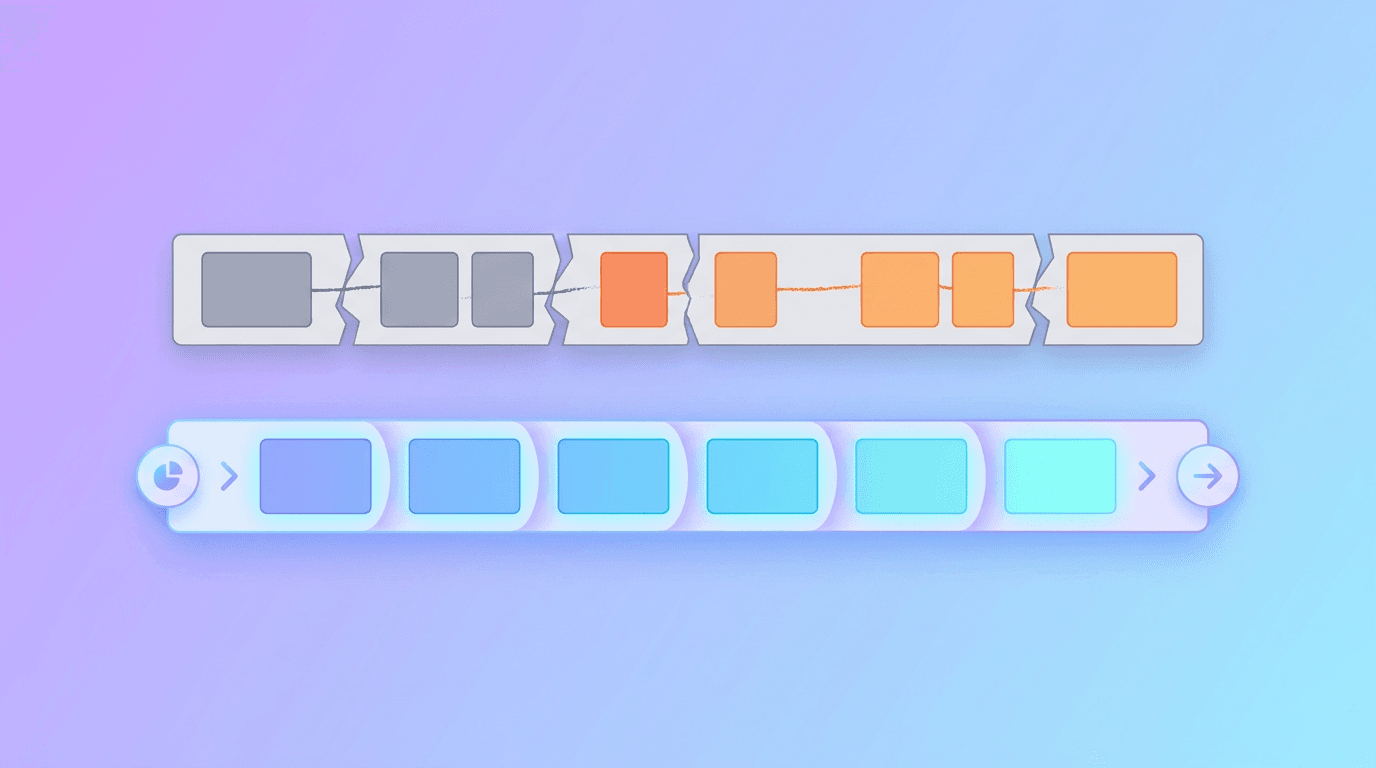
Here is the upgrade that makes the biggest difference: time your photo changes to the beat of the music. When images switch on the beat, the slideshow feels intentional and professionally edited. When they ignore the music, it feels off even if viewers cannot explain why.
Doing this by hand means counting beats and nudging each photo, which is tedious. Some tools do it automatically. Krumzi includes automatic beat detection that syncs your photo cuts and animations to the track, so a beat-matched slideshow takes seconds instead of an evening of fiddling. We go deeper on beat-syncing in our guide on how to make animated social media posts.
Step 7: Export and Share
When you are happy, export as an MP4, the most universal video format. Choose dimensions that match where it will play: 16:9 (1920 x 1080) for TVs and YouTube, 9:16 (1080 x 1920) for Instagram Reels, Stories, and TikTok, or 1:1 for a square feed post. For the exact specs on every platform, see our social media image sizes guide.
Slideshow Ideas for Different Occasions

A photo slideshow with music fits more situations than you might think:
- Weddings and anniversaries: A chronological journey through the couple's story, set to a meaningful song.
- Memorials and celebrations of life: A gentle, photo-led tribute. Slower pacing and soft music suit the mood.
- Graduations and birthdays: A highlight reel of milestones, often upbeat and fast-paced.
- Social media content: A swipe-stopping recap, a product showcase, or a before-and-after. For more formats you can adapt, browse our 15 social media video ideas.
- Business and promos: A portfolio reel, client results, or an event recap that builds trust fast.
If you create slideshows and video content regularly, it pays to build a repeatable system rather than starting from scratch each time. Our social media video strategy guide covers how to do that.
Tips for a Slideshow That Looks Professional
- Match the music to the mood. An upbeat track for a party, something gentle for a tribute. The song sets the emotional tone more than the photos do.
- Keep transitions consistent. Pick one or two and use them throughout. Variety here reads as amateur.
- Give photos room to breathe. Three to five seconds per image is the sweet spot. Faster feels frantic, slower feels sluggish.
- Lead and end strong. Open with an image that grabs attention and close on an emotional or memorable one.
- Sync to the beat. It is the single biggest thing that makes a slideshow feel produced rather than thrown together.
Frequently Asked Questions
How do I make a slideshow with music and pictures for free?
Many tools let you build a photo slideshow with music at no cost. Add your photos to a timeline, drop in a track from the tool's free music library, set each photo to display for 3 to 5 seconds, and export as an MP4. AI design tools like Krumzi can also generate the slideshow from a description, and you can test it with a 7-day free trial (trial exports are watermarked).
How long should a photo slideshow be?
Aim for 3 to 5 minutes for an event slideshow like a wedding or memorial, which is long enough to feel complete without losing the room. For social media, keep it much shorter, usually 15 to 60 seconds. As a rule, match the slideshow length to one song so the music does not cut off awkwardly.
Can my iPhone make a slideshow with music?
Yes. The Photos app on iPhone can automatically turn a selection of photos into a slideshow set to music. For more control over timing, transitions, and beat-syncing, a dedicated video or AI design tool gives you better results, but the built-in option is fine for a quick personal slideshow.
How do I sync my photos to the music?
You can do it manually by listening for the beat and timing each photo change to land on it, which takes patience. Faster, some tools include automatic beat detection that matches your photo cuts to the track for you, so the whole slideshow snaps to the rhythm without counting beats by hand.
What is the best format to export a photo slideshow?
MP4 is the most universal format and plays on virtually any device or platform. Choose 16:9 (1920 x 1080) for TVs and YouTube, 9:16 (1080 x 1920) for Reels, Stories, and TikTok, and 1:1 for a square social feed post. Export at high quality so your photos stay sharp on big screens.
Press Play
Making a photo slideshow with music comes down to a few simple moves: gather and order your best photos, pick the right song, give each image room to breathe, and time your cuts to the beat. Do that and you will have a slideshow that actually moves people, whether it plays at a wedding or in a feed.
Start by collecting your photos and choosing a song that fits the moment. From there, the editing is the easy part, especially if you let AI handle the timing. For more ways to turn ideas into finished visuals fast, explore the best AI design tools in 2026.
Related reading:
A month of posts, designed before your coffee cools
Describe the post. Krumzi designs it from scratch, on your brand, fully editable.
Make your first design freeFree to make, no card. Only pay if you download it.