
Your Facebook cover photo is the biggest piece of visual real estate on your page, and it is the first thing visitors see. Get the size wrong and Facebook crops your logo, stretches your text, or leaves you with a blurry banner on half the devices that view it.
The good news: the correct Facebook cover photo size is simple once you know the exact numbers and the one safe-zone trick that keeps your design intact across desktop and mobile. This guide covers the current 2026 dimensions, the file specs Facebook actually recommends, and how to make a cover that fits every screen.
Facebook Cover Photo Size in 2026
The ideal Facebook cover photo size is 851 pixels wide by 315 pixels tall at a minimum, but you should upload it larger for a crisp result. Here is the quick reference:
| Spec | Recommendation |
|---|---|
| Recommended upload size | 851 x 315 px (or 1640 x 720 px for retina sharpness) |
| Displays on desktop | 820 x 312 px |
| Displays on mobile | 640 x 360 px |
| Minimum size | 400 x 150 px |
| Aspect ratio | Roughly 2.7:1 (upload wide, not square) |
| File format | JPG or PNG |
| File size | Under 100 KB loads fastest |
Here is the thing most guides skip: Facebook displays your cover at different sizes on desktop and mobile, and it crops each one differently. Desktop shows a wider strip, while mobile shows a taller, more centered slice. That is why the safe zone matters so much.
The Safe Zone: The One Trick That Saves Your Design
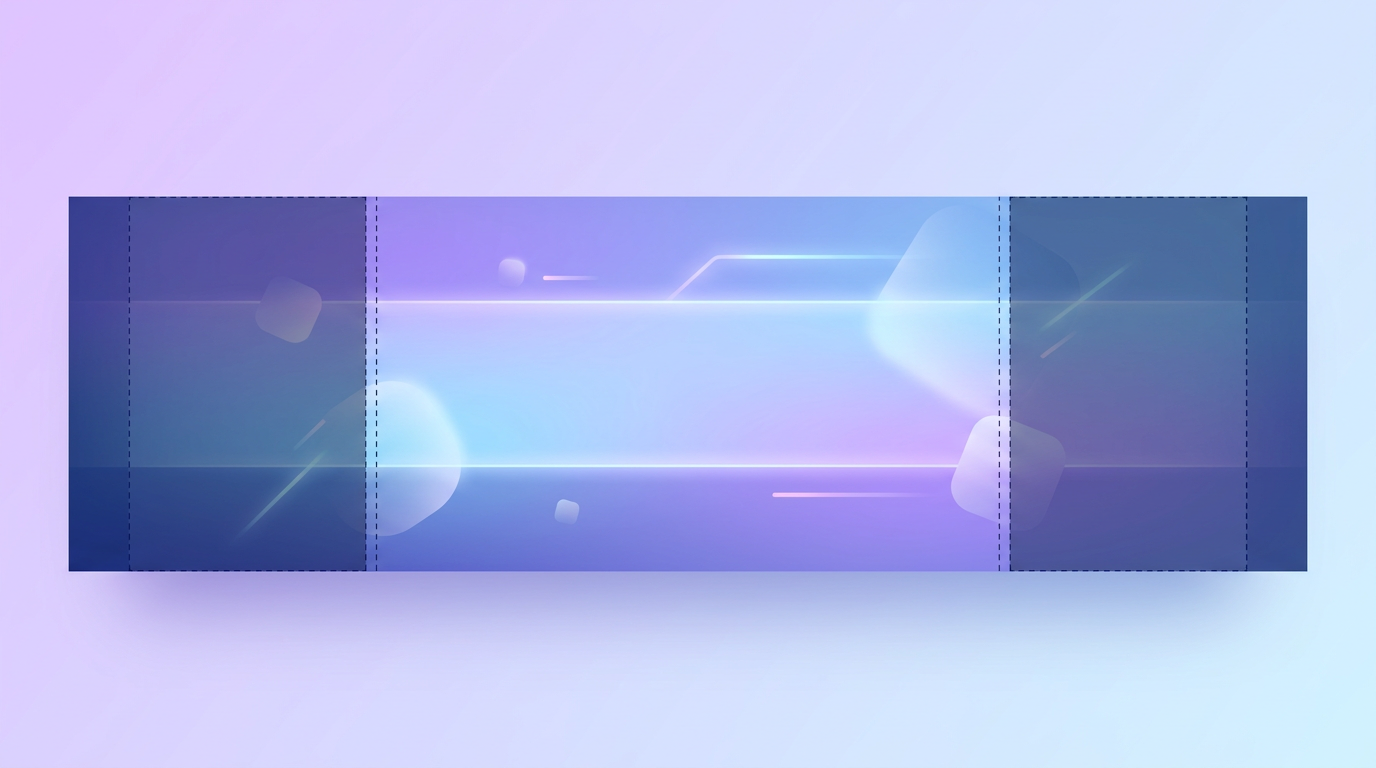
Desktop and mobile crop your cover from different edges. On desktop, the left and right edges stay visible but the top and bottom get trimmed slightly. On mobile, the sides get cut off and only the center portion shows.
To keep your logo, text, and key elements visible everywhere, keep them inside the center 640 x 312 px area. Treat the outer edges as decoration only, like background color or texture that can safely be cropped.
One more overlap to watch: your profile picture sits in the bottom-left corner of the cover on desktop, so avoid placing important text or your logo there. On a business page the profile picture position shifts, but the center-safe rule still keeps you covered.
Facebook Cover Photo Size for Personal Profiles vs Business Pages
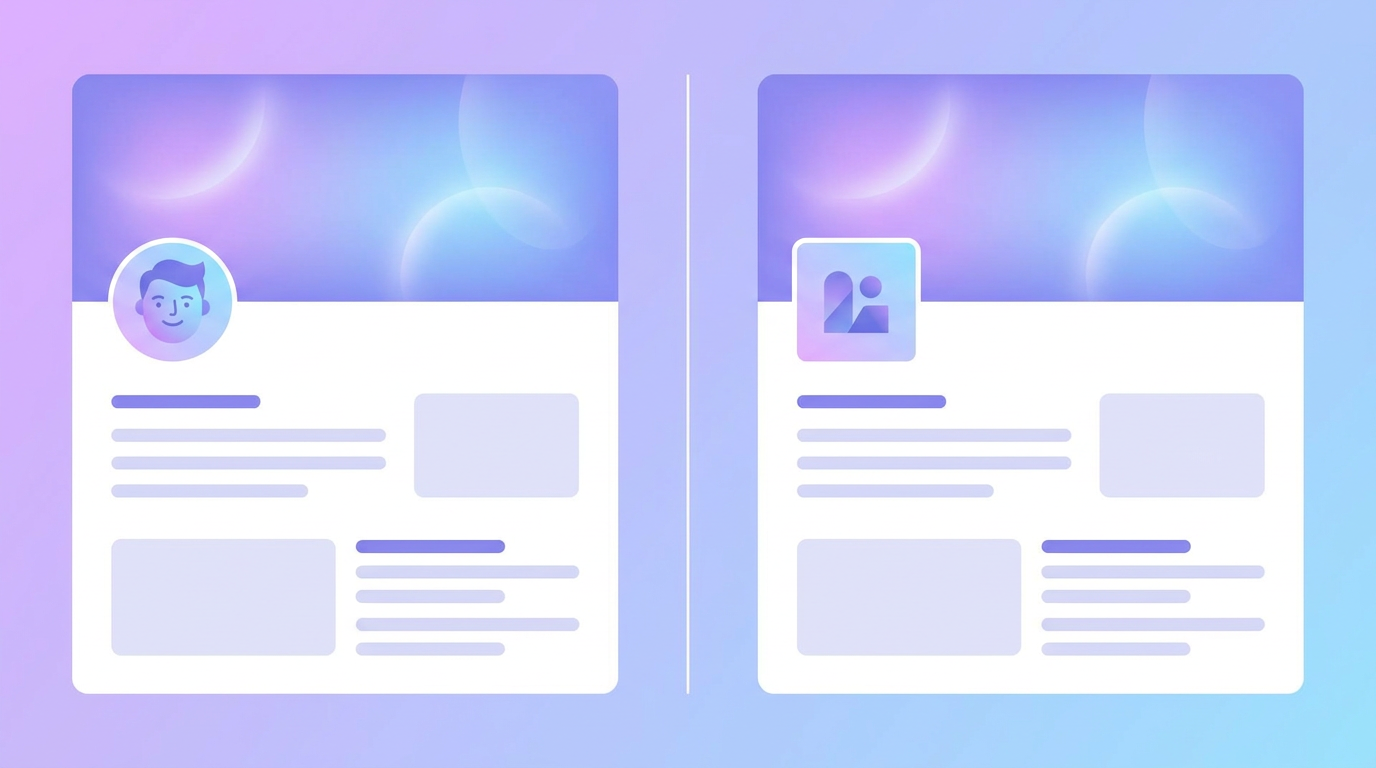
The core dimensions are the same, but the layout differs slightly:
- Personal profile: The cover spans the top of your timeline with your profile picture overlapping the lower-left area.
- Business page: The cover is more prominent and centered, and it often sits beside your page name and call-to-action buttons. Because customers judge your brand here, keep it clean and on-brand.
- Group cover: Facebook groups use a wider, shorter banner (around 1640 x 856 px), so design a separate version if you run a group.
- Event cover: Events use roughly 1920 x 1005 px, closer to a 16:9 shape.
If you manage several of these, design one master graphic and export it at each size rather than starting from scratch each time.
File Format and Quality Specs
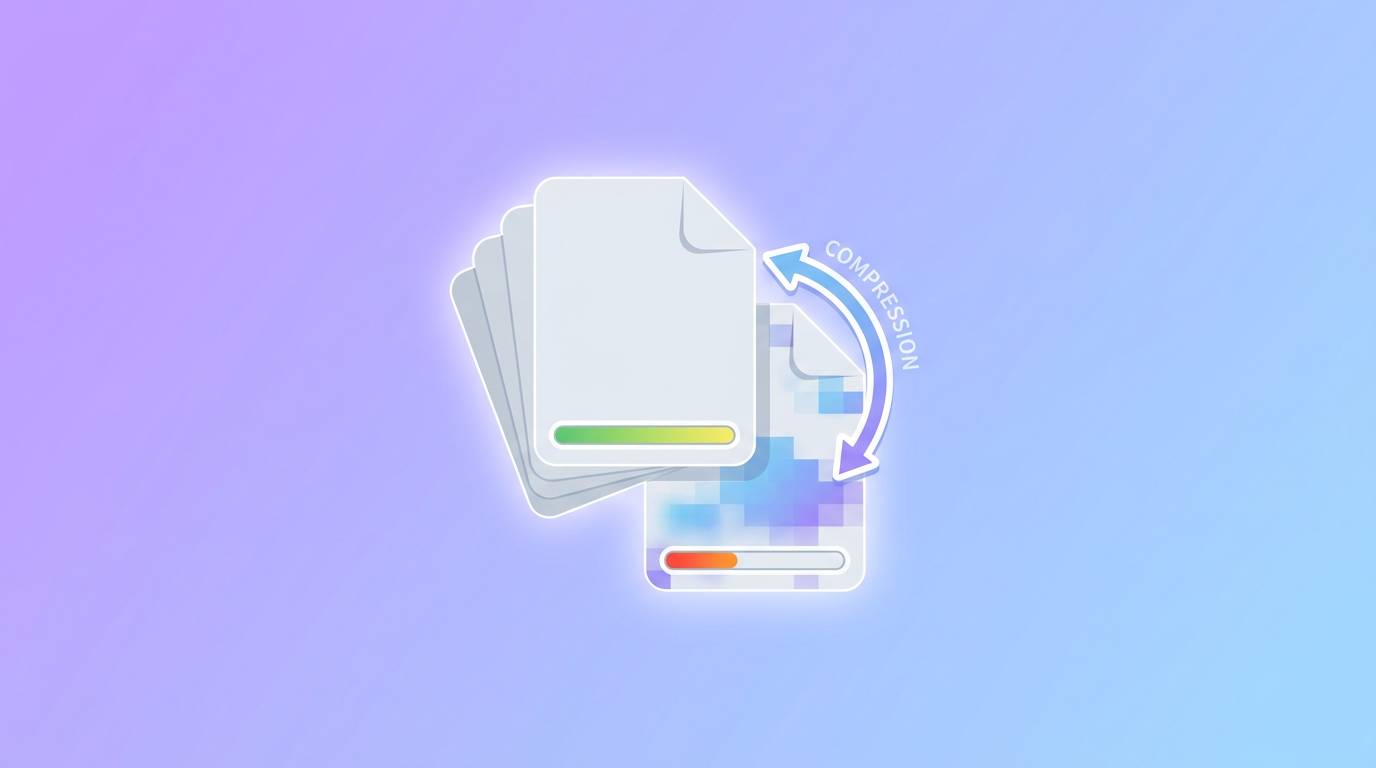
Facebook compresses images aggressively, which is why so many covers end up looking soft. A few specs keep yours sharp:
- Use PNG for graphics with text or a logo. PNG preserves crisp edges on flat colors and typography. Use JPG for photo-heavy covers.
- Upload at 2x size (1640 x 720 px). Facebook downscales cleanly, so a larger source file looks sharper than one uploaded at the bare minimum.
- Keep the final file reasonable. Facebook says a JPG under 100 KB loads fastest, though a slightly larger PNG is fine for a quality graphic.
- Use RGB color, not CMYK. CMYK files can display with washed-out colors on screen.
How to Make a Facebook Cover Photo
You do not need Photoshop or design experience. Here is a simple workflow that works whether you are a small business owner or a creator.
Step 1: Start With the Right Canvas Size
Begin with a canvas set to 1640 x 720 px. Starting at the correct dimensions means you never have to resize or crop later, and your text stays sharp.
Step 2: Design Inside the Safe Zone
Place your logo, tagline, or offer inside the center. Push background elements, patterns, and color washes to the edges where cropping will not hurt them.
Step 3: Keep the Message Simple
A cover photo is a billboard, not a brochure. One clear message, one focal image, and a readable font beat a cluttered collage every time. If someone should book, shop, or follow, hint at that visually.
Step 4: Match Your Brand
Use your brand colors and fonts so the cover feels connected to your posts, profile picture, and website. Consistency is what makes a page look professional. A quick brand kit keeps these elements in one place.
Step 5: Generate It With AI Instead of Wrestling Templates
This is where a tool like Krumzi saves real time. Instead of dragging elements around a template, you describe the cover you want ("a warm, minimal cover for a coffee shop with our logo centered and soft brown tones") and the AI designs it for you, correctly sized and fully editable. No design skills needed, and every element stays adjustable afterward.
Step 6: Export and Upload
Export as a PNG or high-quality JPG, then upload it through your page settings. Preview it on both desktop and your phone before you finalize, since that is the fastest way to catch a cropping issue.
Common Facebook Cover Photo Mistakes to Avoid
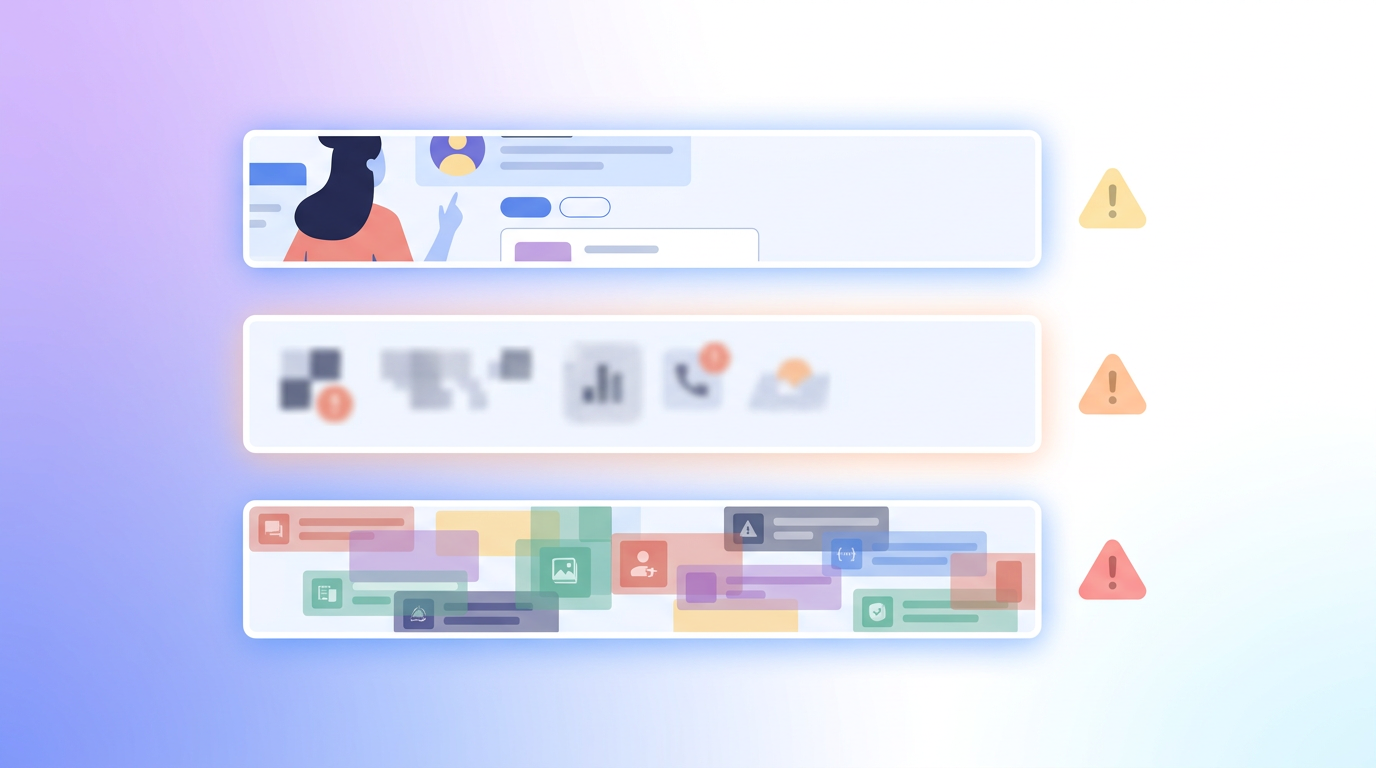
- Uploading a square image. A square gets cropped into a thin strip and loses most of your design. Always design wide.
- Putting text at the edges. Mobile chops the sides. Keep words centered.
- Ignoring mobile. More than half your visitors are on phones. If it does not work on mobile, it does not work.
- Low-resolution files. Anything below the recommended size gets stretched and blurred.
- Forgetting the profile picture overlap. Do not hide your logo behind it.
Frequently Asked Questions
What size is a Facebook cover photo in 2026?
The recommended Facebook cover photo size is 851 x 315 px, and it displays at 820 x 312 px on desktop and 640 x 360 px on mobile. Upload at 1640 x 720 px for the sharpest result.
Why does my Facebook cover photo look blurry?
Blurriness usually comes from uploading a file that is too small or letting Facebook compress a large JPG. Upload a PNG at 2x size (1640 x 720 px) to keep edges and text crisp.
What is the best aspect ratio for a Facebook cover photo?
A Facebook cover photo uses roughly a 2.7:1 ratio, meaning it is much wider than it is tall. Design on a wide canvas rather than a square or portrait shape.
How do I make my cover photo fit on Facebook?
Start your design at 1640 x 720 px and keep all important text and logos inside the center safe zone. That way both the desktop and mobile crops keep your key elements visible.
Can I make a Facebook cover photo for free?
Yes. AI design tools let you describe the cover you want and generate a correctly sized, editable banner in seconds, without templates or design software.
Get Your Cover Right the First Time
The Facebook cover photo size that works in 2026 is 851 x 315 px, uploaded larger at 1640 x 720 px, with your key elements inside the center safe zone. Nail those numbers and your banner will look sharp on every device.
When you are ready to design one, describe what you want and let Krumzi build a perfectly sized, on-brand cover you can tweak in seconds. For more platform dimensions, keep our social media image sizes guide handy, and if you are building out your page, our guide on how to grow a Facebook page walks through the next steps.

 Facebook
 X
X LinkedIn


