On this page
⚡ TL;DR
A YouTube thumbnail is the single biggest factor in whether someone clicks your video, so it deserves as much attention as the video itself.
The correct size is 1280 x 720 pixels, 16:9 ratio, under 2MB, saved as JPG, PNG, or GIF.
The formula that works: one clear subject, a big readable face or object, 3 to 5 words of bold text, and high contrast colors.
You do not need Photoshop. AI design tools now build a finished, on-brand thumbnail from a short description.
You can pour hours into filming and editing a video, and it can still flop. The reason is almost always the same: a weak thumbnail. Your thumbnail is the first thing a viewer sees, and it decides your click-through rate before a single second of your video plays.
The good news is that a great thumbnail follows a repeatable formula, and you no longer need design skills to pull it off. This guide walks you through how to make a YouTube thumbnail step by step, from the exact size to the design choices that earn clicks, plus the fastest way to make one in 2026.
What Is a YouTube Thumbnail?
A YouTube thumbnail is the still image that represents your video in search results, on the homepage, in suggested videos, and on your channel page. Think of it as the cover of your video. When paired with your title, it is what convinces someone to stop scrolling and click.
YouTube generates three auto-thumbnails from frames of your video, but those are almost always worse than a custom one. A custom thumbnail lets you control the exact message, framing, and text, which is why nearly every successful channel uses them.
YouTube Thumbnail Size and Specs
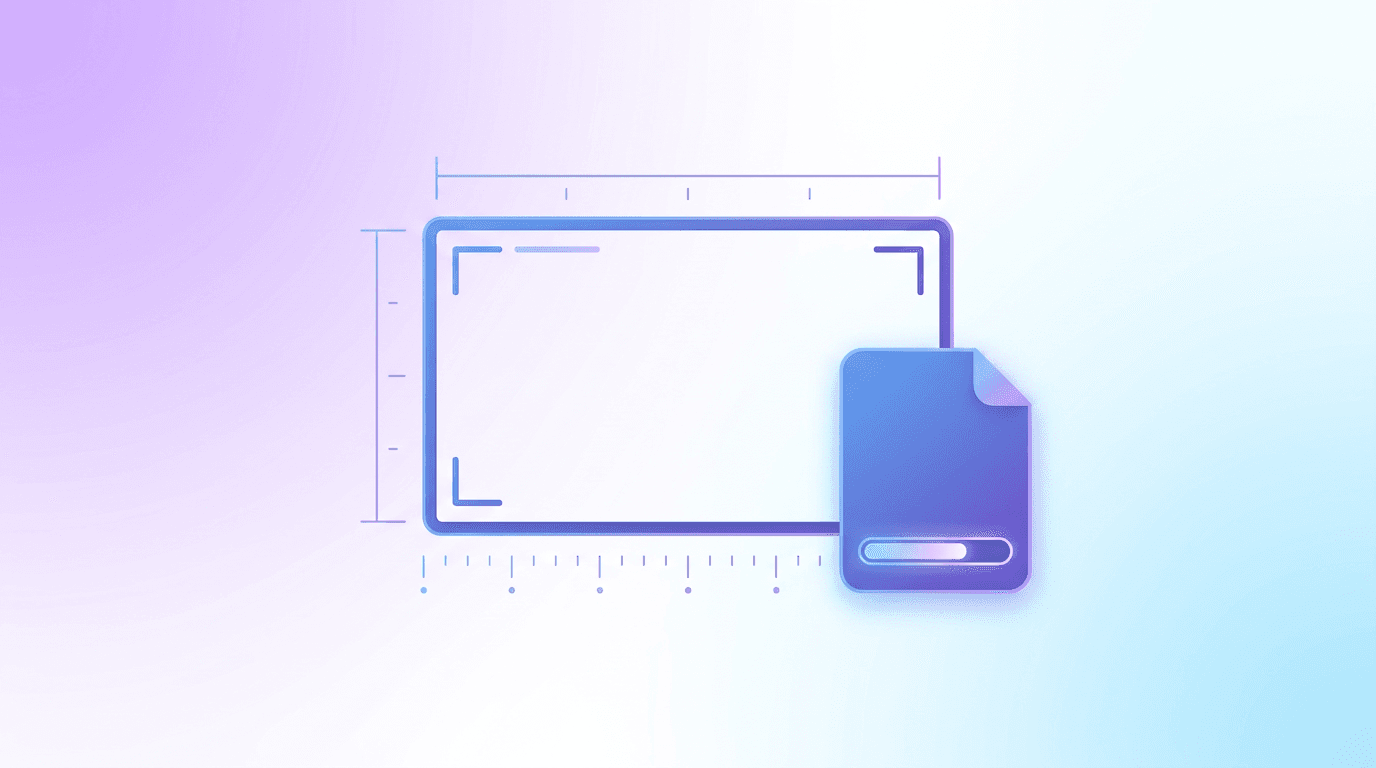
Before you design anything, get the technical specs right so your thumbnail looks sharp everywhere it appears.
| Spec | Requirement |
|---|---|
| Resolution | 1280 x 720 pixels (minimum width 640) |
| Aspect ratio | 16:9 |
| File formats | JPG, PNG, GIF |
| Max file size | 2MB |
The 16:9 ratio matters because it fills the frame on every device with no awkward black bars. And because your thumbnail often shows up tiny (think of the suggested sidebar on a phone), you have to design so it still reads clearly at a small size. That single constraint drives most of the design rules below.
How to Make a YouTube Thumbnail: Step by Step
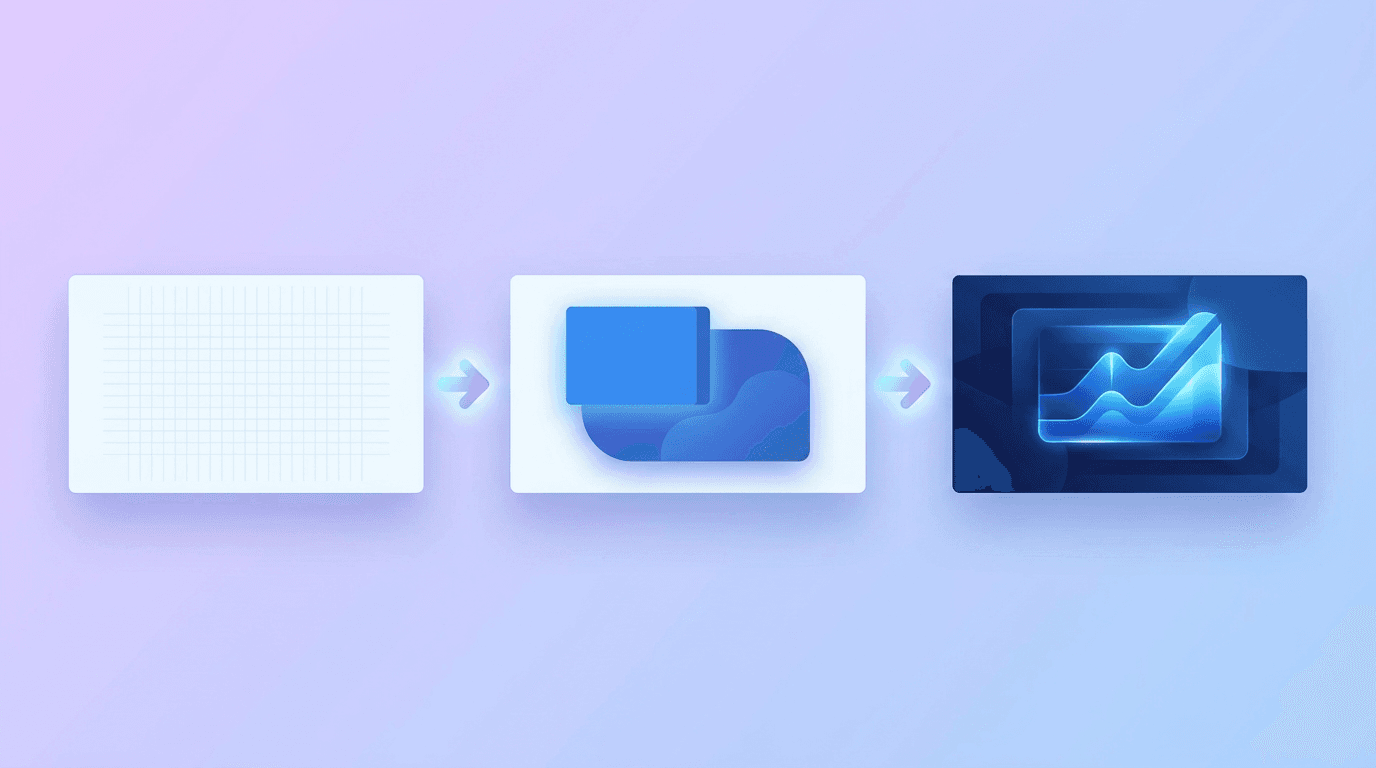
Here is the full workflow. Once you have a template you like, each new thumbnail takes just a few minutes.
Step 1: Decide on the One Idea Your Thumbnail Sells
Before you open any tool, answer one question: what is the single promise of this video? A thumbnail that tries to say three things says nothing. Pick the one hook that will make your target viewer curious, and build the whole image around it.
For example, a video about saving money on groceries might sell the idea "cut your bill in half," not "budgeting, meal planning, and coupons." One clear idea beats a cluttered pitch every time.
Step 2: Choose a Strong Focal Point
Every high-performing thumbnail has one dominant subject that the eye lands on instantly. Usually that is one of three things:
- A human face showing clear emotion (surprise, excitement, curiosity). Faces are the strongest attention magnet on the platform.
- A hero object that represents the video (the product, the dish, the result).
- A dramatic before-and-after split that promises a transformation.
Keep the background simple so your focal point pops. Busy backgrounds make small thumbnails look like noise.
Step 3: Add Bold, Readable Text
Text on a thumbnail should add curiosity, not repeat your title word for word. Keep it to 3 to 5 words maximum. Any more and it becomes unreadable at small sizes.
A few rules that make text work:
- Use a thick, bold font. Thin fonts vanish on mobile.
- Make the text huge. If you are not sure it is big enough, make it bigger.
- Add a stroke, drop shadow, or solid background behind the text so it stays legible over any image.
- Limit yourself to one or two font styles so it looks intentional, not chaotic.
Step 4: Use High-Contrast, Eye-Catching Colors
Color is how you win the scroll war against every other thumbnail on the page. High contrast between your subject, text, and background makes your thumbnail jump out.
Bright, saturated colors (yellow, orange, red, electric blue) tend to outperform muted tones because they stand out against YouTube's white and dark interfaces. Just keep the palette consistent with your channel brand so your videos look like a set, not random one-offs.
Step 5: Design for the Small Preview First
This is the step most beginners skip. Your thumbnail will often be seen at roughly the size of a postage stamp. Before you finalize, shrink your design down and ask: can I still tell what this is about? Is the text still readable? Does the face still register?
If the answer is no, simplify. Bigger subject, fewer words, more contrast. The thumbnails that win are the ones that survive the shrink test.
Step 6: Keep It Consistent With Your Brand
When a viewer sees several of your thumbnails in a row, they should instantly know they are yours. Consistent fonts, colors, and layout build recognition and trust over time, which lifts click-through rate across your whole channel. Set a simple template (same font, same color accents, same corner for your logo) and reuse it.
The Fastest Way to Make a Thumbnail: Use AI

The traditional route means learning a design tool, sourcing images, and fiddling with layers. In 2026, you can skip most of that. AI design tools let you describe the thumbnail you want in plain English and generate a complete, editable design in seconds.
With a chat-based tool like Krumzi, you type something like: "Create a YouTube thumbnail, 1280x720, for a video about my first year running a coffee shop. Bright and energetic, with a surprised face on the right, a coffee cup, and the bold text '1 YEAR = $0 PROFIT?' in yellow." The AI builds the full layout, colors, and typography, and every element stays editable so you can fine-tune it. This is a natural extension of the same workflow covered in our guide on how to create social media graphics with AI.
The advantage is speed and consistency: you can generate several variations, pick the strongest, and keep your channel style locked in without touching a design timeline. For a wider look at the tools available, see our roundup of the best AI design tools in 2026.
How to Upload Your Custom Thumbnail

Once your thumbnail is ready, uploading it is quick. Note that you need a verified YouTube account to use custom thumbnails.
- Sign in to YouTube Studio.
- Go to Content and select the video (or open the upload screen for a new one).
- Under Thumbnail, click Upload file.
- Choose your 1280 x 720 image, then save.
You can also change the thumbnail on any existing video at any time, which is useful for testing. If an older video is underperforming, swapping in a stronger thumbnail is one of the fastest ways to revive its views.
Common Thumbnail Mistakes to Avoid
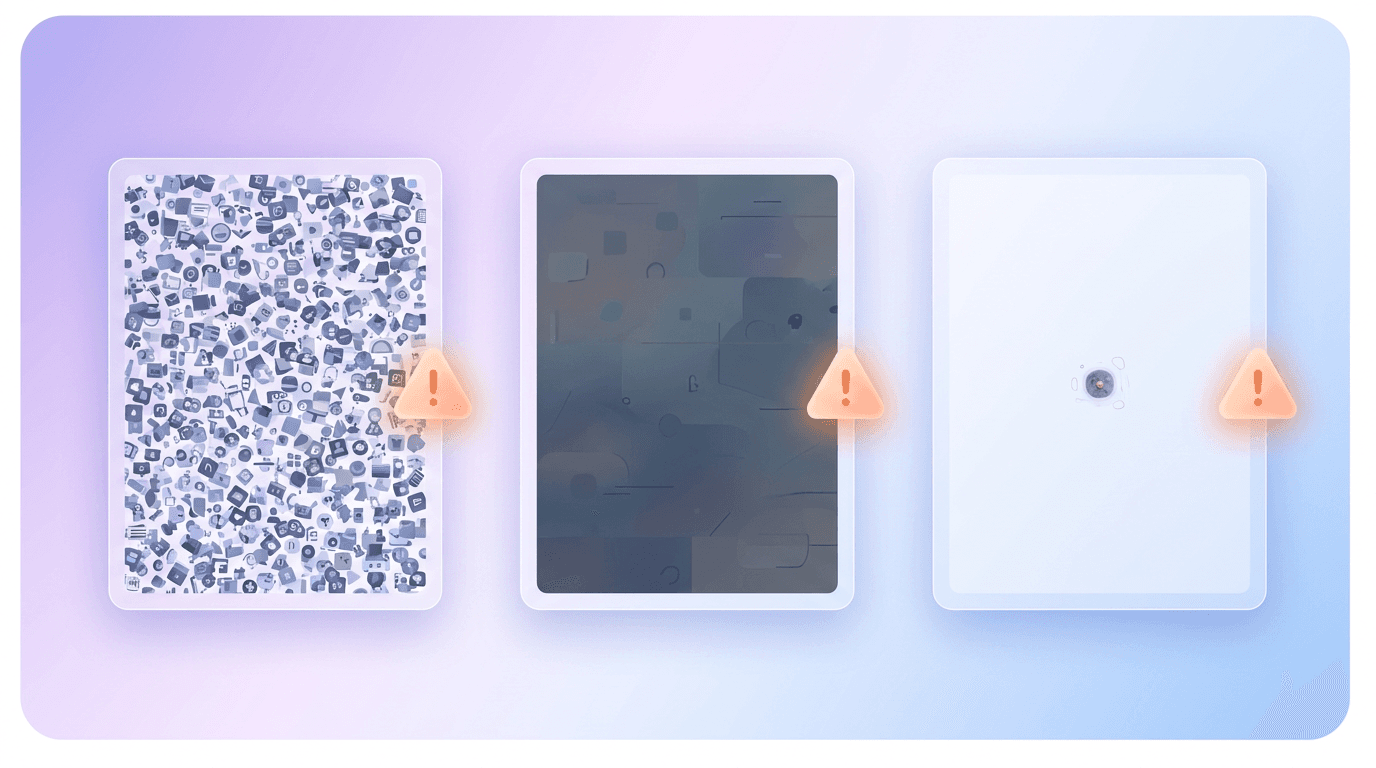
Even a good design can be undone by these frequent errors:
- Too much text. If you cannot read it in the preview, it is too much. Cut it down.
- Cluttered composition. Multiple competing subjects confuse the eye. Stick to one focal point.
- Low contrast. A subject that blends into the background disappears at small sizes.
- Clickbait that misleads. A thumbnail that overpromises gets the click but tanks your watch time and audience trust. Keep it honest.
- Inconsistent style. Random fonts and colors across videos stop you from building a recognizable brand.
Frequently Asked Questions
What size should a YouTube thumbnail be?
A YouTube thumbnail should be 1280 x 720 pixels with a 16:9 aspect ratio. Keep the file under 2MB and save it as a JPG, PNG, or GIF. The minimum recommended width is 640 pixels, but 1280 x 720 ensures it stays crisp on every screen.
Do I need a verified account to add a custom thumbnail?
Yes. YouTube requires a verified account to upload custom thumbnails. Verifying is free and takes a minute through a phone number in YouTube Studio. Once verified, you can add custom thumbnails to all your videos, new and old.
How do I make a YouTube thumbnail for free?
You can make a thumbnail for free using AI design tools that offer free plans. Describe the thumbnail you want, generate a design at 1280 x 720, edit the text and colors, and export. Tools like Krumzi (paid plans with a 7-day free trial) let you create one by simply describing it, no design experience required.
What makes a YouTube thumbnail get more clicks?
High-click thumbnails share the same traits: one clear focal point (often an expressive face), 3 to 5 words of bold readable text, high contrast colors, and a simple background. They also stay honest to the video and consistent with the channel's brand, which builds trust and repeat clicks.
Should my thumbnail text match my video title?
No. Your thumbnail text should complement the title, not repeat it. Use the title to state what the video is, and use the thumbnail text to add curiosity or emphasize the payoff. Together they should give the viewer two reasons to click.
Start Making Better Thumbnails
Your thumbnail is not an afterthought. It is the advertisement for your video, and small improvements to it often produce bigger view gains than anything you change inside the video. Nail the size, lead with one strong focal point, add a few bold words, and design so it reads at a glance.
Pick your next video and build its thumbnail using the steps above. If you want to skip the learning curve, describe it to an AI tool and let it handle the layout, then refine to match your brand.
Related reading:
A month of posts, designed before your coffee cools
Describe the post. Krumzi designs it from scratch, on your brand, fully editable.
Make your first design freeFree to make, no card. Only pay if you download it.