
On this page
It's Sunday night. The dentist needs three posts for next week, the bakery needs five, the personal trainer wants carousels, and you're scrolling the bakery's grid trying to remember which pink they use. If you've ever tried to figure out how to manage multiple social media accounts for clients, you already know the scheduling isn't what eats your week. The slow part is making posts that look and sound like each client, every single week.
This guide is the system for that. Eight steps, walked through one week with three clients and 12 posts, so every account goes out on time, on brand, and without the Sunday-night design rush.
Meet the three clients we'll run for a week
Here's how to manage social media accounts for multiple clients in practice: every step ends with what it looks like for three made-up clients in three different niches. All three post on Instagram and Facebook.
| Client | What they are | Posts a week | Voice | Content pillars |
|---|---|---|---|---|
| Larkfield Dental | Family dental practice | 3 | Warm, calm, no jargon | Patient tips, meet the team, myth vs fact, reminders |
| Crumb Street Bakery | Neighbourhood bakery | 5 | Playful, short, local | Today's bake, behind the oven, regulars, weekly special |
| Mara Ortiz Fitness | Personal trainer | 4, mostly carousels | Direct, upbeat, coach-like | Form fixes, client wins, myth-busting, program launches |
That's 12 designs a week, and each one goes to one Instagram account and one Facebook Page. Six accounts, three very different brands, one person.
How to manage multiple social media accounts in 8 steps
- Audit every account and group it by client
- Give each client one brand profile: look, voice and pillars
- Set a posting rhythm per account and put every client on one calendar
- Batch next week's posts in one sitting, one client at a time
- Get client approval before anything is scheduled
- Schedule from the calendar, with wrong-account guardrails
- Answer comments and messages in one place, at set times
- Report per client, once a month
Step 1: Audit every account and group it by client
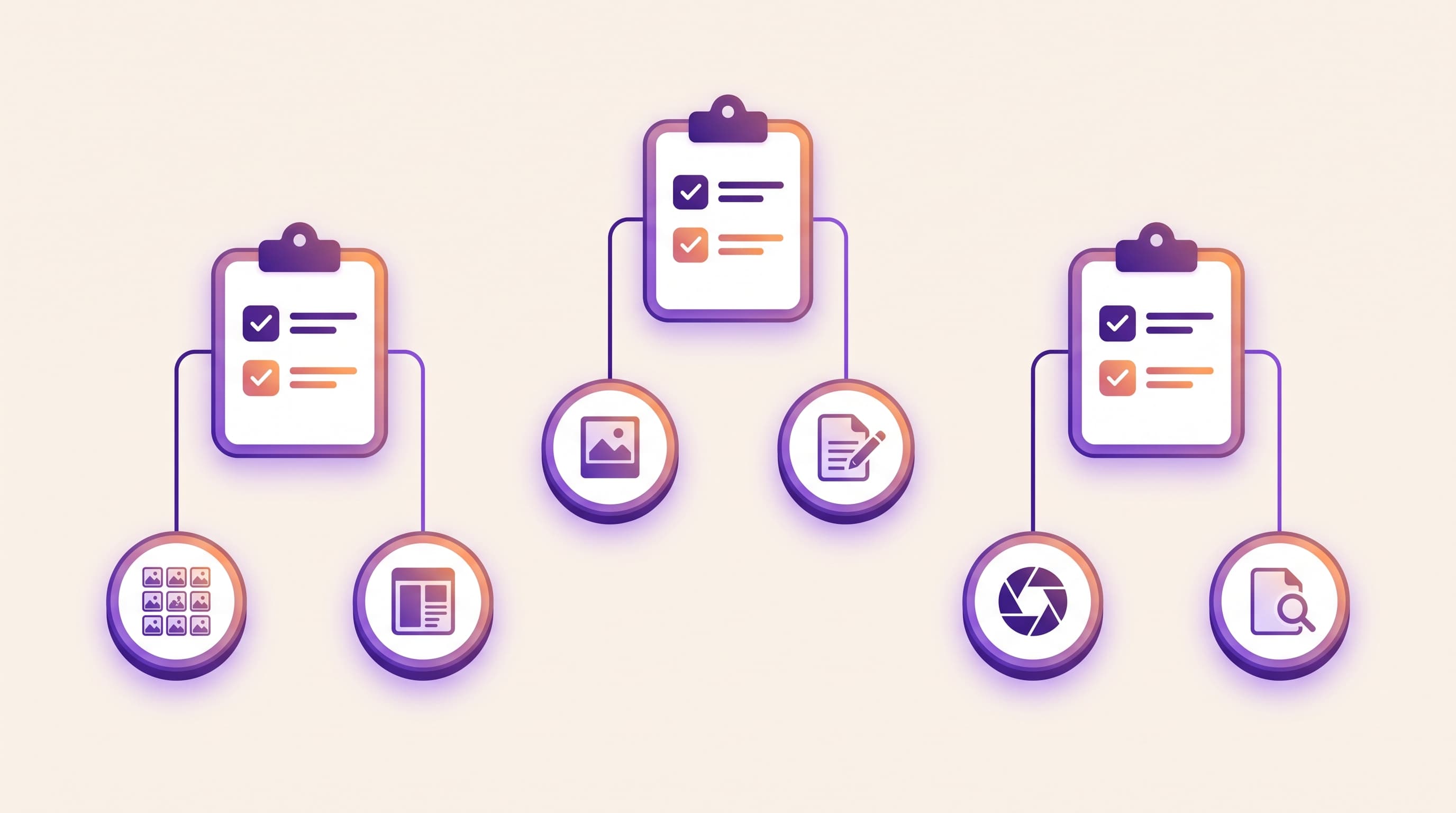
Before you fix the workflow, write down what you're actually running. Make one row per account with six columns: client, platform, handle, who holds the login, who approves posts, and how often it posts.
Then group the rows by client, not by platform. Whether you're working out how to manage multiple social media accounts for business (one company, several locations) or for a roster of clients, the client is the unit of work. Their look, voice and approval person apply to every account they own.
While you're in there, fix access. Shared passwords in a notes app are how accounts get locked or lost. On Facebook and Instagram, the cleaner route is for each client to add you as a partner in their Meta business portfolio, so their Page and Instagram account show up under your own login. If a client leaves, they remove you and nothing else breaks.
In the example: three clients, six accounts. Two of them, the bakery's Instagram and the trainer's Facebook Page, were running on shared passwords. Both get moved to partner access in week one.
Step 2: Give each client one brand profile: look, voice and pillars
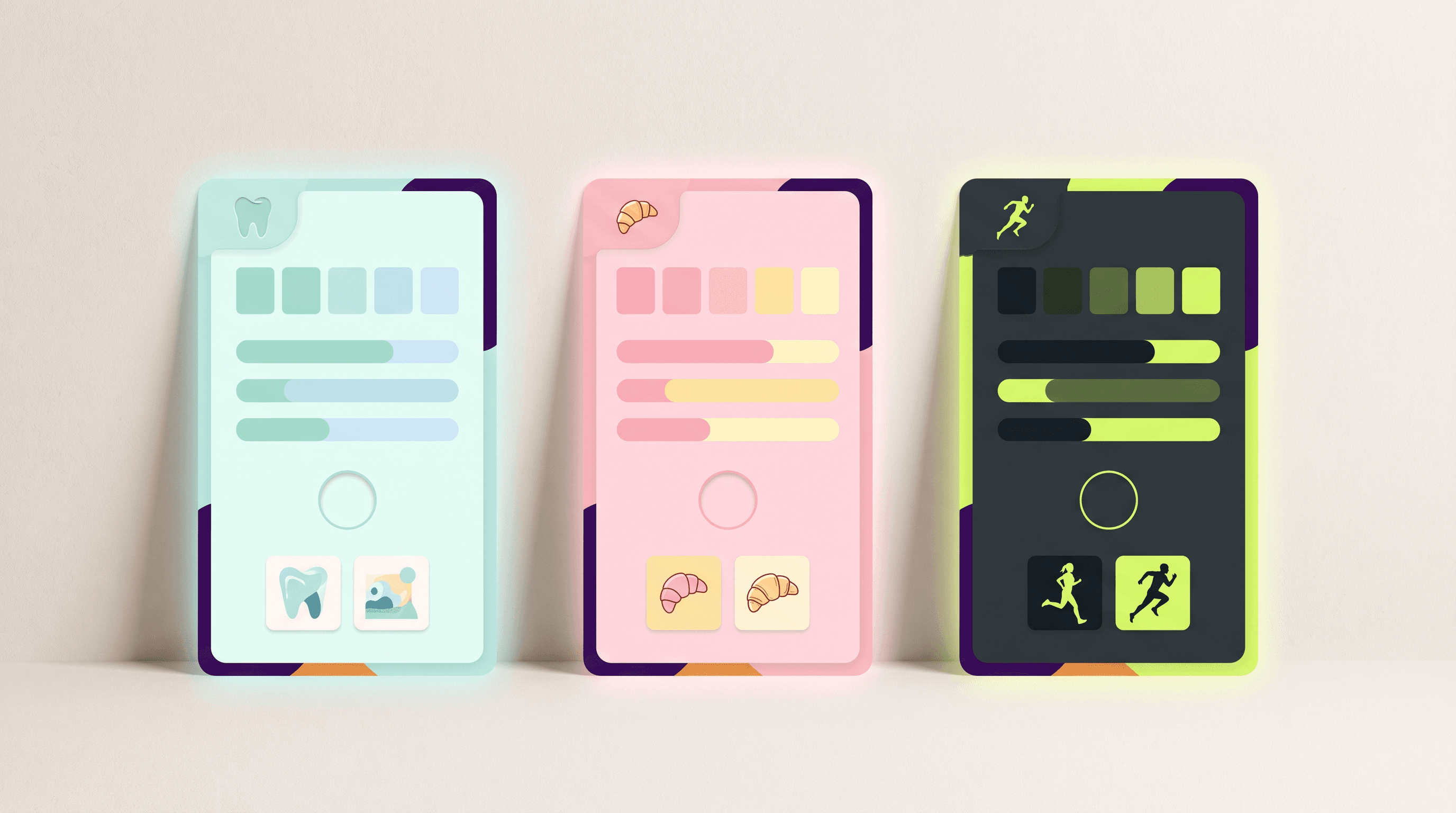
This is the step the scheduling guides skip. They tell you to "use templates" and move on. But when you're making posts for three brands in one afternoon, the templates are where clients start bleeding into each other: the dentist's post picks up the bakery's pink, and the trainer's caption sounds like the dentist.
Give each client one page that answers three questions:
- How do they look? Logo, two to four colours, fonts, and the kind of photos they use. If a client doesn't have this written down, build a brand kit with them first.
- How do they sound? Three voice rules, a short list of words they never use, and one caption they loved. Take ten minutes to define each client's brand voice and you'll stop rewriting captions in the approval round.
- What do they post about? Three to five content pillars, the recurring topics every post comes from. Pillars turn "what do I post this week?" into "which pillar is due?"
In the example: Larkfield is mint and white, rounded type, real staff photos, and never says "pain". Crumb Street is pastel pink and butter yellow, hand-drawn accents, one emoji per caption, max. Mara is charcoal and lime, bold condensed type, and never writes "beach body". Three pages, and nobody has to guess.
Step 3: Set a posting rhythm per account and put every client on one calendar
Each account gets its own rhythm, based on two things: how much the client can realistically approve, and how much their audience actually wants. "Post every day" is not a rhythm. Three good posts a week that go out on time beat seven that need chasing.
Fix the days and times for each account, then put every client on one social media content calendar, colour-coded by client. Managing multiple social media accounts gets far easier when you can see the whole week in one view and spot a gap or a pile-up at a glance.
Plan one week ahead. Make and approve next week's posts before this week ends. Keep a few approved evergreen posts ready for delays or sick days.
In the example: Larkfield posts Monday, Wednesday and Friday at 8:00. Crumb Street posts Tuesday to Saturday at 7:00, when the first tray comes out. Mara posts Monday, Tuesday, Thursday and Saturday. Twelve slots, three colours, one calendar.
Step 4: Batch next week's posts in one sitting, one client at a time
Batching means making a whole week of posts in one block instead of one post a day. It saves the most time when you batch by client.
Pick each post's idea from the client's pillars, then make every post for client A, then every post for client B, then client C. Write the captions in the same block, while you're still in that client's voice. Never jump between clients inside a block. That's exactly where the wrong colour or the wrong tone sneaks in.
A design tool that keeps a separate brand for each client helps a lot here. With an AI social media post maker that knows each client's look, you write the brief and check the result instead of rebuilding the layout every time.
In the example: Tuesday is batch day. The morning block is Larkfield's three posts. Midday is Crumb Street's five. The afternoon is Mara's four carousels. Each block starts by opening that client's brand profile, and every caption is written before moving on.

Step 5: Get client approval before anything is scheduled
Nothing goes out without a yes. But approval is also where weeks go to die, so give it a shape.
Send one approval pack per client per week: every post, its caption and its date, in one place, with edits kept in that same place so you never juggle three versions of one caption. Give one deadline. And agree up front, in writing, what silence means. "No reply by Thursday at noon means approved" saves you from chasing a client who's happy but busy.
In the example: the three packs go out Wednesday at 10:00 with a Thursday noon deadline. Larkfield asks for one photo swap. Crumb Street changes a price. Mara doesn't reply, which counts as a yes.
Step 6: Schedule from the calendar, with wrong-account guardrails
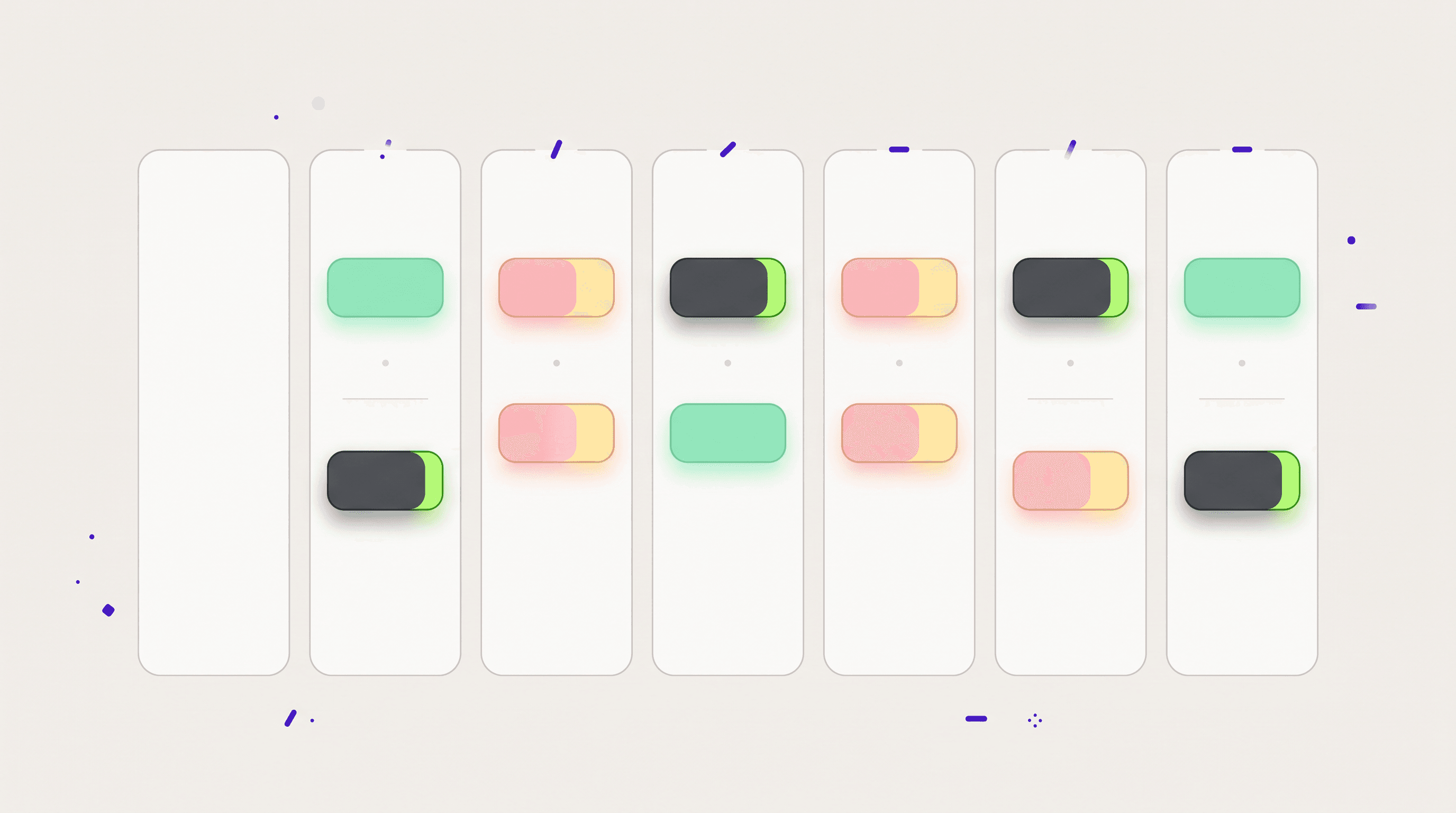
A croissant special on a dentist's Facebook Page is funny for about four minutes. Then it's an apology email. It's the mistake every social media manager dreads, and it usually happens when you're switching fast between clients.
A few guardrails that make it rare:
- Schedule client by client. Finish all of Larkfield's posts before you open Crumb Street. Never schedule from a mixed queue.
- Name everything with a client prefix. Files, folders and drafts start with the client name, like "LARK-mon-flossing".
- Check the avatar and handle before you hit Schedule. Every time. It takes two seconds.
- Keep your personal accounts out of work tools. Your own Instagram should never be one tap away from a client's.
- Get a second look at anything posted live. Scheduled posts have been through approval. Reactive posts haven't.
In the example: Thursday afternoon, after the edits are in, all 12 posts get scheduled, one client at a time, with an avatar check on each.
Step 7: Answer comments and messages in one place, at set times
Posting is half the job. The other half is replying, and across six accounts the notifications never stop. Checking each app whenever it buzzes is how a 20-minute task eats your whole day.
What you need is one place where comments and messages from every account land, plus two fixed windows a day to work through them. For Facebook and Instagram, Meta's own Business Suite inbox handles messages and comments across a Page and its connected Instagram account. Many social media tools offer the same across platforms.
Write a few saved replies per client, in that client's voice, for the questions that come up every week. And set one escalation rule: complaints, refunds and anything legal go to the client the same day. You don't answer those on their behalf.
In the example: comments and DMs get handled at 10:00 and 16:00. Crumb Street gets the most messages ("are you open Sunday?"), so it has five saved replies. Larkfield has a rule that any message about pain or an emergency gets the practice's phone number, nothing else.

Step 8: Report per client, once a month
Clients don't need a dashboard. They need to know if it's working and what changes next month.
Use the same five numbers for every client, so each report takes minutes, pulled from each platform's own insights: followers gained, reach, engagement on posts, profile visits or link clicks, and messages received. Add the best post of the month and one line on what you'll change. Monthly is enough for small accounts. Weekly numbers jump around too much to mean anything.
In the example: the last Friday of the month is report day. Mara's carousels on form fixes get the most saves, so next month adds one more form-fix carousel and drops a client-wins post.
What the week looks like: 3 clients, 12 posts
So what's the best way to manage multiple social media accounts in a real week? Here's the whole system for our three clients on one page. Treat the times as a starting plan to adjust, not a promise.
| Day | What happens |
|---|---|
| Monday | Plan next week: pick 12 ideas in total, three for Larkfield, five for Crumb Street and four for Mara, and put them in the calendar. |
| Tuesday | Batch day: Larkfield in the morning, Crumb Street at midday, Mara in the afternoon, captions included |
| Wednesday | Approval packs go out by 10:00, deadline Thursday at noon |
| Thursday | Fold in edits, then schedule all 12 posts, one client at a time |
| Every day | Comments and messages at 10:00 and 16:00 |
| Last Friday of the month | One report per client, same five numbers |
Notice what's missing: Sunday night.
How to choose tools for managing multiple social media accounts
Search for the best tool for managing multiple social media accounts and you'll find a dozen lists. The honest answer is that no single tool is best at every part of client work. Pick by job, starting with the one that eats most of your hours.
| Job | What to look for |
|---|---|
| Making the posts | A separate brand (look and voice) per client, batch creation, editable output |
| Scheduling | Each client's accounts kept apart, calendar views, the client's timezone |
| Approvals | Previews a client can comment on without logging in to anything |
| Comments and messages | One inbox across accounts, saved replies, clear ownership |
| Reporting | The same metrics per client, easy export |
Then ask four questions before you pay for anything:
- Does it keep clients separate? Brands, accounts and files for each client should live apart, not in one shared pile.
- How does pricing scale? Some tools charge per user, some per account, some per brand or client. Do the maths for your current roster and for double it.
- Which platforms publish today? "Coming soon" doesn't post anything. Check the platforms your clients actually use.
- What happens when a client leaves? You want to pause or archive them cleanly, keep their history, and make sure nothing scheduled still fires.
Where Krumzi fits
Krumzi covers the two jobs this system leans on hardest: making each client's posts and getting them scheduled.
- Each client is its own brand, with its own Brand Kit and Brand Mind. Pro holds 3 brands, Studio 10 and Agency 25. Switch brands and every design you make follows that client's look.
- Post Ideas generates on-brand ideas for each brand and sorts them by content pillar, so Monday's planning starts from a list.
- Batch can make up to 10 designs from one brief. Use a separate brief for each client, then check each batch against the weekly plan.
- AI captions write in that brand's Brand Mind voice. The bakery sounds like a bakery, and the dentist sounds like a dentist.
- Scheduling is on every paid plan: connect one Instagram Professional account and one Facebook Page per brand and schedule from the calendar.
- When a contract ends, archive the client. The slot frees up, everything they own is kept, and any posts still scheduled for them are canceled.
To be clear about what it doesn't do: Krumzi has no social inbox, approval workflow or analytics, and today it publishes to Instagram and Facebook only. Keep steps 5, 7 and 8 in the tools you already use.
Start your 7-day trial for $1 and set up your first three clients. Not sure which plan fits your roster? The client calculator on the pricing page suggests one from your number of clients and how often they post.
Start with next week's batch
You don't need to rebuild everything at once. Pick your busiest client this week. Write their brand profile, set their rhythm, and batch next week's posts in one sitting. Once that client runs smoothly, add the next one. By the third, it feels like routine, and Sunday night is yours again.
Frequently Asked Questions
What's the best tool for managing multiple social media accounts?
There isn't one tool that does every part of client work best. A common setup pairs a design tool that keeps each client's brand separate with a scheduler, plus an inbox for comments and messages. For Facebook and Instagram, Meta Business Suite covers the inbox. Choose by the job that takes most of your hours, which for most people running clients is making the posts.
How many social media accounts can one person manage?
There's no fixed number. It depends on how many posts each account needs, how complex the formats are, and how much time approvals and comments take. Time one full week for one client, multiply by your number of clients, and stop taking on new ones when the total passes the hours you want to work. Batching and one brand profile per client are what raise that ceiling.
Can you schedule posts for several clients from one login?
Yes. On Facebook and Instagram, each client can add you as a partner in their Meta business portfolio, so their Pages and Instagram accounts appear under your own login without sharing passwords. Many scheduling tools also let one login hold several clients. In Krumzi, each client is a separate brand with its own Instagram and Facebook connections, all under one account.
Is it OK to have multiple social media accounts?
Yes, for business accounts. Instagram lets you add several profiles and switch between them in the app. Facebook is stricter: it's against Meta's Community Standards to maintain more than one personal account, but you can use that one personal account to create and manage Pages for businesses and brands. For client work, use partner access rather than creating extra personal profiles.
How do you manage multiple Instagram accounts?
Add each account to the Instagram app so you can switch without logging out, and use professional accounts for every client. For anything more than a couple of accounts, schedule from a tool instead of your phone, and keep each account's posts tied to that client's brand profile. Check the avatar and handle before anything goes out, every time.
A month of posts, designed before your coffee cools
Describe the post. Krumzi designs it from scratch, on your brand, fully editable.
Make your first design freeFree to make, no card. Only pay if you download it.