On this page
🎨 TL;DR
The correct YouTube banner size is 2560 x 1440 pixels, but keep all important text and graphics inside the 1546 x 423 px safe zone in the center.
That safe zone is the only area guaranteed to show on phones, so design from the middle out.
The workflow: set a 2560 x 1440 canvas, place your channel name and key art in the safe zone, export a high-res PNG under 6 MB, then upload in YouTube Studio.
You do not need Photoshop. Describe the banner you want to an AI tool like Krumzi and refine the result.
Your YouTube banner is the first thing a new visitor sees when they land on your channel. Get it right and it tells people exactly who you are and why they should subscribe. Get the size wrong and YouTube crops your channel name in half on mobile or stretches it into a blurry mess on a TV.
The tricky part is that one banner image has to look good across phones, laptops, and large TV screens, all at once. This guide shows you how to make a YouTube banner that works on every device, with the exact dimensions, the all-important safe zone, and a simple step-by-step design process.
The Correct YouTube Banner Size in 2026
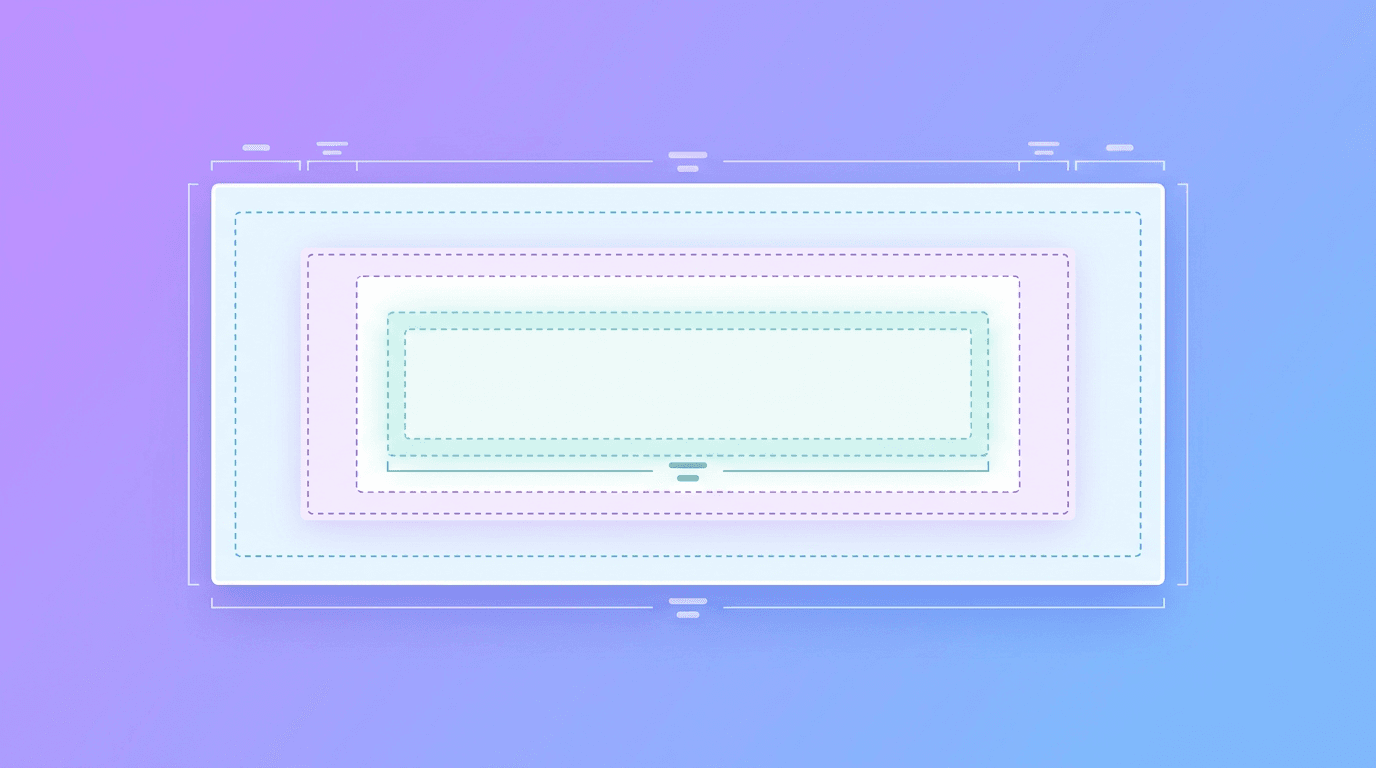
YouTube uses a single banner image and resizes it for every device, so you upload one large file and the platform crops it down. Here are the numbers that matter:
| Element | Dimensions | Notes |
|---|---|---|
| Full banner (upload size) | 2560 x 1440 px | The image YouTube wants you to upload |
| Safe zone (text and logo area) | 1546 x 423 px | Centered. Always visible on all devices |
| Minimum width | 2048 x 1152 px | Smaller than this can look low-res |
| Max file size | 6 MB | Export under this limit |
The key idea: design at 2560 x 1440, but treat the centered 1546 x 423 box as your real canvas. Anything outside the safe zone might be cropped on phones and only fully visible on TVs. For how this fits with the rest of your channel art and every other platform, see our complete guide to social media image sizes.
How to Make a YouTube Banner: Step by Step
Follow these steps and you will have channel art that looks sharp everywhere.
Step 1: Set Up Your Canvas and Safe Zone
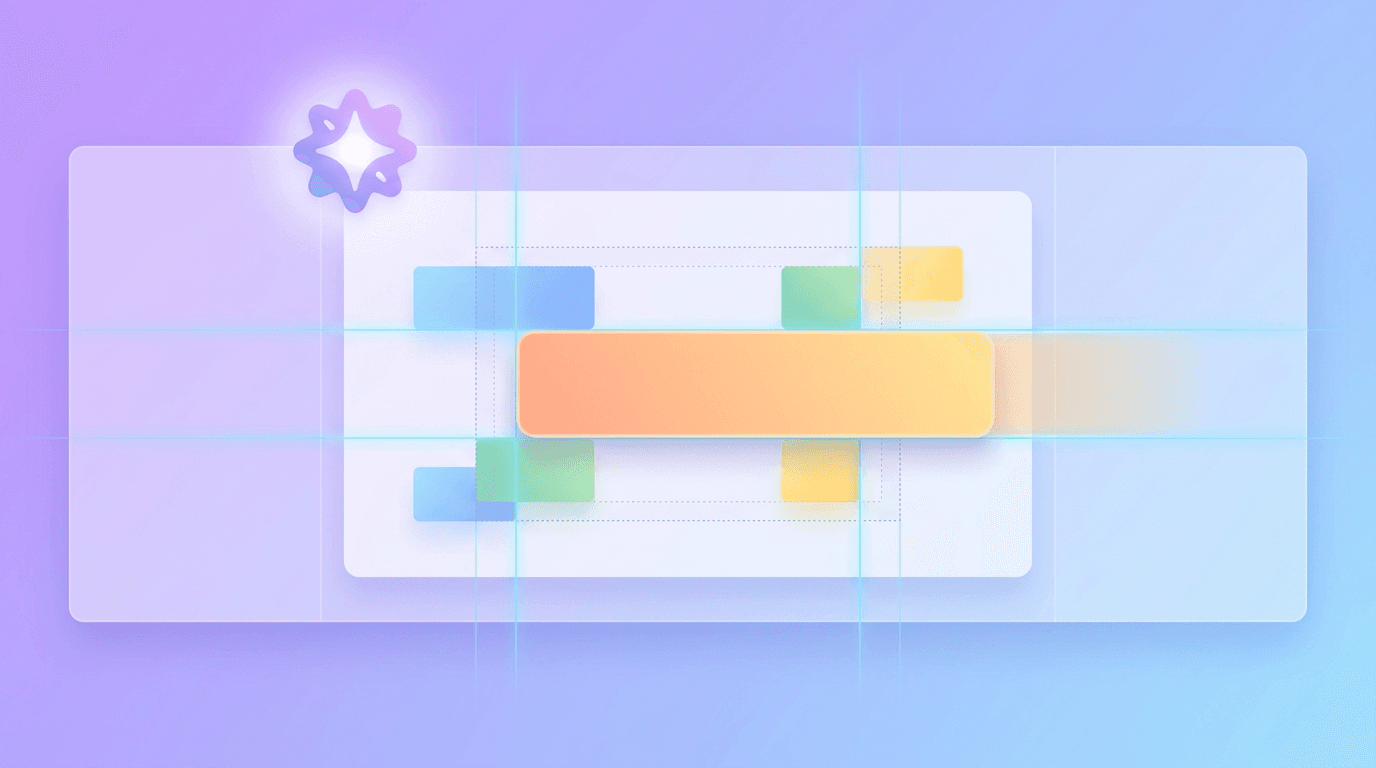
Start a new design at 2560 x 1440 pixels. Then mark the safe zone: a centered rectangle 1546 px wide and 423 px tall. Most design tools let you add guides or rulers so you can see exactly where that box sits. This guide is your single most important reference, because everything critical has to live inside it.
Step 2: Build Your Background
Fill the full 2560 x 1440 area with a background that fits your channel's vibe: a solid brand color, a gradient, a texture, or a wide image. Because the outer edges only show on large screens, use this space for atmosphere and supporting visuals rather than anything essential. Keep the background from competing with your text.
Step 3: Add Your Channel Name and Key Elements (Inside the Safe Zone)
Now place the things that must be seen: your channel name, a short tagline, your logo, and maybe an upload schedule ("New videos every Tuesday"). All of it goes strictly inside the 1546 x 423 safe zone. Keep your type bold, large, and easy to read from a distance. Aim for a clear visual hierarchy, with your channel name as the dominant element.
Consistency with the rest of your brand matters here. If your banner, profile picture, and thumbnails share the same colors and fonts, your channel looks intentional and trustworthy. A simple brand kit keeps those choices consistent across everything you make.
Step 4: Export the Right File
Download your finished banner as a high-resolution PNG or JPG. PNG keeps text crisp, which is usually the better choice for channel art. Double-check that the file is under the 6 MB limit. If it is too large, export as a JPG at high quality to shrink the file size without an obvious drop in clarity.
Step 5: Upload in YouTube Studio
Go to YouTube Studio, open Customization in the left menu, then the Branding tab. Under Banner image, click Upload and select your file. YouTube shows a preview with crop boxes for desktop, mobile, and TV. Use this preview to confirm your text sits correctly in all three, adjust the crop if needed, and click Publish. For the official requirements, YouTube keeps an up-to-date reference in its Help Center.
YouTube Banner Design Tips That Actually Help
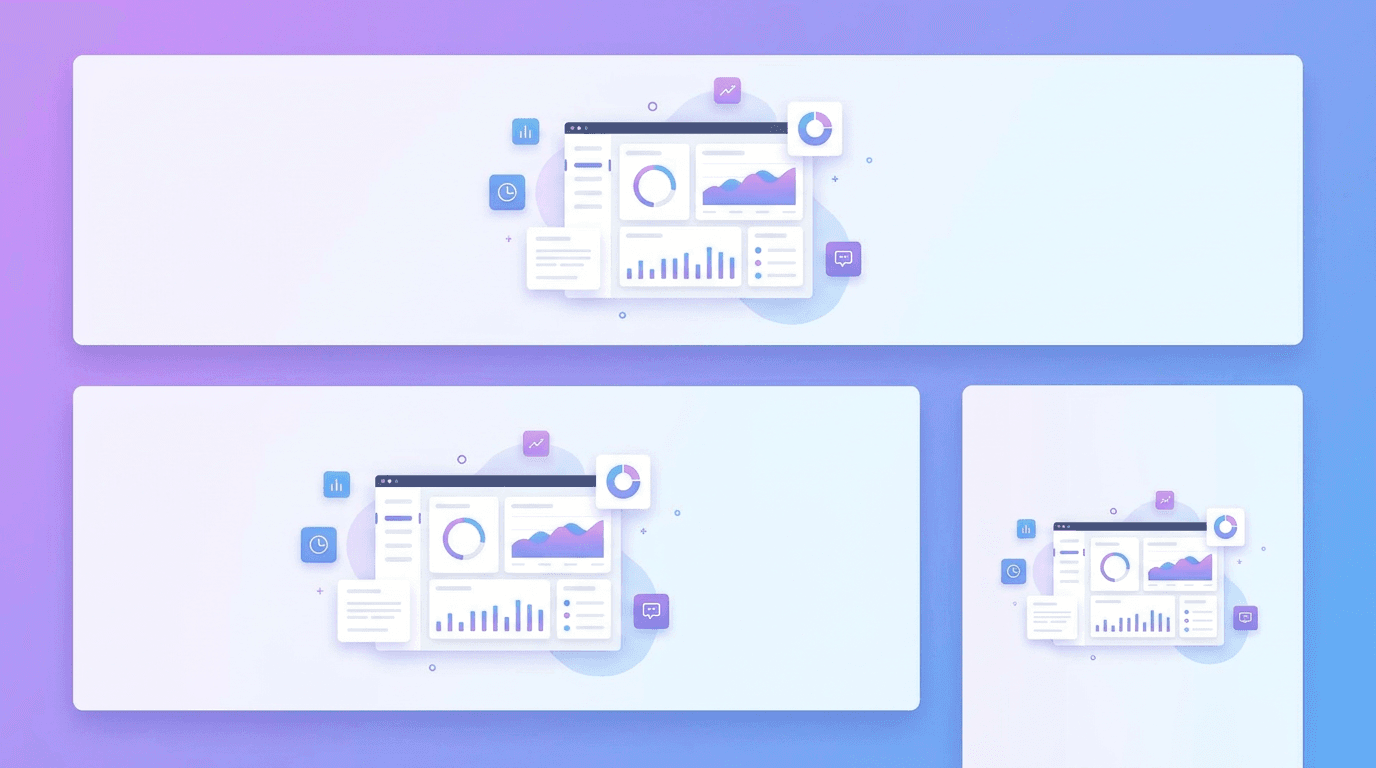
- Design from the center out. Start with the safe zone, then extend the background outward. This guarantees nothing important gets cropped.
- Keep text minimal. A banner is not a billboard for paragraphs. Your channel name plus a few words is plenty. We cover focal points and contrast in our guide on designing social media posts that stand out.
- Match your thumbnails. Your banner and thumbnails should feel like the same brand. If you need click-worthy thumbnails to match, Krumzi's AI thumbnail maker generates them from a description of your video.
- Test on your phone. Most viewers see your channel on mobile first. Pull up your channel on a phone after uploading and make sure everything reads cleanly.
- Leave breathing room. Do not jam the safe zone edge to edge. A little padding around your text looks more premium.
If design tools intimidate you, this is exactly where AI shortcuts the process. With Krumzi, you describe the banner ("a 2560x1440 YouTube banner for a gaming channel called PixelForge, dark purple background with neon accents, channel name centered and bold") and the AI builds the layout, which you can then edit and reposition inside the safe zone. For the full prompting approach, see how to create social media graphics with AI.
Common YouTube Banner Mistakes
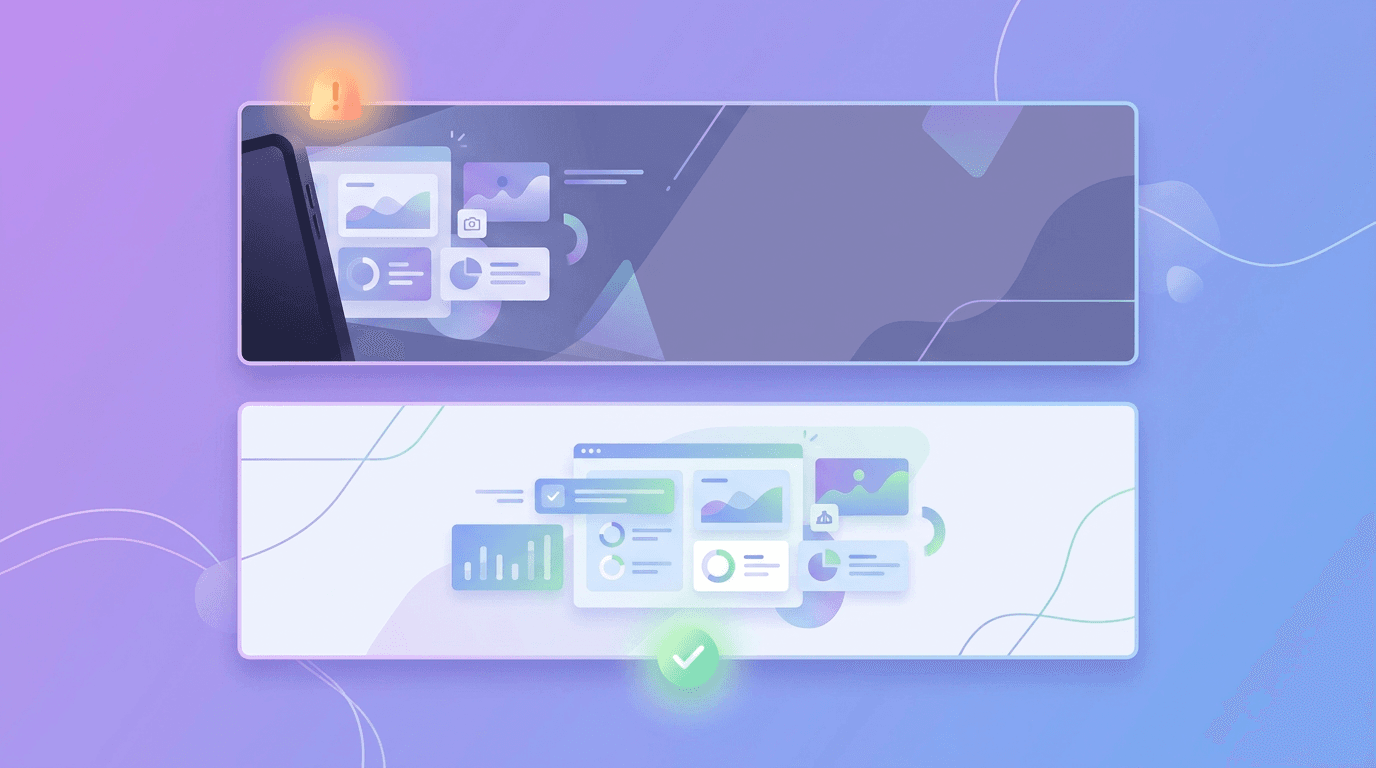
- Putting text outside the safe zone. It gets cropped on mobile, where most people see it. Keep words centered.
- Uploading a small image. Anything below 2048 x 1152 looks soft on large screens. Use the full 2560 x 1440.
- Overcrowding the design. Too many elements make the banner feel cluttered and hard to read at a glance.
- Ignoring file size. Over 6 MB and YouTube rejects the upload. Compress or switch to JPG.
- Mismatched branding. A banner that does not match your thumbnails and profile picture makes the channel feel disjointed.
Frequently Asked Questions
What size should a YouTube banner be?
Upload your banner at 2560 x 1440 pixels with a file size under 6 MB. Keep all essential text and logos inside the centered safe zone of 1546 x 423 pixels, which is the only area guaranteed to display on every device from phones to TVs.
What is the YouTube banner safe zone?
The safe zone is a centered area of 1546 x 423 pixels within the full 2560 x 1440 banner. It is the region that stays visible across all screen sizes. Anything placed outside it may be cropped on smaller devices, so your channel name, logo, and key text should always sit inside the safe zone.
What app is used to make YouTube banners?
You can make a banner in any design tool that lets you set a 2560 x 1440 canvas and add guides for the safe zone. AI-powered tools like Krumzi let you generate a full banner from a text description and then edit it, which is faster than building one from scratch if you are not a designer.
How do I make a YouTube banner for free?
Design a 2560 x 1440 graphic with free tools, keep your text in the safe zone, export a PNG under 6 MB, then upload it free in YouTube Studio under Customization and Branding. Many AI design tools also offer a free plan for generating channel art from a description.
Why does my YouTube banner look cropped?
A cropped banner almost always means important elements were placed outside the 1546 x 423 safe zone. YouTube shows different amounts of your banner depending on the device, so text near the edges disappears on mobile. Move everything essential into the centered safe zone and re-upload.
Wrapping Up
A great YouTube banner is mostly about respecting one rule: design at 2560 x 1440, but keep everything that matters inside the 1546 x 423 safe zone. Nail that, keep the design clean and on-brand, export under 6 MB, and your channel art will look sharp whether someone finds you on a phone or a living-room TV.
Start by sketching your channel name and tagline inside the safe zone, then build the background around it. For more ways to make your whole channel look professional without a designer, explore the best AI design tools in 2026.
Related reading:
A month of posts, designed before your coffee cools
Describe the post. Krumzi designs it from scratch, on your brand, fully editable.
Make your first design freeFree to make, no card. Only pay if you download it.